How To Fix GoPro Hero 14 Black Freezing On Recording?
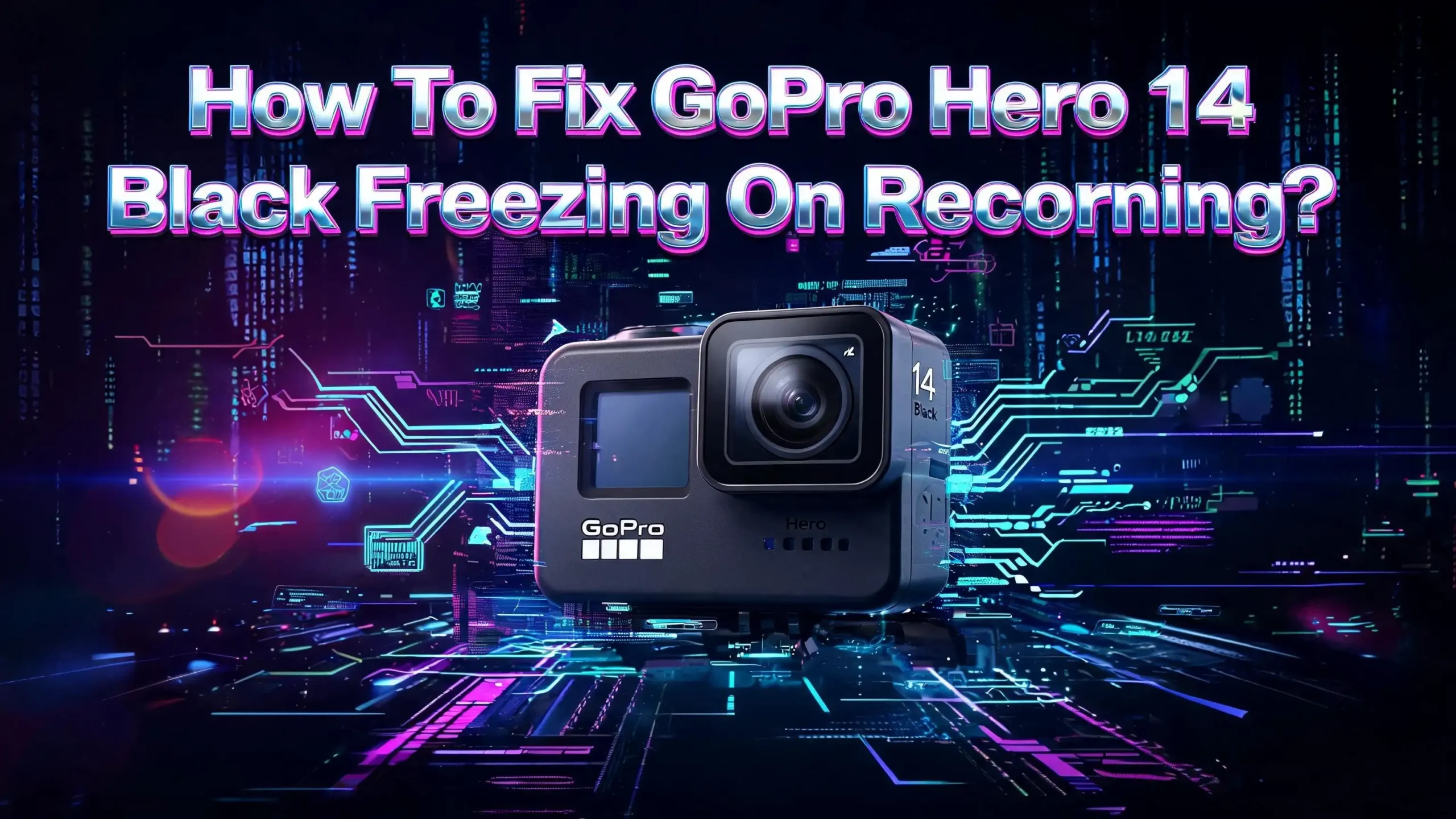
The GoPro Hero 14 Black is one of the most powerful action cameras ever made. With its new GP3 processor, 5.3K recording, and AI features, it delivers stunning footage. But some users have reported a frustrating problem. The camera freezes during recording.
You press the record button. Everything looks fine. Then a few seconds or minutes in, the screen locks up. The video frame freezes while audio keeps going. Sometimes the entire camera becomes unresponsive. You lose your footage, and worse, you miss the moment you were trying to capture.
This freezing issue is not unique to the Hero 14 Black. GoPro cameras across many generations have experienced similar problems. The good news is that this problem is almost always fixable.
In this guide, you will find 14 proven solutions to stop your GoPro Hero 14 Black from freezing during recording. Each fix is explained step by step so you can work through them quickly.
Key Takeaways
- The SD card is the number one cause of GoPro freezing. A corrupted, slow, or counterfeit microSD card will cause your Hero 14 Black to freeze during recording. Always use a card from GoPro’s recommended list with V30 and A2 ratings.
- A full format on your computer fixes card corruption. Formatting through the camera menu is not enough to fix deep corruption. You need to do a full format using your PC or Mac, which can take about 30 minutes but clears all hidden errors.
- Firmware updates fix known bugs. GoPro releases firmware patches specifically to address freezing and stability issues. Always keep your Hero 14 Black on the latest firmware version.
- Overheating triggers automatic shutdowns and freezes. Recording in high resolutions like 5.3K or 4K at high frame rates in hot environments pushes the camera’s GP3 processor hard. Lower your resolution or take recording breaks to manage heat.
- Third party batteries can cause voltage drops that freeze the camera. Off brand batteries may show a charge but fail to deliver consistent voltage under load. Stick with genuine GoPro Enduro batteries for reliable performance.
- A factory reset is your last resort before contacting support. If nothing else works, a full factory reset clears all settings and data, often resolving persistent software glitches that cause freezing.
Why Does the GoPro Hero 14 Black Freeze During Recording
The GoPro Hero 14 Black packs the new GP3 processor with more than double the processing power of the previous GP2 chip. This means the camera handles enormous amounts of data every second during recording. Any bottleneck in this data pipeline can cause the camera to freeze.
The most common bottleneck is the SD card. The Hero 14 Black writes data at extremely high speeds. If the card cannot keep up, the camera’s buffer fills up and the processor stalls. This shows up as a frozen screen, sometimes with audio still recording in the background.
Heat is another major factor. The GP3 chip runs harder during high resolution and high frame rate recording. When internal temperatures climb too high, the camera’s protection system kicks in. This can cause freezes, shutdowns, or corrupted files. Hot environments make this problem worse.
Firmware bugs also play a role. New cameras often ship with software that needs refinement. GoPro regularly pushes updates that fix stability issues, recording glitches, and freezing problems. Running outdated firmware is one of the easiest problems to miss and one of the easiest to fix.
Check Your MicroSD Card First
The microSD card is the single most common cause of GoPro freezing. GoPro support has confirmed this across multiple camera generations. A card that is corrupted, too slow, or counterfeit will cause recording failures every time.
The Hero 14 Black requires a microSD card with a V30 speed rating and A2 application class. Cards that do not meet these specs may work for basic recording but will fail under demanding settings like 5.3K video or high bitrate 4K. GoPro’s official recommended cards include the SanDisk Extreme Pro, Samsung EVO Select, Lexar Professional Silver Plus, Kingston Canvas Go Plus, and PNY Pro Elite.
Buy your card from an official electronics retailer. Counterfeit SD cards are a growing problem. They look identical to real cards but have much slower write speeds and lower actual storage. A fake card will cause freezing, file corruption, and data loss. If you bought your card from an unknown seller at a suspiciously low price, replace it immediately.
Check your card’s surface for physical damage. Remove it from the camera and inspect the gold contacts for scratches or dirt. Clean the contacts gently with a dry microfiber cloth. A dirty or damaged card can cause intermittent connection issues that look like random freezes.
Format Your SD Card the Right Way
Formatting your SD card through the GoPro’s menu is good for regular maintenance. But it will not fix deep corruption. If your camera has been freezing repeatedly, the card likely has corrupt sectors that a quick format cannot reach.
You need to do a full format on your computer. On Windows, insert the card into a card reader. Open File Explorer, right click the card, and select Format. Uncheck the “Quick Format” box and click Start. This process can take 20 to 30 minutes for a 256GB card. It writes zeros to every sector and clears all hidden corruption.
On a Mac, open Disk Utility. Select your SD card from the sidebar. Click Erase. Choose exFAT as the format type and GUID Partition Map as the scheme. Click Erase to begin. This full erase removes all data and resets the card to factory condition.
After the full format on your computer, insert the card back into your Hero 14 Black. Go to Preferences > Reset > Format SD Card and format it one more time through the camera. This creates the proper file structure that GoPro needs. Now try recording again. In most cases, this single fix solves the freezing problem completely.
Update Your GoPro Hero 14 Black Firmware
Outdated firmware is a silent cause of freezing. GoPro pushes regular updates that fix bugs, improve stability, and optimize performance for the GP3 processor. Running old firmware on a new camera is asking for trouble.
The easiest way to update is through the GoPro Quik app on your phone. Connect your Hero 14 Black to the app via Bluetooth and WiFi. The app will check for available updates automatically. Follow the on screen instructions to download and install the update. Keep the camera charged above 50% during the process to prevent interruption.
You can also update manually. Visit GoPro’s official update page on your computer. Download the firmware file for the Hero 14 Black. Place the file on a freshly formatted SD card in the root directory. Insert the card into the camera and power it on. The camera will detect the update file and begin the installation automatically.
After the update completes, the camera will restart. Check the firmware version in Preferences > About to confirm the update was successful. If the freezing started after a specific firmware update, check GoPro community forums. Sometimes a particular version introduces new bugs. In those cases, GoPro usually releases a hotfix within a few weeks.
Lower Your Recording Settings to Reduce Strain
The GP3 processor in the Hero 14 Black is powerful, but pushing it to maximum settings in every recording session increases the risk of freezing. This is especially true in warm conditions or during long recording sessions.
If you are experiencing freezes at 5.3K 60fps or 4K 120fps, try stepping down. Switch to 4K at 30fps as a test. This setting still delivers excellent video quality while significantly reducing the thermal and processing load on the camera. If the freezing stops, you know the issue is heat or processing related.
Turn off features you do not need. Hypersmooth stabilization at its highest level, HDR video, and high bitrate recording all add processing overhead. Disable GPS if you are not tracking location. Turn off voice control if you are not using it. Each feature you disable frees up processor resources and reduces heat generation.
Set your bitrate to Standard instead of High. The difference in video quality is minimal for most uses, but the difference in data write speed is significant. A lower bitrate means less data flowing to the SD card every second, which reduces the chance of buffer overflows that cause freezing.
Manage Camera Temperature to Prevent Overheating
Heat is the enemy of consistent GoPro performance. The Hero 14 Black generates significant heat during recording, especially at high resolutions. When the internal temperature gets too high, the camera will freeze, shut down, or produce corrupted files.
Avoid leaving your camera in direct sunlight before recording. A camera that starts hot will hit its thermal limit much faster. Keep it in a shaded bag or pocket until you are ready to shoot. If you are at the beach or in a desert environment, this simple step can add several extra minutes of recording time.
Remove the camera from its waterproof housing when you are not in water. The housing traps heat and prevents airflow around the camera body. If you are recording on land, use the camera without the case or use a frame mount that leaves the camera’s sides exposed to air.
Take breaks during long recording sessions. Record for 10 to 15 minutes, then stop and let the camera cool for a few minutes. This is especially important in ambient temperatures above 85°F (30°C). You can also point a small portable fan at the camera during stationary shots. Some users report that this simple trick prevents overheating entirely during long time lapse sessions.
Use Only Genuine GoPro Batteries
Third party batteries are a hidden cause of GoPro freezing that many users overlook. Off brand batteries may charge normally and show full capacity. But they can fail to deliver consistent voltage under the heavy load of video recording.
When a battery’s voltage drops during recording, the GP3 processor does not receive stable power. This causes the processor to stall, and the camera freezes. The footage shows a frozen video frame with audio still running. This looks identical to an SD card problem, which is why many users blame the card when the battery is the real issue.
GoPro’s official Enduro batteries are designed to deliver stable voltage throughout their discharge cycle. They also perform better in cold weather, maintaining capacity that off brand batteries lose quickly below 50°F (10°C). Always check that your battery is a genuine GoPro product.
If you have been using third party batteries and experiencing freezes, switch to an official GoPro battery and test again. Record several test videos at your usual settings. If the freezing stops, you have found your culprit. Dispose of the third party batteries and invest in genuine replacements. The extra cost is worth the reliability.
Perform a Soft Reset on Your Camera
Sometimes the Hero 14 Black just needs a quick restart to clear a temporary glitch. A soft reset is the simplest fix you can try, and it often works when the camera freezes mid recording or becomes unresponsive.
Press and hold the Mode button (or the power button, depending on your camera’s button layout) for about 10 seconds. The camera will power off. Wait 5 seconds, then press the power button again to turn it back on. This clears the camera’s temporary memory and restarts all processes fresh.
If the screen is completely frozen and no buttons respond, you may need to remove the battery. Open the battery door, pull out the battery, and wait 10 seconds. Reinsert the battery and power the camera on. This forces a hard restart that clears any software lock up.
After the reset, format your SD card through the camera menu before you start recording again. The freeze may have corrupted the file system on the card. A quick format through the camera ensures the file structure is clean. Then record a short test video to confirm everything is working before you head out for an important shoot.
Do a Full Factory Reset
If soft resets and basic fixes have not solved the problem, a factory reset is your next step. This returns the camera to its original settings and clears any corrupted configuration data that might be causing the freezes.
On your Hero 14 Black, go to Preferences > Reset > Factory Reset. The camera will warn you that all settings will return to defaults. Confirm the reset. The camera will restart and behave as if it is brand new. You will need to reconnect it to the GoPro Quik app and reconfigure your preferred settings.
Before performing a factory reset, save any footage on the SD card to your computer. The reset itself does not erase files on the SD card, but it is good practice to back up everything first. After the reset, do a full format on the SD card through the camera menu.
Some advanced users have also reported success with a text file factory reset. Create a plain text file named “factory_reset.txt” on your computer. Place it in the root directory of your SD card. Insert the card into the camera and power it on. The camera reads the file and performs a deep reset. This method can clear persistent issues that the menu based reset misses.
Check for SD Card Thermal Issues
The Hero 14 Black with its GP3 processor pushes SD cards harder than any previous GoPro. This means the SD card itself can overheat during extended recording sessions at high resolutions and bitrates. An overheated card slows down its write speed dramatically, which causes the camera to freeze.
GoPro has specifically noted this issue in their SD card recommendations. Cards that have been used heavily for a long time may develop thermal issues faster than new cards. If your card is more than two years old and you use it frequently, consider replacing it even if it seems to work fine in basic tests.
Not all cards handle heat equally. The SanDisk Extreme Pro and Samsung PRO Plus are known for better thermal management than budget cards. These cards use higher quality NAND flash memory that maintains write speeds at elevated temperatures.
Test your card by recording in short bursts versus long continuous takes. If freezing only happens during long recordings of 15 minutes or more, thermal throttling of the SD card is likely the cause. Try a different card from GoPro’s recommended list and see if the issue disappears. You can also reduce your recording resolution during long sessions to lower the thermal load on both the camera and the card.
Disable Unnecessary Features and Connections
Every active feature on your Hero 14 Black uses processor cycles and generates heat. Turning off features you do not need reduces the load on the GP3 processor and lowers the chance of freezing during recording.
Start with wireless connections. Turn off WiFi and Bluetooth when you are not using the Quik app or a remote control. These radios consume power and add heat. Go to Preferences > Connections and disable them. You can always turn them back on when you need to transfer files or control the camera remotely.
Disable voice control if you are not using it. The voice recognition system runs constantly in the background, listening for commands. This uses processor resources that could be dedicated to video recording. Go to Preferences > Voice Control and toggle it off.
Turn off the front LCD screen during recording. The rear touchscreen can also be set to turn off after a few seconds. Reducing screen activity saves battery, reduces heat, and frees up processing power. GPS logging is another feature you can disable if you do not need location data embedded in your files. Each of these small changes adds up, creating a more stable recording environment.
Avoid Recording Immediately After Powering On
A small but effective tip is to wait a few seconds after turning on your Hero 14 Black before you hit record. The camera runs startup processes, loads firmware modules, and initializes the SD card when it first powers on. Starting a recording before these processes finish can cause instability.
Give the camera about 5 to 10 seconds after the screen fully loads before pressing the record button. This ensures all systems are ready. You will notice the camera’s interface becomes fully responsive and the SD card icon appears stable in the status bar.
This is especially important after a firmware update or factory reset. The first boot after these events takes longer as the camera rebuilds its configuration. Rushing into a recording during this time is a common trigger for freezes.
If you use QuikCapture (the feature that starts recording the moment you press the shutter button from an off state), try disabling it temporarily. While QuikCapture is convenient, it skips the normal startup sequence and jumps straight into recording. This can cause freezes on some units, especially with slower SD cards. Disable it in Preferences and use the manual power on and record method instead.
Try GoPro Labs Firmware for Advanced Fixes
GoPro Labs is an experimental firmware that GoPro offers for power users. It includes features and fixes that have not yet made it into the official firmware. For persistent freezing issues, GoPro Labs can provide solutions that the standard firmware does not.
Visit the GoPro Labs website and download the firmware for the Hero 14 Black. Install it the same way you would a manual firmware update. Place the file on a formatted SD card, insert it into the camera, and power on. The camera will flash its lights and install the new firmware automatically.
GoPro Labs includes an SOS QR command that can help recover corrupted video files. It also offers advanced SD card management options and diagnostic tools. These features can help you identify the root cause of your freezing problem more precisely.
Keep in mind that GoPro Labs firmware is experimental. It may introduce new issues while fixing old ones. Always keep a copy of the official firmware on hand so you can roll back if needed. Check the GoPro Labs community for reports from other users who have tested the latest version before installing it on your camera.
Contact GoPro Support if Nothing Works
If you have tried every solution in this guide and your Hero 14 Black still freezes during recording, the problem may be a hardware defect. This is rare but possible, especially with newly released cameras.
Contact GoPro support through their official website or the Quik app. Explain the steps you have already taken. Mention that you have tried a different SD card, updated the firmware, performed a factory reset, and used a genuine GoPro battery. This tells the support team that the issue is likely hardware related and speeds up the resolution process.
If your camera is under warranty, GoPro will offer a replacement or repair. Keep your proof of purchase ready. GoPro’s support team may also ask you to send diagnostic logs from the camera, which you can export through the Quik app.
Document the freezing issue on video if possible. Use your phone to record the GoPro’s screen while it freezes during recording. This visual evidence helps the support team understand your problem immediately and avoids back and forth troubleshooting requests. A clear demonstration of the issue will get you to a solution faster.
Prevent Future Freezing With Good Habits
Prevention is better than troubleshooting. A few simple habits will keep your GoPro Hero 14 Black running smoothly and dramatically reduce the chance of freezing during recording.
Format your SD card through the camera before every major shoot. This clears fragmented data and ensures the file system is clean. Do not just delete files individually. Use the format option in Preferences > Reset > Format SD Card.
Keep your firmware updated. Check for updates at least once a month through the Quik app. GoPro often releases small patches between major updates that fix specific bugs including freezing issues. Enable automatic update notifications so you never miss one.
Replace your SD card every 12 to 18 months if you use it heavily. SD cards have a limited number of write cycles. Over time, they slow down and develop bad sectors that cause errors. A fresh card from GoPro’s recommended list is one of the cheapest insurance policies for your footage.
Store your camera properly between uses. Remove the battery if you will not use the camera for more than a week. Keep the camera in a cool, dry place. Avoid leaving it in a hot car or in direct sunlight. These storage practices extend the life of both the camera and the battery, keeping everything in good working order for your next adventure.
Frequently Asked Questions
Why does my GoPro Hero 14 Black freeze only during 4K or 5.3K recording?
Higher resolution recording creates larger data files that need faster write speeds. Your SD card may not be fast enough to handle the data rate at 4K or 5.3K. Make sure your card has V30 and A2 ratings. The increased processing load also generates more heat, which can trigger thermal protection and cause the camera to freeze. Try lowering the frame rate or bitrate to see if the problem goes away.
Can a bad SD card damage my GoPro Hero 14 Black?
A corrupted or counterfeit SD card will not physically damage your camera. But it will cause repeated freezing, file corruption, and data loss. Constant freezes force you to pull the battery or hard reset the camera, which is not ideal for the electronics long term. Replace a problematic card immediately to protect both your camera and your footage.
How often should I format my GoPro’s SD card?
Format your SD card before every important recording session. For casual use, formatting once a week is sufficient. Always use the camera’s built in format option for routine maintenance. If you experience any freezing or errors, do a full format on your computer first, then format again through the camera. This two step process clears deep corruption.
Does overheating cause permanent damage to the GoPro Hero 14 Black?
The camera has built in thermal protection that shuts it down before permanent damage occurs. However, repeated overheating events can degrade the battery and reduce the lifespan of internal components over time. Manage heat proactively by lowering settings in hot environments, removing the housing on land, and taking breaks during long recording sessions.
Should I use GoPro Labs firmware on my Hero 14 Black?
GoPro Labs firmware is a good option if you have persistent issues that the official firmware does not fix. It offers advanced features and experimental bug fixes. However, it is not officially supported for everyday use. Test it carefully and keep the official firmware available for rollback. Check the GoPro Labs community for user feedback before installing any new version.
Will a factory reset delete my videos and photos?
A factory reset returns the camera’s settings to default but does not erase files on the SD card. Your videos and photos remain on the card. However, it is always smart to back up your files to a computer before performing any reset. After the reset, format the SD card through the camera to ensure a clean start.