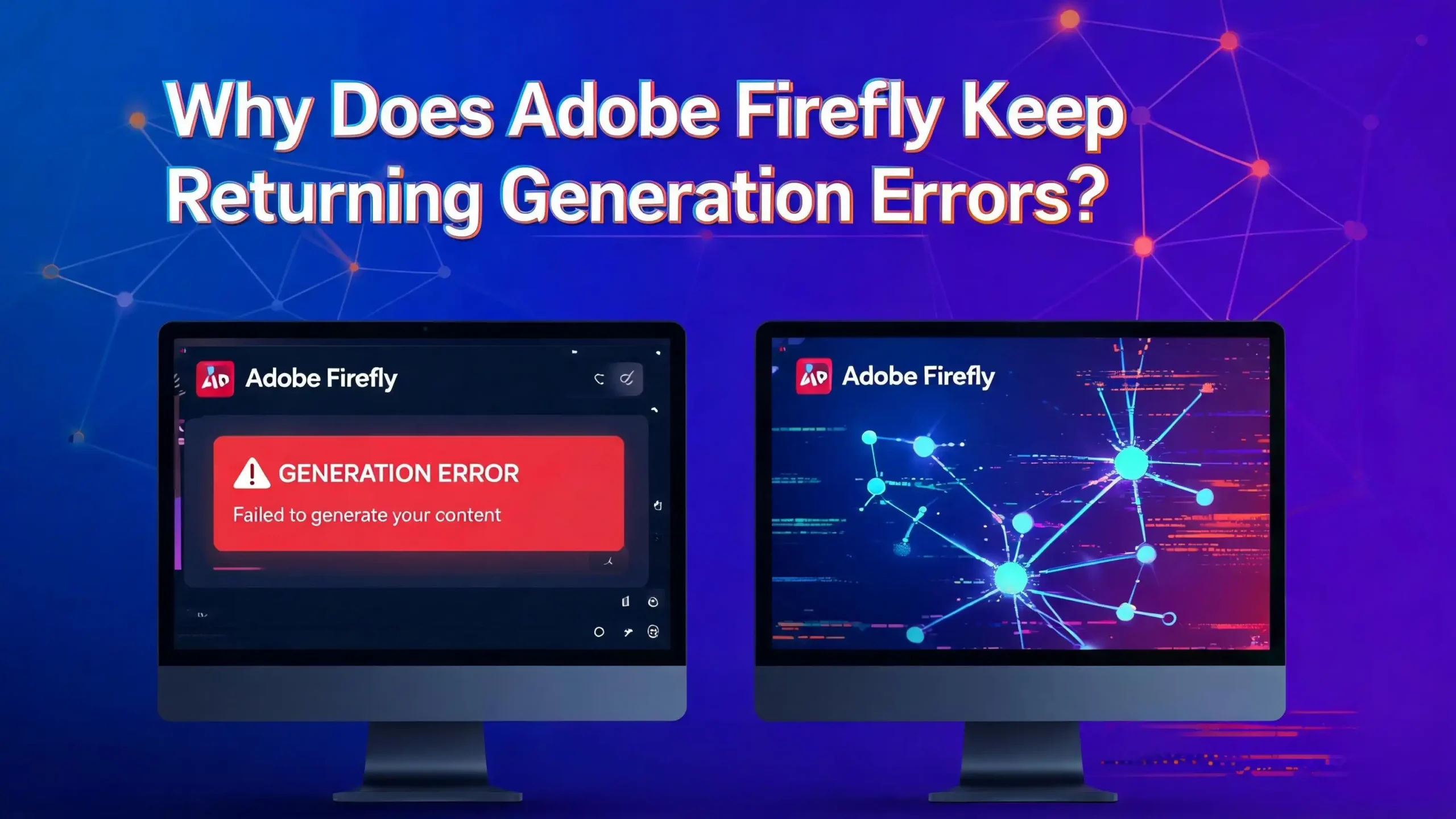
Why Does Adobe Firefly Keep Returning Generation Errors?
You just typed the perfect prompt into Adobe Firefly. You hit Generate. And then it happens. A vague error message appears on your screen, and your creative momentum crashes to a halt. Maybe it says “Something went wrong. Please try again later.” Or perhaps your prompt gets declined for no clear reason. Either way, you are stuck and frustrated.
You are not alone. Adobe Firefly generation errors are one of the most reported issues across Adobe’s community forums, Reddit threads, and social media. Thousands of users run into these problems every week, and the error messages rarely explain what went wrong. The good news? Most of these errors have clear causes and straightforward fixes.
This post will walk you through every common reason Adobe Firefly fails to generate content and give you step by step solutions to get back on track fast.
In a Nutshell
- Server overload is the top cause. Adobe Firefly relies on cloud servers and partner model providers that can hit capacity limits during peak hours. If you see “Something went wrong,” waiting a few minutes and trying again often resolves the issue.
- Expired browser sessions cause silent failures. Your Adobe login token can expire during a session without any warning. Logging out and back in refreshes this token and clears the error in most cases.
- Restricted words in your prompt trigger blocks. Firefly’s content policy filters certain terms related to trademarks, public figures, and sensitive topics. Even harmless prompts can accidentally include a flagged word.
- Low quality reference images confuse the AI model. Uploading an ambiguous, blurry, or overly complex reference image can cause the generation process to fail after a long loading delay.
- Running out of generative credits stops all output. Adobe uses a credit system for Firefly features. Once your monthly credits are used up, generation will fail until your billing cycle resets or you upgrade your plan.
- Outdated browsers and incorrect firewall settings block connections. Firefly requires Chrome, Edge, or Firefox version 113 or newer, and Safari 17.4 or above. Firewalls and VPNs can also interfere with the connection to Adobe’s servers.
Understanding How Adobe Firefly Generation Works
Adobe Firefly is a cloud based generative AI tool. Every time you type a prompt and click Generate, your request travels from your browser to Adobe’s servers. Those servers process your text, run it through the AI model, and send back the generated image or content.
This means every generation depends on a stable chain of connections. Your browser must maintain a valid session with Adobe. Your internet connection must remain steady. Adobe’s servers must have available capacity. And the AI model itself must be able to process your specific prompt without hitting a content policy flag.
A break at any point in this chain causes a generation error. The frustrating part is that Firefly often returns the same generic error message regardless of the actual cause. A server timeout looks identical to a content policy violation on your screen. That is why understanding the different failure points matters so much.
Firefly also uses different AI models for different tasks. The Image 5 model, for example, has been reported to trigger more errors than older models in certain situations, especially when paired with reference images. Knowing which model you are using can help you troubleshoot faster.
Server Overload and High Demand Errors
The most common reason for Firefly generation errors is server overload. Adobe’s AI generation runs on cloud infrastructure, including partner model providers. During peak usage times, these servers reach their capacity limits, and new requests time out.
You will usually see the message “Something went wrong. Please try again later” during these periods. The error is temporary. It does not mean anything is wrong with your account, prompt, or browser. It simply means the servers are too busy to process your request right now.
Peak usage hours tend to fall during business hours in North American and European time zones. Weekday afternoons are often the busiest. If you consistently hit this error, try generating images during off peak hours, such as early mornings or late evenings.
You can also check the Adobe Status page at status.adobe.com for real time updates on server issues. If there is an active outage or known performance degradation, Adobe posts updates there. This saves you from spending time troubleshooting a problem that is entirely on Adobe’s end.
Another helpful tip is to try a different Firefly model. If one model’s servers are overloaded, another model may still have available capacity. Switching models can get you past the error while you wait for demand to drop.
Expired Login Sessions and Authentication Failures
Your Adobe login session does not last forever. After a certain period of inactivity, or sometimes even during an active session, your authentication token expires. Firefly does not always alert you about this. Instead, it simply fails to generate content and shows a generic error.
This is one of the sneakiest causes of generation errors. You look logged in. Your profile picture still appears in the corner. But behind the scenes, your session is no longer valid. The fix is simple but not obvious.
Log out of your Adobe account completely. Close the Firefly tab. Open a fresh browser tab, go to firefly.adobe.com, and log back in. This forces a new authentication token to be issued. Many users report that this single step resolves their errors immediately.
If you use Firefly for extended sessions, make it a habit to log out and log back in every few hours. This prevents the expired token from catching you off guard. You can also try opening Firefly in an incognito or private browsing window. This starts with a completely fresh session and eliminates any cached credential issues.
Some users have found that clearing all Adobe related cookies from their browser settings also helps. Old or corrupted cookies can interfere with the authentication process even after a fresh login.
Browser Cache and Compatibility Issues
Adobe Firefly is a web application with specific browser requirements. It officially supports Chrome, Edge, and Firefox at version 113 or newer, and Safari at version 17.4 or above. Using an older or unsupported browser version can cause generation errors, blank screens, or loading failures.
JavaScript must be enabled in your browser for Firefly to function. Some privacy extensions or browser configurations disable JavaScript by default, which will break Firefly completely. If you use Safari, note that Lockdown Mode is not supported and will prevent Firefly from working.
A stale browser cache is another frequent culprit. Your browser stores temporary files and data from websites to speed up loading times. Sometimes this cached data becomes outdated or corrupted, causing conflicts with Firefly’s current version. Clearing your browser cache and cookies is a quick fix that resolves many unexplained errors.
To clear your cache, go to your browser settings, find the option for clearing browsing data, and select cached images and files along with cookies. Then restart your browser and try Firefly again. You can also try switching to a different browser entirely as a quick test. If Firefly works in Chrome but not Firefox, you know the issue is browser specific.
Keep your browser updated to the latest version. Browser updates often include security patches and performance improvements that affect how web applications like Firefly operate. An outdated browser is one of the easiest problems to overlook and one of the simplest to fix.
Prompt Content Policy Violations
Adobe Firefly applies strict content guidelines to every prompt you submit. If your prompt contains words or phrases that trigger the content policy filter, you will see a “Prompt declined” message. The system may also show the more generic “Something went wrong” error in some cases.
The content filter blocks prompts that reference trademarked brands, public figures, copyrighted characters, and sensitive topics. This includes names of celebrities, movie characters, company logos, and terms associated with violence or adult content. Sometimes the filter catches words that seem perfectly innocent in context but match a flagged term.
For example, a prompt asking to “replace blurry eyes with realistic blue eyes” on a mannequin photo has been reported as declined by the filter. The word combination triggered the policy even though the intent was harmless. This is a known limitation that Adobe’s team has acknowledged.
To fix prompt declined errors, simplify your prompt. Remove any brand names, character names, or proper nouns. Use generic descriptions instead of specific references. If your prompt is long, try shortening it. Longer prompts have a higher chance of accidentally including a flagged term.
You can also rephrase your prompt using different words that convey the same meaning. If “realistic eyes” gets blocked, try “clear detailed eyes” instead. Experimenting with synonyms and alternative phrasing often bypasses the filter while achieving the same creative result.
Reference Image Problems
Adobe Firefly allows you to upload reference images to guide the AI model’s output. This is a powerful feature, but it is also a common source of generation errors. A problematic reference image can cause the model to fail silently or produce the “Something went wrong” message.
The AI model struggles with reference images that are blurry, overly complex, or ambiguous. If the image contains too many elements, conflicting visual styles, or very low resolution, the model cannot extract useful guidance from it. The generation process may hang for a long time before eventually failing.
There is also a known bug with the Firefly Image 5 model and reference images. Many users have reported that prompts work fine without a reference image but consistently fail when one is attached. Adobe has acknowledged this issue and escalated it for investigation. If you are using Image 5, try generating without the reference image to see if that resolves the error.
For best results with reference images, use clear, high quality photos with a single dominant subject. Avoid cluttered backgrounds, extreme lighting conditions, or images with lots of text overlays. The supported formats are JPG, PNG, and WebP. HEIC is only supported in Safari on desktop devices.
If your reference image keeps causing errors, try resizing it to a smaller resolution or cropping it to focus on the most important element. A simpler image gives the model a clearer signal and reduces the chance of a failed generation.
Running Out of Generative Credits
Adobe Firefly uses a generative credit system. Each time you submit a prompt that produces output, a credit is deducted from your monthly balance. When your credits run out, you cannot generate new content until they reset on your billing date.
Different Adobe plans come with different credit amounts. Free plan users get a limited number of credits. Paid Creative Cloud subscribers receive more, and Firefly Pro subscribers get the highest allocation. If you see a generation error and cannot figure out why, check your credit balance first. You may have simply used all your credits for the month.
You can view your remaining credits in your Adobe account settings. Navigate to your plan details, and the current credit balance will be displayed there. Credits reset monthly based on your specific billing cycle, not on a fixed calendar date.
What about credits lost to errors? Adobe states that if a generation fails, the credits are automatically returned to your balance. However, some users have reported that credits were deducted during errors without being refunded. If this happens to you, contact Adobe support with your prompt details, the model you used, and a screenshot of the error.
Be mindful of credit usage during troubleshooting. If you are repeatedly hitting Generate to test whether an error is fixed, each successful generation costs a credit. Use simple, low stakes prompts when testing so you do not burn through credits unnecessarily.
VPN and Firewall Interference
VPNs and firewalls can block or disrupt the connection between your browser and Adobe’s servers. This is a commonly overlooked cause of Firefly generation errors, especially for users who work on corporate networks or use privacy tools.
Adobe Firefly requires a direct, stable connection to its cloud infrastructure. A VPN can route your traffic through servers in different regions, which may conflict with Adobe’s access policies. Some users have reported seeing “Sorry, your access has been restricted” messages while connected to a VPN. Disconnecting from the VPN and connecting directly resolved the issue.
Windows Firewall settings have also been identified as a problem. If your firewall rules are too restrictive, they may block the specific connections Firefly needs. Adobe community moderators frequently recommend resetting Windows Firewall to default settings as a troubleshooting step. To do this, open Windows Security, go to Firewall and network protection, and select Restore firewalls to default.
Corporate firewalls and proxy servers present additional challenges. If you are on a work network, your IT department may need to whitelist Adobe’s domains to allow Firefly traffic through. The key domains include firefly.adobe.com and related Adobe service endpoints.
If you suspect a VPN or firewall issue, try accessing Firefly from a different network such as a mobile hotspot. If it works on the alternative network, you have confirmed that your primary network’s configuration is the problem.
Regional Access and Availability Issues
Adobe Firefly is not available in every region worldwide. Some countries and territories have restricted or limited access to Firefly’s features. If you are in an unsupported region, you may encounter generation errors or be unable to access the tool at all.
Users in certain parts of Asia, the Middle East, and Africa have reported consistent issues with Firefly access. The error messages in these cases are often the same generic ones, making it hard to distinguish a regional block from a server error. If Firefly has never worked for you, check whether your country is on Adobe’s supported regions list.
Using a VPN to access Firefly from an unsupported region is against Adobe’s terms of service and may lead to account restrictions. Adobe can detect VPN usage and may limit your access if it determines you are circumventing regional blocks. This is different from the VPN interference discussed earlier, where the VPN itself causes technical problems.
If you travel frequently, you may notice that Firefly works in some locations but not others. This is normal and reflects the varying levels of service availability across regions. Check Adobe’s official documentation for the most current list of supported countries and features available in each region.
Some features within Firefly may also have different availability depending on your plan and region. Premium model access, for instance, may be limited in certain areas even if the basic Firefly features work fine.
Issues Specific to Firefly in Adobe Apps
Firefly generation errors behave differently depending on whether you use Firefly on its website or through integrated Adobe apps like Photoshop, Illustrator, or Lightroom. Errors in the integrated versions often have unique causes.
In Adobe Illustrator, users frequently report the error message “High demand, try again later.” This often happens when the same prompt works perfectly on the Firefly website. The integrated version may route through different servers or have separate capacity limits from the standalone web tool.
In Photoshop and Lightroom, Firefly features like Generative Fill and Generative Expand depend on your app version being up to date. An outdated app version may try to connect to deprecated API endpoints, causing failures. Always update your Adobe apps to the latest version before troubleshooting Firefly errors.
The integrated versions also inherit any network or authentication issues from the Creative Cloud desktop app. If the Creative Cloud app is having trouble connecting to Adobe’s servers, Firefly features inside Photoshop or Illustrator will fail too. Restarting the Creative Cloud app and signing out and back in can resolve these cascading errors.
If Firefly works on the website but not in an app, the problem is almost certainly with the app or its connection to Creative Cloud, not with your prompt or account. Focus your troubleshooting on the app side, including clearing app caches, resetting preferences, and reinstalling if necessary.
Step by Step Troubleshooting Guide
When Firefly returns a generation error, follow this systematic approach to identify and fix the problem quickly. Start with the simplest solutions and work toward more involved fixes.
Step 1: Wait two to three minutes and try again. Temporary server overload is the most common cause and resolves itself quickly. Check status.adobe.com for active outages.
Step 2: Log out of your Adobe account completely. Close the browser tab. Open a new tab, go to firefly.adobe.com, and log back in. This refreshes your authentication token.
Step 3: Clear your browser cache and cookies. Go to your browser settings, clear browsing data, and select cached files and cookies. Restart the browser.
Step 4: Check your generative credit balance. Open your Adobe account settings and verify you have credits remaining. If your balance is zero, wait for your monthly reset or upgrade your plan.
Step 5: Simplify your prompt. Remove any brand names, proper nouns, or potentially sensitive terms. Shorten long prompts. Try a completely different simple prompt like “a sunset over mountains” to test whether the issue is prompt specific.
Step 6: Remove any reference image. If you are using a reference image, try generating without it. If the error goes away, the reference image is the problem.
Step 7: Try a different browser or device. Switch from Chrome to Firefox, or try on your phone. If it works elsewhere, your original browser has a compatibility or extension issue.
Step 8: Disable your VPN and check your firewall settings. Connect directly to the internet and reset your firewall to defaults if needed.
How to Prevent Firefly Errors in the Future
Prevention is better than troubleshooting. A few simple habits can dramatically reduce how often you encounter Firefly generation errors.
Keep your browser updated at all times. Enable automatic updates so you always have the latest version. This prevents compatibility issues before they start. Disable or whitelist Firefly in any ad blockers or privacy extensions that might interfere with the connection.
Write clear, simple prompts. Avoid using brand names, celebrity names, or character names from popular media. Use descriptive, generic language. Instead of “a Coca Cola advertisement,” try “a fizzy cola drink advertisement.” This keeps your prompts within content guidelines while still getting the results you want.
Monitor your credit usage. Check your generative credit balance regularly, especially if you use Firefly frequently. Plan your high volume work for the beginning of your billing cycle when you have the most credits available.
Use high quality reference images with clear subjects and minimal clutter. Stick to JPG and PNG formats for the widest compatibility. Resize large images before uploading to reduce processing load on the model.
Bookmark the Adobe Status page and check it whenever you experience unexplained errors. This saves you from troubleshooting a problem that is caused by an outage on Adobe’s end. Following Adobe’s Firefly community forum is also helpful for staying informed about known bugs and upcoming fixes.
If you use Firefly through integrated apps, keep all Adobe apps updated through the Creative Cloud desktop app. Enable automatic updates to ensure you always have the latest bug fixes and performance improvements.
When to Contact Adobe Support
Sometimes the error is not something you can fix on your own. Knowing when to escalate to Adobe support saves you time and frustration.
Contact Adobe support if you have tried all the troubleshooting steps above and the error persists for more than 24 hours. Intermittent errors during peak times are normal, but a persistent error that never resolves points to an account level or system level issue that requires Adobe’s intervention.
You should also reach out if you believe credits were incorrectly deducted during failed generations. Adobe states that credits are returned automatically when generations fail. However, if your balance does not reflect the returned credits, support can investigate and manually adjust your account.
When contacting support, provide as much detail as possible. Include your browser name and version, operating system, the Firefly model you were using, your exact prompt text, and a screenshot of the error message. If you were using a reference image, mention that as well. The more information you give, the faster the support team can diagnose the problem.
You can create a support post on the Adobe Firefly Community forum or contact Adobe directly through their help center. The community forum is especially useful because other users and Adobe staff members often respond with solutions that worked for similar issues.
Do not repeatedly hammer the Generate button when you are experiencing persistent errors. Each attempt may consume server resources and, in rare cases, deduct credits. Be patient, gather information, and reach out for help when self troubleshooting does not work.
Frequently Asked Questions
Why does Adobe Firefly say “Something went wrong” every time I generate?
This generic error has multiple possible causes. The most common ones are server overload during peak hours, an expired login session, or a prompt that violates content guidelines. Start by logging out and back in, clearing your browser cache, and simplifying your prompt. If the error persists across different prompts and browsers, check the Adobe Status page for outages and wait before trying again.
Does Adobe Firefly deduct credits when generation fails?
Adobe’s official policy states that credits are automatically returned to your balance when a generation fails. However, some users have reported discrepancies where credits appeared to be deducted without being refunded. If you notice missing credits after failed generations, contact Adobe support with screenshots and details of the failed attempts.
Why is my Adobe Firefly prompt being declined?
The “Prompt declined” error means your text contains one or more words flagged by Firefly’s content policy. This filter blocks references to trademarks, public figures, copyrighted characters, and sensitive topics. Rephrase your prompt using generic, descriptive terms. Remove any brand names or proper nouns and try again with simpler language.
Can a VPN cause Adobe Firefly generation errors?
Yes. A VPN can interfere with the connection between your browser and Adobe’s servers. It can also trigger regional access restrictions if the VPN routes your traffic through an unsupported country. Disconnect your VPN and try generating directly. If the error resolves, your VPN configuration was the issue.
What browsers work best with Adobe Firefly?
Adobe Firefly officially supports Chrome, Edge, and Firefox at version 113 or newer and Safari at version 17.4 and above. JavaScript must be enabled. Safari’s Lockdown Mode is not supported. For the most consistent experience, use the latest version of Google Chrome, as it tends to receive the best optimization from Adobe.
How do I check if Adobe Firefly servers are down?
Visit the Adobe Status page at status.adobe.com for real time information about outages and service disruptions. This page shows the current status of all Adobe services, including Firefly. If an outage is listed, you will need to wait for Adobe to resolve the issue before generation works again.