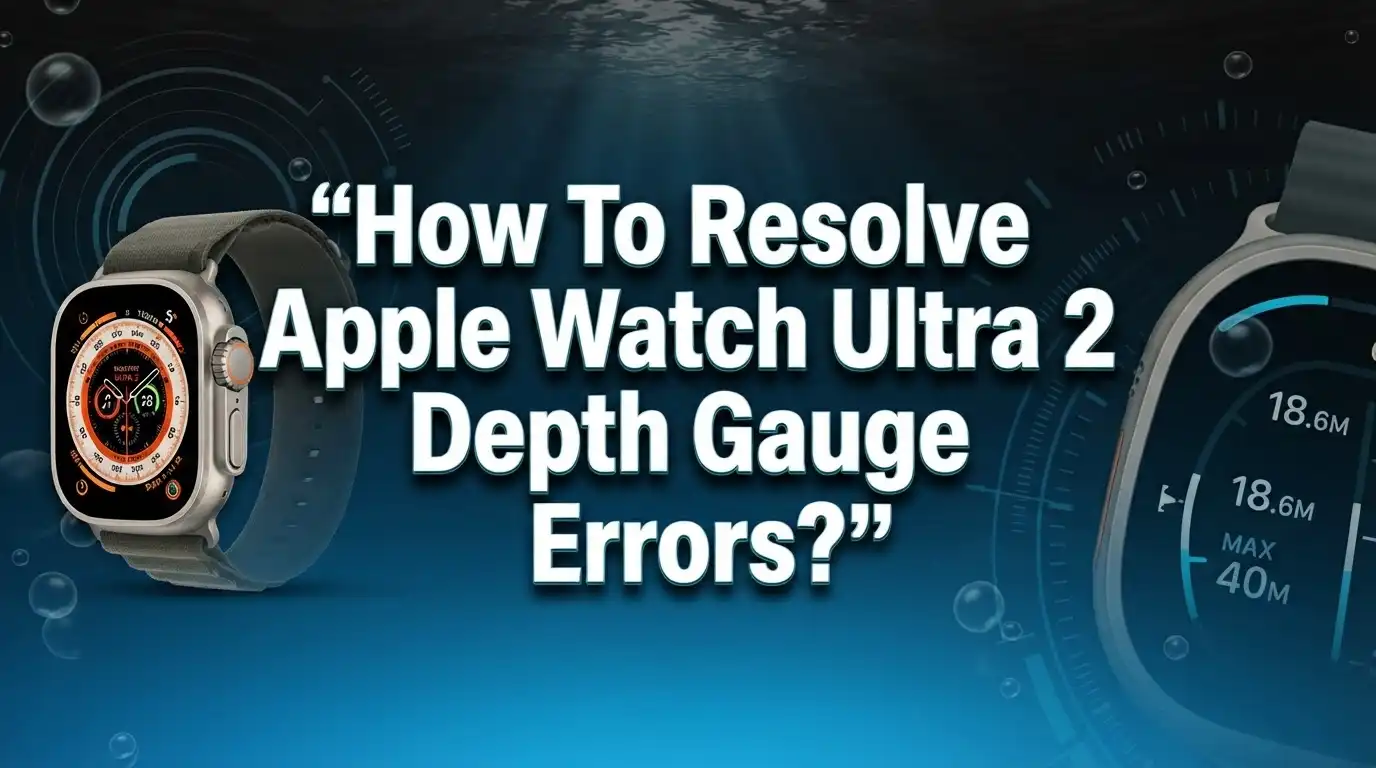
How To Resolve Apple Watch Ultra 2 Depth Gauge Errors?
Your Apple Watch Ultra 2 is built for adventure. It tracks depth, temperature, and dive time with impressive accuracy. But sometimes, the depth gauge stops working the way it should.
This can feel frustrating, especially before a dive. You need your watch to work right when you’re underwater. A faulty reading isn’t just annoying. It can be unsafe.
The good news is that most depth gauge errors have simple explanations. Water seals, physical damage, and app settings all play a role. Small issues in any of these areas can throw off your readings.
In this guide, we’ll walk you through the most common causes of depth gauge errors. You’ll learn how to check your watch for damage before diving. We’ll also show you how to configure your settings correctly.
In a Nutshell
- Check the app settings first. Go to Settings, then General, then Auto-Launch. Make sure “When Submerged” is turned on correctly.
- Inspect your watch for damage. Look closely at the front display and back crystal. Cracks can break the water seal instantly.
- Never dive with visible damage. Even small cracks can cause big depth gauge errors underwater. Skip the dive and get it checked first.
- Water seals matter more than you think. A damaged seal lets water in, which confuses the sensors. This leads to wrong depth or temperature readings.
- Request Apple’s official test. The Depth and Water Seal Test gives you real proof your watch works. This removes any guesswork before your next dive.
- Fix small issues before they grow. Most depth gauge problems come from settings, seals, or cracks. Catching these early keeps your dives safe and stress free.
Understanding the Depth App and How It Works
Your Apple Watch Ultra 2 has a built in depth app that tracks three key things while you’re underwater. It measures how deep you go, how long you stay submerged, and the water temperature around you. Understanding what this app does helps you use it correctly.
The depth gauge works by using sensors inside your watch. These sensors detect water pressure changes as you dive deeper. The app then converts that pressure into a depth reading on your screen. This happens in real time, so you see your depth instantly.
Water seals are critical for accurate readings. Your watch has rubber and silicone seals around the edges and back. These seals keep water out of the internal components. When seals stay intact, the sensors work properly. When seals fail, water can seep inside and interfere with sensor accuracy.
The app also tracks your dive duration automatically. Once you submerge your watch, it starts counting time. It stops when you surface. This feature helps you monitor how long you’ve been underwater.
Temperature readings come from a separate sensor. This sensor measures the water around your watch, not your body temperature. Cold water and warm water show different readings.
Physical damage directly affects how the depth app performs. Cracks on the front display or back crystal compromise the seal system. Even tiny cracks let moisture reach sensitive components. This moisture confuses the sensors and causes errors.
Your watch also has an auto launch feature. You can configure this to open the depth app automatically when you submerge your watch. This saves time and ensures you’re ready to dive immediately. The app is designed specifically for the demanding conditions of underwater exploration.
Common Causes of Depth Gauge Errors
Your Apple Watch Ultra 2 depth gauge can stop working for several clear reasons. Understanding these causes helps you fix problems before your next dive.
Water seal damage is the most common culprit. The watch has rubber seals that keep water out of the internal components. When seals wear down or crack, water enters the device. This moisture interferes with the sensors that measure depth. Even tiny leaks cause major errors in your readings.
Physical cracks on the watch body also break the depth gauge. A cracked front display lets water seep inside. A damaged back crystal creates the same problem. These cracks don’t need to be large to cause issues. Small fractures allow enough water penetration to confuse the sensors.
Incorrect app settings prevent the depth app from launching when you dive. If the auto launch feature isn’t configured properly, the app won’t activate underwater. You’ll think the depth gauge isn’t working when it’s actually just not turned on.
Software glitches occasionally cause depth gauge errors too. The app might freeze or display incorrect readings. These issues usually resolve after restarting the watch or updating the software.
Sensor calibration problems happen less often but still occur. The sensors inside your watch need proper calibration to work accurately. If calibration drifts, your depth readings become unreliable.
Exposure to extreme temperatures can affect sensor performance temporarily. Very cold water or hot environments stress the internal components. This stress sometimes causes temporary errors that fix themselves once conditions normalize.
Check each of these causes systematically. Start with visible damage inspection, then verify your app settings. This approach identifies most depth gauge problems quickly.
Inspecting Your Apple Watch Ultra 2 for Physical Damage
Start by looking at your Apple Watch Ultra 2 carefully. The front display and back crystal are the most vulnerable areas. Hold your watch up to bright light and examine both surfaces closely.
Look for any visible cracks, scratches, or chips on the screen. Even tiny cracks can let water seep inside during dives. Check the edges where the display meets the watch body. Water can enter through small gaps if the seal is compromised.
Inspect the back crystal next. This is the sapphire case on the rear of your watch. Turn it over and look at the entire back surface under good lighting. Small cracks here are easy to miss but cause serious problems underwater.
Pay special attention to the crown and buttons. These are entry points for water. Spin the crown gently and press each button. They should feel smooth and click firmly. Loose or sticky buttons suggest seal damage.
Check around the band attachment points too. Water can seep in where the band connects to the watch body. Look for any gaps or separation between the band and the watch case.
Run your finger gently around all edges. Feel for any rough spots, raised edges, or gaps. Your watch should feel smooth and solid all around.
If you find any damage, do not dive until you get your watch tested. Even minor cracks cause depth gauge errors underwater. The sensors need a perfect seal to work correctly. Take photos of any damage you find. These help Apple understand the problem when you request their official Depth and Water Seal Test.
Configuring Auto-Launch and When Submerged Settings
Your Apple Watch Ultra 2 has an auto launch feature that activates the depth app automatically when you enter water. This setting lives in your watch settings and controls how the app behaves during your dives.
To configure this feature, open Settings on your watch. Tap General, then scroll down to find Auto Launch. This menu controls which apps start automatically during specific activities.
Look for the “When Submerged” option within Auto Launch settings. This toggle tells your watch whether to launch the depth app automatically when you go underwater. Turning this on means your watch starts tracking depth data the moment you submerge.
Enable this setting if you want hands free operation during your dives. Your watch will begin recording depth, temperature, and duration without you tapping anything. This keeps your hands free to focus on your dive itself.
Disable this setting if you prefer manual control. You can then tap the depth app yourself when you’re ready to start tracking. Some divers prefer this approach for specific dive types.
After adjusting these settings, test them in shallow water first. Wade into a pool or calm water and observe whether the app launches automatically. This confirms your configuration works correctly before you attempt deeper dives.
Proper configuration prevents missed data during your dives. A misconfigured auto launch setting might leave your depth app inactive when you need it most.
If your auto launch settings are correct but the app still fails to activate underwater, this suggests a deeper problem. Water seal damage or physical cracks might be preventing the sensors from detecting water contact. In this case, request Apple’s official Depth and Water Seal Test to identify the exact issue.
Step-by-Step Guide to Fixing Depth Gauge Errors
Start by opening the Settings app on your Apple Watch Ultra 2. Navigate to the General section and locate the Auto Launch option. This feature controls how your depth app behaves when you enter water.
Look for the “When Submerged” setting within Auto Launch. This option determines whether your watch automatically activates the depth app as soon as you dive. Enable this setting if you want hands free operation during your dives. Your watch will start recording depth data the moment you submerge.
If you prefer manual control, disable this setting instead. You can then launch the depth app manually before entering the water. This approach gives you more flexibility if you plan multiple dives in one session.
After adjusting these settings, test them in shallow water first. Wade into a pool or shallow area and verify the app responds correctly. Check that depth readings appear and the app tracks your dive properly.
Pay attention to whether the app launches automatically or requires manual activation. Confirm that temperature and duration data record accurately. Make note of any delays or failures you observe.
If the app still malfunctions after reconfiguring these settings, the issue likely involves physical damage or water seal problems. Move forward with requesting a Depth and Water Seal Test from Apple. This diagnostic service verifies whether your watch’s internal sensors and seals function properly.
Proper configuration prevents missed data during your dives. A misconfigured auto launch setting might leave your depth gauge inactive when you need it most. Take time to test thoroughly before attempting any serious diving activities.
Requesting Apple’s Depth and Water Seal Test
When your depth gauge shows errors despite proper configuration, Apple’s official testing service provides the verification you need. This service checks both your depth sensor and water seals to identify the real problem.
Request the test through Apple Support by visiting an Apple Store or contacting Apple directly online. Explain the specific errors you see when using the depth app. Tell them whether the app fails to launch, shows incorrect readings, or stops working mid-dive. Provide details about when the errors started and how often they occur.
Apple technicians will run diagnostic tests on your watch. They verify the water seals are intact and check whether your depth sensor responds correctly to pressure changes. The technicians also inspect for internal damage that you cannot see from the outside.
Bring your watch and any documentation of the errors. Have your watch charged before you arrive. If you’ve already tried the basic fixes like checking physical damage and reconfiguring settings, mention this to the technician. This information helps them focus on deeper issues.
The test results tell you whether your watch needs repair or replacement. If seals are compromised, Apple can reseal your watch. If the sensor itself is damaged, your watch may need replacement. If everything checks out fine, the technician can help you troubleshoot software issues you might have missed.
Don’t attempt dives with an untested watch after experiencing depth gauge errors. Water damage gets worse with each dive. Getting official verification protects both your watch and your safety underwater. Apple’s testing service gives you confidence that your depth gauge works properly before your next dive.
Mistakes to Avoid Before and During Dives
Before you enter the water, check your Apple Watch Ultra 2 for any visible damage. Look carefully at the front display and back crystal for cracks or chips. Even small cracks can let water seep inside and ruin your depth gauge readings.
Physical damage is the main culprit behind depth gauge errors. Your watch relies on proper seals to keep water out. A compromised seal means inaccurate measurements or complete failure of the depth app.
Inspect the watch band connection points too. Make sure the band sits firmly in place. A loose band can allow water to enter from unexpected angles.
Check that your watch face is clean and dry before diving. Moisture or debris around the edges can interfere with sensor readings. Wipe the entire watch with a soft, dry cloth.
Don’t ignore warning signs. If your watch feels loose or looks damaged, skip your dive. Testing it in water anyway can cause permanent damage.
Verify that your watch has been recently charged. A low battery can cause the depth app to malfunction or give false readings. Charge your watch fully before any dive.
Review your app settings one more time. Make sure the “When Submerged” option matches your preference. Incorrect settings won’t cause errors, but they might prevent data from recording.
Never attempt a dive if you’re unsure about your watch’s condition. The risk isn’t worth it. Request Apple’s Depth and Water Seal Test first to confirm everything works properly.
Taking these steps before entering the water saves you from frustration and keeps your watch functioning correctly for years to come.
Troubleshooting Persistent Depth Gauge Issues
When your Apple Watch Ultra 2 depth gauge keeps showing errors, the problem usually stems from water seal issues or physical damage. Start by examining your watch carefully for any visible cracks on the front display or back crystal. Even small cracks let water seep inside and ruin the sensor accuracy.
Check the water seals around your watch case. Press gently on the edges to feel if anything feels loose or separated. Debris like sand or salt can also damage seals, so rinse your watch with fresh water after ocean diving. Let it dry completely before checking again.
Temperature changes affect readings too. If you moved from a warm environment to cold water quickly, wait a few minutes for your watch to adjust. This often resolves temporary error messages.
Open your watch Settings and go to General, then Auto Launch. Make sure the “When Submerged” setting is configured correctly for your diving style. Some users prefer automatic app launching while others want manual control. Test your choice in shallow water first.
If errors continue after these checks, your watch likely needs professional assessment. Contact Apple Support to request their Depth and Water Seal Test. This diagnostic service identifies whether your watch needs repair or replacement.
Never dive with an untested watch after experiencing depth gauge errors. The test results give you confidence that your watch will function properly underwater. This protects both your watch and your safety during dives.
Keep detailed records of when errors occur and what conditions you were in. This information helps Apple technicians diagnose the exact problem faster.
Final Thoughts
Your Apple Watch Ultra 2 depth gauge deserves attention before every dive. Small checks make a big difference. They protect your watch and keep you safe underwater.
Physical inspection matters most. Look at your display and back crystal each time. Cracks or scratches signal trouble ahead.
Water seals need regular checks too. They keep water out and readings accurate. Damaged seals lead straight to depth gauge errors.
App settings play a key role in reliable performance. Configure your “When Submerged” option correctly. This simple step prevents many common issues divers face.
Testing verifies everything works properly. Apple’s official service checks your watch thoroughly. This gives you real confidence before you dive.
Don’t skip this step if you notice odd behavior. Errors that repeat mean something needs professional eyes. Your watch might need repair or replacement.
Think of these checks as part of your dive routine. Just like checking your oxygen tank, checking your watch matters. It becomes second nature over time.
Diving with a damaged watch isn’t worth the risk. Skip the dive if something feels wrong. Your safety matters more than one dive session.
Keep records of any errors you experience. Note the conditions, temperature, and depth involved. This information helps technicians diagnose problems faster.
Your Apple Watch Ultra 2 works best when properly maintained. Regular inspections catch problems early. Quick action prevents small issues from becoming big ones.
Stay proactive about your watch’s condition. Test it when unsure. Trust professional verification over guesswork.
These habits keep your dives safe and your data accurate every single time you go underwater.
Frequently Asked Questions
Why isn’t my depth app working while I’m diving?
Your depth gauge stops working for a few reasons. First, check your water seals around the watch case. If seals are damaged, water gets inside and blocks accurate readings. Second, look for visible cracks on your display or back crystal. Even small cracks compromise functionality. Third, verify your app settings are correct. Open Settings, go to General, then check your Auto Launch option. Make sure “When Submerged” is configured properly.
How do I know if my depth gauge is actually working?
Request Apple’s official Depth and Water Seal Test service. This diagnostic check verifies everything functions correctly. Apple’s technicians inspect your seals and test your gauge under controlled conditions. This gives you confidence before your next dive. Don’t skip this step if you notice odd behavior or error messages.
When should I avoid diving with my watch?
Skip your dive if you see visible cracks on the front display or back crystal. Never enter the water if your watch feels loose or looks damaged. If seals appear compromised, wait for professional assessment. Your safety and your watch’s longevity matter more than one dive.
What physical inspections should I do before diving?
Look at your display and back crystal each time you prepare to dive. Check the water seals around your watch case carefully. Inspect the watch band connection points too. Make sure your watch face is clean and dry. These simple checks take minutes and prevent frustration underwater.
Do temperature changes affect depth gauge accuracy?
Yes, temperature shifts impact readings. If you moved from a warm environment to cold water quickly, wait a few minutes before diving. Let your watch adjust to the new temperature. This small delay helps your gauge provide accurate measurements during your dive.