How To Fix USB4 Cable External GPU Disconnections?
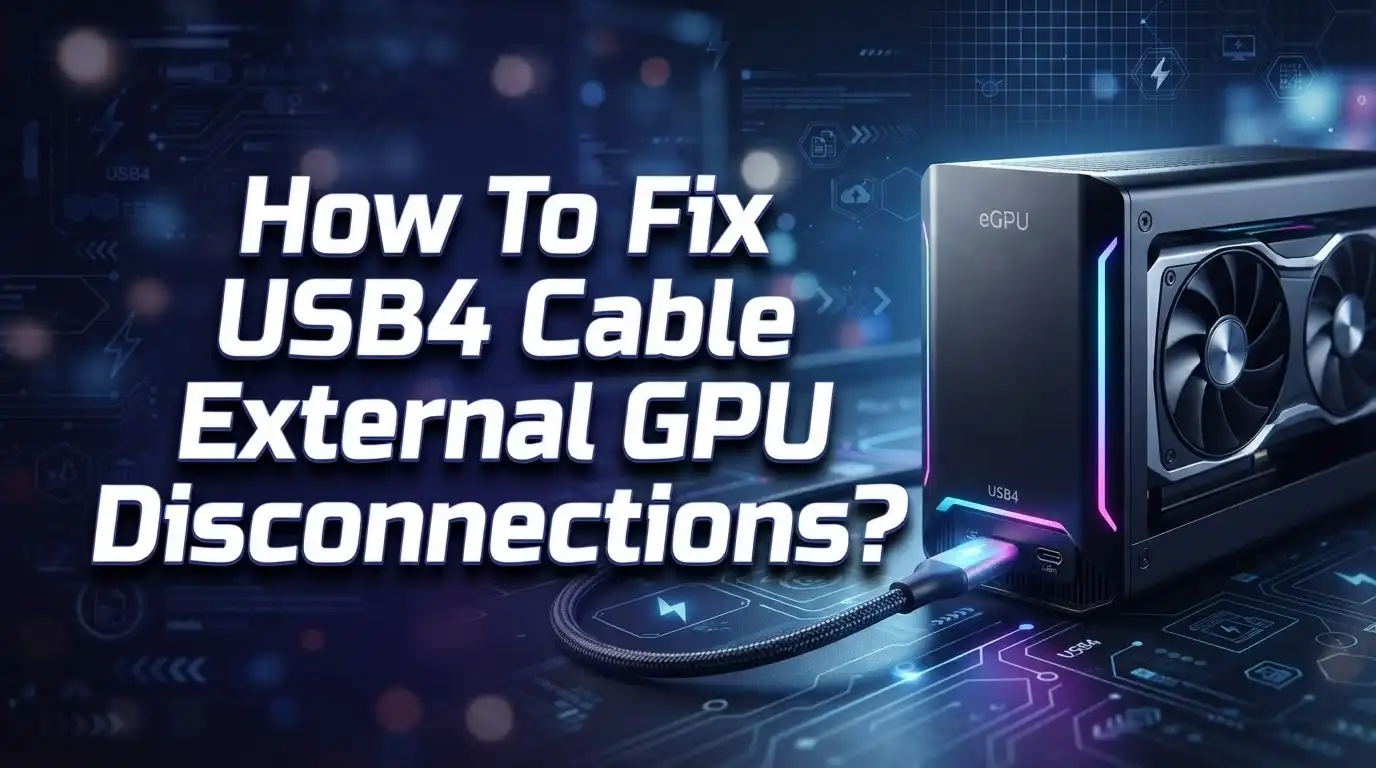
Does your external GPU keep disconnecting at the worst possible moment? You are not alone. Many USB4 and Thunderbolt eGPU users face this same frustrating problem.
One second your setup runs smoothly. The next second, your screen freezes or your eGPU vanishes completely. This happens during gaming, video editing, or even light tasks.
The good news? Most disconnection issues have simple fixes. Loose cable connections, power management settings, and outdated firmware cause the majority of these problems.
This guide walks you through every step to fix USB4 cable eGPU disconnections. We will cover cable seating problems, power profile settings, and firmware updates.
In a Nutshell
- Check your cable first. Loose or wobbly connectors cause most eGPU disconnections. Make sure the cable sits firmly in the port.
- Switch to Balanced power mode. Performance TDP mode often triggers random disconnects. Balanced mode keeps your connection stable.
- Update your firmware. Outdated firmware creates connection problems. Run a system update tool to get the latest version.
- Disable USB power saving. Your operating system may power down the port automatically. Turn off this setting in your USB4 or Thunderbolt properties.
- Run a stress test. Use a tool like Furmark for 20 to 30 minutes. This confirms your fix actually worked.
- Avoid touching the cable during use. Movement while your eGPU runs can break the connection instantly. Keep the setup still once everything is running.
Why USB4 eGPU Disconnections Happen
USB4 eGPU disconnections happen for several predictable reasons. Understanding these causes helps you fix the problem quickly without replacing hardware.
Poor cable connection is the most common culprit. Your cable may look seated properly, but loose connectors create intermittent disconnects. Even slight movement or vibration can break the link between your external GPU and computer. Check that your cable sits flush in both ports with no wobbling.
Power management settings cause random disconnections too. Your operating system can automatically suspend USB4 ports to save battery power. When this happens, your eGPU loses connection instantly, even during active use. Performance TDP mode in particular triggers frequent disconnects on certain devices.
Bandwidth limitations affect specific hardware. Some portable gaming devices lack full Thunderbolt support or Omnilink compatibility. This means they cannot deliver enough bandwidth to keep your external GPU stable under load. The connection drops randomly rather than consistently.
Firmware issues create compatibility problems between your computer and eGPU. Outdated firmware may not recognize your external GPU properly or maintain stable communication. Updates fix these connection gaps.
Device suspension happens when your computer thinks the USB4 port is idle. The operating system powers down the port to conserve energy, cutting your eGPU off instantly. This occurs whether you are actively using the GPU or not.
Cable quality matters more than most people realize. Low quality cables introduce signal degradation and poor shielding. External GPUs demand premium cables to maintain stable connections.
These issues rarely indicate hardware failure. Most disconnections have simple software or connection fixes. The good news is that you can test and resolve each cause systematically without expensive replacements.
Checking and Securing Your Cable Connection
Start by physically inspecting your USB4 cable and connectors. Look for bent pins, debris, or visible damage on both ends. A damaged cable causes immediate disconnections under any workload.
Insert the cable firmly into your eGPU and computer ports. Push until you feel solid resistance. Loose connections are the #1 reason for random disconnects. Wiggle the cable gently. It should not move freely.
Check if your connector sits flush against the port. Misaligned connectors prevent proper power delivery and data transfer. Remove the cable completely and reinsert it at a straight angle.
Examine the port itself on your computer. Dust or lint inside the port blocks the connection. Use a flashlight to see inside. Gently clean the port with compressed air if needed.
If your connector feels loose even when fully inserted, inspect the connector housing for cracks or wear. Some connectors develop internal damage that prevents secure seating. This requires cable replacement.
Test your cable with another USB4 device if possible. This tells you whether the problem is your cable or your eGPU. A cable that works with other devices but fails with your eGPU points to a different issue.
Avoid bending the cable sharply near the connectors. Sharp angles stress the internal wires and cause intermittent disconnections. Route your cable along a gentle path.
Never force a cable into a port. Forcing causes permanent damage to both the cable and port. If resistance feels abnormal, stop and check alignment.
Once your cable connection feels secure and stable, move to the next steps. A properly seated cable eliminates the most common disconnection cause immediately.
Adjusting Power Management Settings
Power management settings often cause your eGPU to disconnect randomly. Your computer may be powering down the USB4 port automatically, even when you’re using it. This happens because Windows treats the port as idle and suspends it to save energy.
Start by opening Device Manager on your computer. Find your USB4 or Thunderbolt port in the list. Right click on it and select Properties. Look for the Power Management tab. You’ll see a checkbox that says “Allow the computer to turn off this device to save power.” Uncheck this box immediately. This prevents Windows from suspending your eGPU connection.
Next, adjust your overall power profile. Click the battery icon in your system tray. Select Power settings. Choose Balanced mode instead of Performance or Power Saver mode. Performance mode can actually cause disconnections on some devices because it creates voltage instability. Balanced mode provides steady, consistent power delivery to your USB4 port.
If you’re using a laptop, check your power settings while plugged in and on battery separately. Some computers have different power profiles for each state. Make sure both are set to Balanced mode.
After making these changes, restart your computer completely. Don’t just put it to sleep. A full restart ensures your new settings take effect properly.
Test your eGPU connection by running a demanding application for at least 20 to 30 minutes. If disconnections stop, your power management settings were the problem. If issues persist, move forward with other troubleshooting steps like firmware updates or cable inspection.
Updating Firmware and Drivers
Firmware and driver updates fix many USB4 eGPU disconnection problems. Your computer and eGPU communicate through software, so outdated versions create compatibility issues.
Start by checking your system manufacturer’s update tool. Lenovo users should open Lenovo System Update and scan for available firmware releases. This process finds updates for your USB4 controller, motherboard, and related components. Download and install all available updates, then restart your computer completely.
Next, update your GPU drivers through your graphics card manufacturer’s website or control panel. NVIDIA and AMD both provide driver downloads for their cards. Install the latest version available for your specific GPU model. Restart again after driver installation finishes.
Windows also provides USB and Thunderbolt driver updates through Windows Update. Open Settings, go to Update and Security, and check for updates manually. Let Windows download and install any available USB or Thunderbolt related updates.
After updating, test your eGPU connection under load for 20 to 30 minutes. Use a stress testing application to verify stability. If disconnections still occur, the issue likely stems from power management or cable problems rather than outdated software.
Keep your system updated going forward. Set Windows Update to automatic so you receive new drivers without manual checking. Many eGPU users discover that staying current with firmware and drivers prevents future disconnection issues.
If you’ve updated everything and problems persist, move forward with the other troubleshooting steps. Updates alone don’t always solve every disconnection, but they eliminate a major cause. Skipping this step means missing a simple fix that works for many users.
Step-by-Step Fix: From Diagnosis to Stability Testing
Start your diagnosis by checking whether disconnections happen randomly or only under heavy load. Random disconnections usually point to power management issues rather than hardware problems. Open Device Manager and locate your USB4 or Thunderbolt port. Right click on it and select Properties.
Look for a tab labeled “Power Management.” Check if the option “Allow the computer to turn off this device to save power” is enabled. This setting is often the culprit. Disable it immediately. Your system thinks the port is idle and cuts power to it, causing your eGPU to disconnect suddenly.
Next, verify your system’s power profile. Access your power settings and switch from Performance mode to Balanced mode. Performance TDP mode causes many USB4 eGPU disconnections because it creates power conflicts. Restart your computer after making this change.
Now run a stability test using a GPU stress testing application. Run it for 20 to 30 minutes while monitoring your connection. If your eGPU stays connected throughout, you’ve likely solved the problem. If disconnections still occur, move to firmware updates.
Check your computer manufacturer’s website for system firmware updates. Install any available updates for your USB4 controller or Thunderbolt firmware. Also update your GPU drivers from your graphics card manufacturer’s website.
After each change, test for at least 30 minutes under load. This timeframe helps you identify whether the fix actually works. Document which changes resolved your issue so you know what works for your specific setup. Most disconnection problems resolve after disabling power management and switching to Balanced mode.
Tips for Maintaining a Stable eGPU Connection
A stable eGPU connection requires consistent attention to several key factors. Your cable quality matters significantly because eGPUs are sensitive to connection issues. Make sure your cable sits firmly in both ports without any wobbling or gaps. Check the connector alignment carefully before you push the cable in fully.
Power management settings are a common culprit behind random disconnections. Your operating system may try to save power by turning off USB4 or Thunderbolt ports automatically. Disable the “Allow computer to turn off this device to save power” option in your port properties to prevent this behavior. This single change stops many disconnection problems.
Your system’s power profile affects eGPU stability significantly. Balanced mode works better than Performance mode for maintaining consistent connections. Performance mode can actually cause more disconnects because it changes power delivery unpredictably.
Keep your firmware and drivers current at all times. Your system manufacturer provides firmware updates that improve eGPU compatibility. GPU drivers from your graphics card manufacturer also contain critical stability fixes. Check for updates monthly to stay ahead of potential issues.
Temperature management helps too. Ensure your eGPU has proper airflow around its enclosure. Dust buildup reduces cooling efficiency and can trigger disconnections during demanding tasks.
Test your connection regularly under load. Use a GPU stress test application for 20 to 30 minutes after making any changes. This timeframe reveals whether your fix actually works or if you need to try something else.
Avoid touching or moving the cable during operation. Even slight movement can interrupt your connection. Keep the cable path clear of obstacles and secure it away from high traffic areas in your workspace.
Mistakes That Make Disconnections Worse
Many people accidentally make eGPU disconnection problems worse by repeating common mistakes. Understanding these errors helps you avoid frustration and wasted troubleshooting time.
Using Performance TDP mode is one of the biggest mistakes. This power setting pushes your system harder and causes USB4 ports to disconnect randomly. Switch to Balanced mode instead. Performance mode looks appealing for gaming, but it actually destabilizes your external GPU connection.
Allowing your operating system to power down USB and Thunderbolt ports creates another major problem. Windows can suspend these ports to save battery life, which interrupts your eGPU instantly. Even if you’re plugged into power, this setting remains active by default and causes sudden disconnects during gameplay or work.
Ignoring firmware updates makes things significantly worse. Your system manufacturer releases firmware patches specifically to fix USB4 stability issues. Skipping these updates leaves known bugs unfixed. Check for updates through your computer maker’s system update tool regularly.
Touching or moving your cable during operation is surprisingly common and harmful. Any physical movement can cause temporary disconnections that feel random. Secure your cable in place and avoid adjusting it while your eGPU is active.
Using low quality or damaged cables amplifies every other problem. eGPUs are extremely cable sensitive. A worn connector or cheap cable makes disconnections happen more frequently and makes troubleshooting harder because you can’t tell if your fix actually worked.
Finally, testing for only a few minutes after making changes leads to false confidence. You think you’ve fixed the problem, but disconnections return later. Always test under load for at least 20 to 30 minutes to verify real stability.
Troubleshooting Persistent Disconnection Issues
When your external GPU keeps disconnecting through USB4, the problem usually stems from a few specific causes. Power management settings are often the main culprit. Your operating system may be putting the USB4 port to sleep to save power, which interrupts your eGPU connection unexpectedly.
Start by checking your device’s power settings. Look for the USB4 or Thunderbolt port in your device manager. Find the “Power Management” tab and uncheck the option that allows your computer to turn off the device. This prevents the system from suspending your connection.
Next, examine your system’s power profile. Switch from “Performance” mode to “Balanced” mode. Performance TDP settings push your system harder and frequently trigger disconnections. Balanced mode provides stable power delivery to your eGPU without the instability.
Cable quality matters significantly here. Inspect your USB4 cable carefully for any visible damage or loose connectors. Poor cable seating causes intermittent disconnections. Ensure the connector sits firmly in both the computer and eGPU ports. If the connector feels wobbly, it may not be seated properly.
Check your system manufacturer’s website for firmware updates. These updates often include fixes specifically for USB4 stability. Install any available updates through your manufacturer’s update tool.
After making any change, run a stability test using a GPU stress testing application. Run it for 20 to 30 minutes while monitoring for disconnections. This timeframe reveals whether your fix actually works.
If disconnections persist after these steps, your cable may be damaged or your eGPU may have a hardware issue requiring professional inspection.
Final Thoughts
USB4 eGPU disconnections feel frustrating. But most fixes are simple and reversible.
Start with the basics. Check your cable seating. Adjust your power settings. Update your firmware.
These three steps solve most disconnection problems. You don’t need advanced technical skills to fix this issue.
Remember the core lessons from this guide. Performance TDP mode causes disconnects. Balanced mode keeps your connection stable.
Your operating system should never power down USB4 ports. Disable that setting right away.
Firmware updates matter more than people realize. Manufacturers release patches specifically for connection issues. Check for updates regularly.
Cable quality affects everything. A damaged or low quality cable creates problems no software fix can solve. Inspect your cable often.
Testing matters just as much as fixing. Run a stress test after every change you make. This confirms whether your fix actually worked.
Patience helps during this process. Some fixes take a few tries to get right. Don’t give up after one attempt.
Bandwidth limitations affect certain devices differently. Some hardware simply cannot handle sustained eGPU connections well. Know your device’s limits before troubleshooting further.
If problems continue after trying everything, hardware failure becomes likely. A damaged cable or faulty eGPU may need replacement. That’s not a settings problem anymore.
Most users find success by following these steps in order. Start simple. Move to advanced fixes only when needed.
Stable eGPU connections are achievable with the right approach. Take your time. Test thoroughly. Your external GPU setup can work reliably once you address the root cause.
Frequently Asked Questions
Why does my external GPU disconnect randomly even when I’m not gaming?
USB4 eGPU disconnections happen at any time, not just during heavy use. Your system may drop the connection while idle or during light tasks. This usually means your power settings are too aggressive. Your operating system might be putting the USB4 port into sleep mode. Check if your power profile is set to Performance mode, which can actually cause more disconnects. Switch to Balanced mode instead. You should also verify that your cable sits firmly in both ports.
Can a loose cable really cause disconnections?
Yes, absolutely. A wobbly or improperly seated connector is one of the most common culprits. Push your USB4 cable straight into the port until you feel it click. Make sure the connector aligns properly with the port opening. If the cable feels loose even after inserting it correctly, the connector itself might be damaged. In rare cases, a thin layer of superglue on the connector can help, but only as a last resort. Always test with a quality cable first.
Should I update my system firmware?
Firmware updates are essential for eGPU stability. Your device manufacturer releases patches specifically to fix USB4 and Thunderbolt issues. Visit your system maker’s support website and download the latest firmware. Install any updates related to USB4, Thunderbolt, or chipset drivers. After updating, restart your computer completely before reconnecting your eGPU.
How long should I stress test my eGPU to confirm it’s fixed?
Run a GPU stress test for 20 to 30 minutes using a dedicated tool. This timeframe reveals most connection problems. If your eGPU stays connected throughout the entire test, the issue is likely resolved. If it disconnects during testing, try the next troubleshooting step.