How To Connect Satellite Messaging Services On A Standard Cellular Plan?
Imagine you are hiking through a remote trail, camping in a national park, or driving through a rural dead zone. Your phone shows zero bars. No Wi-Fi, no cell signal, no way to reach anyone.
Now imagine your phone can still send a text message, contact emergency services, or share your location using satellites orbiting overhead. That is not science fiction. It is a feature built into many smartphones right now.
The best part? Many carriers include it for free or offer it as a low cost add on. But setting it up is not always obvious. Depending on your phone brand, your carrier, and your plan, the steps to connect satellite messaging can vary a lot.
This guide walks you through everything you need to know. You will learn which phones support satellite messaging, how to enable it on your device, and how to use it when you actually need it.
In a Nutshell
- Most modern smartphones now support satellite messaging. The iPhone 14 and later, Google Pixel 9 and later (except the Pixel 9a on some carriers), and Samsung Galaxy S25 and newer models all include some form of satellite connectivity built into the hardware.
- Your cellular carrier determines your satellite messaging options. T Mobile offers the broadest satellite messaging service through its Starlink partnership. Verizon provides free satellite messaging on select Samsung devices through Skylo. AT&T is still developing its consumer satellite service.
- Setup steps differ by device and carrier. iPhone users can access satellite features through Settings and the Messages app. Android users may need to configure eSIM settings and check Safety and Emergency menus. Non T Mobile customers can subscribe to T Satellite for $10 per month.
- Satellite messaging requires a clear view of the sky. The service does not work indoors, under heavy tree cover, or in deep valleys. You must be outside and position your phone so it can connect to orbiting satellites.
- Messages sent by satellite are slower than regular texts. A single message can take 30 seconds to over a minute to send. Voice calls and video are not supported. Only text, emojis, location data, and select app data can be transmitted.
- Preparation before you lose signal is essential. You should enable iMessage, set up emergency contacts, download supported apps, and test the satellite demo feature on your phone while you still have regular connectivity.
What Is Satellite Messaging and How Does It Work
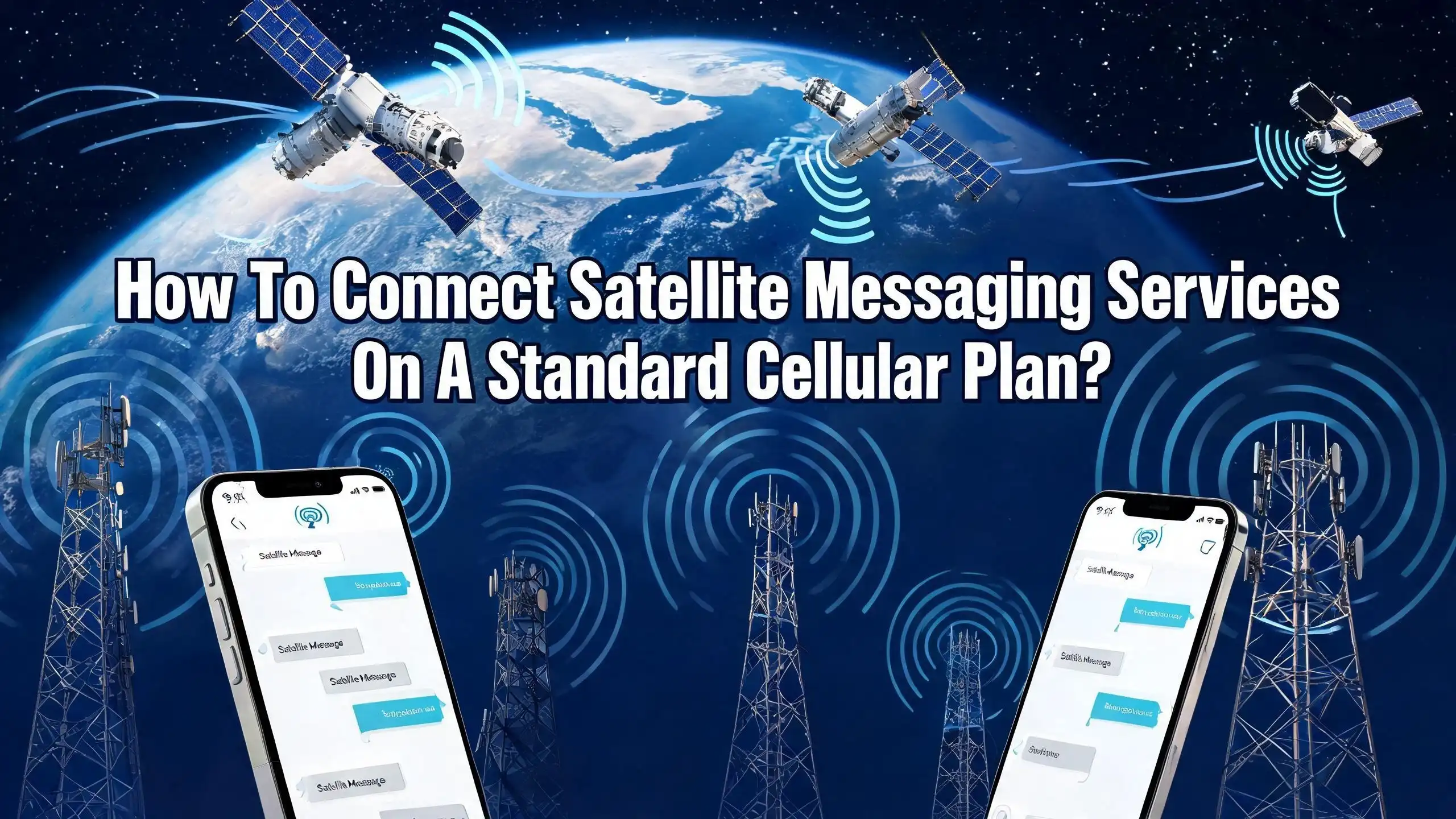
Satellite messaging allows your smartphone to send and receive text messages through orbiting satellites instead of cellular towers. This technology uses low earth orbit (LEO) satellites that circle the planet at much lower altitudes than traditional communication satellites. These LEO satellites pass overhead quickly, and your phone connects to them during brief windows.
Your phone detects that no cellular or Wi-Fi signal is available. It then prompts you to switch to a satellite connection. The device scans the sky, finds a satellite, and sends your text as a small data packet. That packet travels from the satellite to a ground station on Earth. The ground station routes your message to its destination, whether that is an emergency service or a friend’s phone.
The connection speed is limited. A single text message can take 30 seconds to more than a minute to transmit under ideal conditions. Under light tree cover or with partial obstructions, it takes even longer. Voice calls and video are not possible through satellite messaging at this time. The bandwidth only supports text, emojis, location sharing, and limited app data.
This technology works through partnerships between phone manufacturers and satellite network providers. Apple uses the Globalstar satellite network. Google Pixel phones connect through Skylo. T Mobile partners with SpaceX Starlink for its direct to cell satellite service. Each partnership delivers satellite messaging in a slightly different way, but the core function remains the same: text communication when cellular towers are out of reach.
Which Smartphones Support Satellite Messaging
Not every smartphone can connect to satellites. The feature requires specific hardware and software support built into the device. Here is a breakdown of the phones that currently support satellite messaging.
Apple iPhone models from the iPhone 14 onward all include satellite connectivity. This covers the iPhone 14, 15, 16 series, the iPhone 16e, iPhone 17e, and the iPhone Air. Apple’s satellite messaging works through the Globalstar network and is included at no extra cost for the first two years after activation.
Google Pixel phones gained satellite features starting with the Pixel 9 series. The Pixel 9, Pixel 9 Pro, and all Pixel 10 models (including the Pixel 10a) support Satellite SOS through the Skylo network. The Pixel 9a is excluded from this feature on most services but does qualify for T Mobile’s T Satellite.
Samsung Galaxy devices support satellite messaging starting with the Galaxy S25 series. Verizon customers get free satellite messaging on the Galaxy S25, S26, Z Fold 7, and Z Flip 7 through the Skylo partnership. T Mobile supports a much wider range of Samsung phones, including the Galaxy S21 and newer models, through its Starlink based service.
Other Android phones from Motorola, including the Razr, Edge, and Moto G models from 2024 onward, also support T Mobile’s T Satellite service. T Mobile’s Revvl 8 and Revvl 8 Pro are compatible as well. You can check your device’s eligibility through T Mobile’s IMEI compatibility checker or by going to Settings, Safety and Emergency on your Android phone and looking for a Satellite SOS option.
How To Set Up Satellite Messaging on iPhone
Setting up satellite messaging on an iPhone is straightforward because Apple integrates the feature directly into iOS. Here is exactly what you need to do before you head off the grid.
First, update your iPhone to iOS 18 or later. Satellite messaging for friends and family was introduced in iOS 18. Go to Settings, General, Software Update, and install the latest version. Earlier versions of iOS only support Emergency SOS via satellite.
Next, turn on iMessage while you still have cellular or Wi-Fi coverage. This step is critical. If iMessage is not active before you lose signal, you will not be able to use iMessage via satellite. Open Settings, tap Messages, and confirm the iMessage toggle is green.
Set up your emergency contacts through the Health app. Open the Health app, tap your profile picture, select Medical ID, and add emergency contacts. These contacts can message you via SMS over satellite even before you send them a message first.
You should also set up Family Sharing if you want family members to reach you via satellite. Members of your Family Sharing group gain the same SMS privilege as emergency contacts.
To practice before you need it, try the Satellite Connection Demo. Open Settings, tap Apps, then Messages, and select Satellite Connection Demo. This demo walks you through the connection process without actually sending a message.
When you are off the grid and open the Messages app, your iPhone will alert you that satellite messaging is available. Follow the on screen instructions to point your phone at the sky. The Dynamic Island on iPhone 14 Pro and later models shows signal strength dots and directional arrows to help you aim correctly.
How To Set Up Satellite Messaging on Android
Android satellite messaging setup depends on your phone model and your carrier. The steps below cover the most common scenarios for Google Pixel, Samsung Galaxy, and other supported Android devices.
For Google Pixel phones (Pixel 9 series and Pixel 10 series), start by opening Settings. Tap Safety and Emergency, then look for Satellite SOS. This menu lets you view the feature’s status and access the demo mode. Google requires that Google Messages is set as your default messaging app for satellite features to work. If you switch to a different messaging app, you will receive a warning that Satellite SOS will no longer function.
To test the feature, open Settings, tap Safety and Emergency, then Satellite SOS, and select the demo. Your mobile network will temporarily disable during the demo and will turn back on when you exit.
For Samsung Galaxy devices on Verizon, satellite messaging through Skylo activates automatically when your phone loses cellular and Wi-Fi coverage. You may need to wait up to five minutes after losing signal for the Google Messages app to enable satellite messaging. Open Google Messages and follow the on screen prompts to connect.
For T Mobile’s T Satellite service on Android, the setup process involves eSIM activation. After subscribing to the service, watch for a notification that says “Set up your T Mobile eSIM.” Tap the notification and follow the prompts. On Samsung, go to Settings, Connections, SIM Manager, and turn on the Data Switching toggle. On Pixel, go to Settings, Network and Internet, SIMs, and select T Mobile for Mobile Data. Then enable Automatic Data Switching.
Once configured, your device will automatically connect to the T Satellite network when no other cellular or roaming options are available. You will see “T Mobile SpaceX” or “T Sat+Starlink” displayed on your screen.
How To Subscribe to T Mobile’s T Satellite Service
T Mobile’s T Satellite service is the most widely available satellite messaging option in the United States. It supports over 60 phone models and is open to customers on any major carrier. Here is how to subscribe and activate it.
T Mobile customers on premium plans like Experience Beyond or Better Value get T Satellite included at no extra charge. Check your plan by logging into the T Life app or visiting T Mobile’s website. If T Satellite is not included, you can add it for $10 per month through the Manage Add Ons section of your account.
Non T Mobile customers (including those on AT&T or Verizon) can also subscribe to T Satellite for $10 per month. You will need an unlocked phone with eSIM capability. Visit T Mobile’s satellite phone service page and select the option for non T Mobile customers. You can also call 1 800 937 8997 or visit a T Mobile retail store.
To check if your phone is unlocked, use these steps. On iPhone, go to Settings, General, About, and scroll to Carrier Lock. If it says “No SIM restrictions,” your phone is unlocked. On Samsung, go to Settings, Connections, Mobile Networks, Network Operators. If multiple carriers appear, your phone is likely unlocked. On Pixel, download the Device Unlock app from the Play Store to check your status.
After subscribing, your eSIM will need to be downloaded and configured. Connect to a reliable Wi-Fi network and watch for the eSIM notification. Follow the on screen prompts to complete the download. Make sure your primary carrier SIM remains set as the default for voice and text while the T Mobile eSIM handles satellite data switching.
What You Can Do With Satellite Messaging
Satellite messaging is not a replacement for full cellular service. It is a limited but potentially life saving communication tool. Understanding what you can and cannot do helps you set realistic expectations.
Emergency SOS is the primary function. On iPhone, you can text 911 or local emergency services, answer a guided questionnaire about your situation, and share your GPS location. On Pixel, the process is similar: dial 911, and if no cellular network is found, tap Satellite SOS to begin. Emergency responders receive your location, Medical ID (on iPhone), and your description of the emergency.
Text messaging to friends and family is supported on iPhone via iMessage and SMS over satellite. You can send and receive text messages, emojis, and Tapbacks. However, you cannot send photos, videos, audio messages, stickers, or group messages via satellite. SMS availability depends on your carrier’s support.
Location sharing works on both iPhone and Android. On iPhone, the Find My app can share your location via satellite. On Android with T Satellite, you can share a one time location URL through Google Messages by tapping the plus icon and selecting Location.
Select app support is now available through T Mobile’s T Satellite. Apps like WhatsApp, Google Maps, AllTrails, AccuWeather, Apple Maps, and Google Messages with Gemini have been optimized for satellite connectivity. These apps function in a limited capacity, sending and receiving small amounts of data. You should download and sign into these apps before heading into satellite coverage areas.
Roadside assistance is another feature available on iPhone. If your car breaks down in a dead zone, your iPhone can connect to a satellite and contact roadside assistance services directly.
Best Conditions for a Strong Satellite Connection
Your physical environment has a major impact on satellite messaging success. Knowing the best conditions helps you prepare and position yourself correctly when you need to send a message.
A clear, unobstructed view of the sky is essential. Satellites orbit the Earth at high speeds and your phone needs a direct line of sight to connect. Open fields, hilltops, beaches, and other flat areas with wide sky exposure provide the best results. If you are standing in the middle of a clearing with nothing above you, your chances of a fast connection increase significantly.
Avoid dense tree cover. Heavy forest canopy blocks satellite signals and prevents your phone from establishing a link. Light to medium foliage may still allow a connection, but message transmission will be slower. Apple notes that under ideal conditions a message takes about 30 seconds to send. Under light foliage, that time can stretch beyond one minute.
Stay away from buildings and indoor spaces. Walls, ceilings, and construction materials block satellite signals almost completely. Even standing near a tall building can reduce your ability to connect because the structure blocks part of the sky. Urban canyons, where tall buildings line both sides of a narrow street, create particularly difficult conditions.
Mountains and canyons also interfere. If you are in a deep valley or at the base of a steep cliff, the terrain may block your view of the satellite. Move to higher ground whenever possible. Even a short walk uphill can dramatically improve your connection.
Weather rarely causes problems. Rain, clouds, and wind generally do not block satellite signals at the frequencies used for smartphone satellite messaging. Your immediate physical surroundings matter far more than atmospheric conditions.
Countries and Regions Where Satellite Messaging Is Available
Satellite messaging coverage varies by phone manufacturer and carrier. The service is expanding, but it is not yet globally available. Here is a current summary of where you can use it.
Apple’s satellite features work in the United States, Canada, Mexico (with iOS 18.4 or later), and Japan. Apple is working with regulators in other countries to expand coverage. However, iPhones purchased in China, Russia, Armenia, Belarus, and Kazakhstan do not include satellite connectivity hardware.
Google Pixel Satellite SOS is available in the United States, Canada, Puerto Rico, Australia, the United Kingdom, and across most of the European Union. The list includes countries like Germany, France, Spain, Italy, Sweden, Norway, and many others. Google continues to add new regions as regulatory approvals come through.
T Mobile’s T Satellite covers the continental United States, Hawaii, Puerto Rico, and parts of southern Alaska. International roaming through satellite is available in Canada through Rogers Satellite and New Zealand through One NZ. T Mobile is collaborating with SpaceX and global roaming partners to expand coverage to more countries.
Verizon’s satellite messaging through Skylo operates in the United States. Coverage details for international use are limited at this time.
Before you travel, check your carrier’s coverage map for satellite messaging availability. The map will show areas where T Satellite, Apple satellite, or other satellite services are supported. Availability depends on regulatory approvals from each country’s government and the satellite network’s orbital coverage pattern.
Tips for Preparing Before You Lose Signal
Preparation is the key to making satellite messaging work when you need it. Several steps require an active cellular or Wi-Fi connection, so complete them before you leave coverage areas.
Enable iMessage on iPhone. Open Settings, tap Messages, and make sure iMessage is toggled on. You cannot activate iMessage for the first time over a satellite connection. If it is not already active, you will be limited to SMS only, and SMS availability depends on your carrier.
Set up emergency contacts. On iPhone, use the Health app to add emergency contacts under Medical ID. On Android, go to Settings, Safety and Emergency, and configure your emergency contacts there. These contacts receive priority access to message you via satellite.
Download and sign into supported apps. If you plan to use apps like WhatsApp, Google Maps, AllTrails, or AccuWeather over T Satellite, install them and log in before you leave. Apps cannot be downloaded or authenticated over a satellite connection.
Run the satellite demo on your phone. Both iPhone and Pixel offer a demo mode that walks you through the satellite connection process. On iPhone, go to Settings, Apps, Messages, and select Satellite Connection Demo. On Pixel, go to Settings, Safety and Emergency, Satellite SOS, and start the demo. This practice session shows you how to aim your phone and what to expect.
Keep your phone software updated. Satellite features receive improvements through regular OS updates. Running the latest version of iOS or Android ensures you have the best performance and the widest feature support. Check for updates before every trip into remote areas.
Charge your phone fully. Satellite connections use more battery than standard cellular connections. Your phone works harder to find and maintain a satellite link. A full charge gives you the best chance of sending messages when you need to.
How To Use Emergency SOS via Satellite
Emergency SOS via satellite is the most critical feature of satellite messaging. It connects you directly to emergency services when cellular and Wi-Fi are unavailable. Here is how to use it on each platform.
On iPhone, call 911 (or your local emergency number). If no cellular network is found, your phone displays a prompt to use Emergency SOS via satellite. Tap the prompt and follow the on screen questionnaire. The system asks about the type of emergency, injuries, and immediate dangers. Your iPhone then displays a connection guide that shows you where to point your phone. The Dynamic Island displays signal strength and directional arrows.
Once connected, your message, location, and Medical ID are sent to emergency dispatchers. You can continue a two way text conversation with responders until help arrives. Your emergency contacts are also notified automatically with your location and a transcript of your messages with emergency services.
On Google Pixel, dial 911 (or your local emergency number like 999 in the UK or 112 in Europe). If no mobile or Wi-Fi network is available, you will see the option to use Satellite SOS. Tap it, then tap Start. Fill out the emergency questionnaire and choose whether to notify your emergency contacts. Follow the positioning guide on screen to connect to the satellite. Stay outside with a clear sky view to maintain the connection.
Through T Mobile T Satellite on Android, you can text 911 directly by entering 911 in the recipient field of your messaging app. Your location is automatically shared with emergency dispatchers. You can also text 988 for mental health support or 611 for T Mobile customer care.
In all cases, stay calm and stay still once you establish a satellite connection. Moving around can break the link and force your phone to search for the satellite again.
Common Problems and How To Fix Them
Satellite messaging does not always work perfectly on the first try. Here are the most common issues and their solutions.
Problem: Your phone does not show a satellite option. Make sure your phone is updated to the latest operating system version. On iPhone, you need iOS 18 or later. On Pixel, check that Google Messages is your default messaging app. If you are using T Satellite, confirm your eSIM has been downloaded and configured properly. Also check that you are actually outside of cellular and Wi-Fi coverage. The satellite option only appears when no other connection is available.
Problem: Your phone cannot find a satellite. Move to an open area with a clear view of the sky. Avoid trees, buildings, and steep terrain. Hold your phone at the angle shown on screen and rotate slowly until the signal indicator strengthens. Satellites move overhead, so if one is not in range, wait a few minutes and try again.
Problem: Messages fail to send. Satellite messages can take over a minute to transmit. Do not cancel and retry too quickly. Let the phone continue its attempt. If the message fails, you will receive a notification prompting you to resend. Move to a spot with less overhead obstruction if repeated failures occur.
Problem: T Satellite does not connect automatically. Confirm your eSIM settings are correct. On iPhone, check that Allow Cellular Data Switching is turned on in Settings, Cellular, Cellular Data. On Samsung, confirm the Data Switching toggle is enabled under Settings, Connections, SIM Manager. On Pixel, ensure Automatic Data Switching is turned on under Settings, Network and Internet, SIMs.
Problem: Your carrier does not support satellite messaging. If you are on AT&T or a smaller carrier without its own satellite service, subscribe to T Mobile’s T Satellite for $10 per month. You need an unlocked phone with available eSIM capability. Visit a T Mobile store or sign up online.
What the Future Holds for Satellite Messaging on Phones
Satellite messaging technology is advancing quickly. The features available today are just the beginning. Here is what to expect in the near future.
AT&T is developing full broadband satellite connectivity through its partnership with AST SpaceMobile. This service aims to deliver voice calls, data, text, and even video over satellite without special phone hardware. It has not launched for consumers yet, but it could change the satellite messaging landscape once available.
T Mobile continues to expand app support for its T Satellite service. The current list includes messaging, mapping, fitness, weather, and AI apps. More developers are optimizing their apps for low bandwidth, high latency satellite conditions. Expect this list to grow throughout 2026 and beyond.
Satellite messaging is moving into mid range phones. Until recently, satellite connectivity was limited to flagship devices. The Pixel 10a and iPhone 17e show that manufacturers are building the feature into more affordable models. Industry analysts predict that satellite support will become standard across most new smartphones within the next two years.
Costs are expected to decrease as competition increases and satellite networks expand their capacity. More satellites in orbit mean better coverage and faster connection speeds. As the technology matures and adoption grows, subscription fees should drop, and more carriers will likely include satellite messaging in standard plans.
International coverage will continue to expand. Apple, Google, and T Mobile are all working with regulators around the world to bring satellite messaging to more countries. The regulatory approval process takes time, but the trend is clear: satellite messaging is becoming a global standard safety feature on smartphones.
Frequently Asked Questions
Do I need a special plan to use satellite messaging on my phone?
It depends on your device and carrier. Apple includes satellite messaging free for two years on iPhone 14 and later models. Google Pixel 9 and 10 series phones offer free Satellite SOS. T Mobile includes satellite messaging on premium plans or offers it as a $10 per month add on. Verizon provides free satellite messaging on select Samsung Galaxy devices. Non T Mobile customers can subscribe to T Satellite for $10 per month with an unlocked, eSIM capable phone.
Can I make voice calls over satellite with my smartphone?
No. Current satellite messaging on consumer smartphones is limited to text based communication only. The bandwidth available through satellite connections is too low for voice calls or video. You can send text messages, emojis, location data, and use select optimized apps. Voice over satellite may become available in the future as technology improves.
Does satellite messaging work indoors?
No. You need to be outside with a clear, unobstructed view of the sky. Walls, ceilings, and building materials block the satellite signal. Even standing near large buildings or under heavy tree cover can prevent a connection. For the best results, move to an open area like a field, hilltop, or beach.
How long does it take to send a satellite message?
Under ideal conditions with a direct view of the sky, a message can take about 30 seconds to send. Under light foliage, the time increases to one minute or more. Heavy obstructions may prevent the message from sending at all. Satellite messages are significantly slower than regular SMS or cellular text messages.
Which phones currently support satellite messaging?
The iPhone 14 and all later models support Apple’s satellite messaging through Globalstar. Google Pixel 9 (except 9a on some carriers), Pixel 9 Pro, and all Pixel 10 models support Satellite SOS through Skylo. Samsung Galaxy S25 and later models support satellite messaging on Verizon. T Mobile’s T Satellite supports over 60 phone models, including Samsung Galaxy S21 and newer, select Motorola devices, and even the iPhone 13 series.
What should I do if my satellite message fails to send?
Stay in an open area with a clear view of the sky. Do not cancel the message too quickly because satellite transmissions take longer than cellular texts. If the message fails, your phone will prompt you to retry. Reposition your phone based on the on screen guide. If you are under tree cover or near tall structures, move to a more open location. Also confirm your phone software is up to date, as outdated firmware can cause connectivity problems.