Why Is My Apple Vision Pro External Battery Pack Not Charging?
Your Apple Vision Pro battery pack sat on the charger all night. You picked it up this morning and saw the same slow amber pulse staring back at you. The charge level has not moved. Maybe it even dropped.
This is a real problem that many Apple Vision Pro owners face. The external battery pack is the only power source for your headset. If it will not charge, your entire $3,499 device becomes unusable. You cannot simply swap in a standard power bank or plug in any random cable.
The good news is that most charging failures have a clear fix. Some solutions take less than a minute. Others require a visit to the Apple Store. But in almost every case, you can identify the root cause and get your battery working again.
This guide walks you through every known reason your Apple Vision Pro battery pack refuses to charge and gives you clear, step by step solutions for each one. Let us get your headset powered back up.
Key Takeaways
- The Apple Vision Pro battery requires a USB-C power adapter rated at 30W or higher. Using a lower wattage adapter is one of the most common reasons the battery will not charge. Apple recommends its own 30W USB-C adapter, but any quality adapter at 30W or above should work. The battery supports up to 67W input.
- A simple battery reset often fixes the problem. Disconnect the battery from the headset, unplug it from power, wait five seconds, reconnect it to power, wait five more seconds, then reconnect it to the headset. Apple Support recommends this exact sequence.
- The proprietary power cable between the battery and headset can cause charging issues. Use a SIM ejector tool to detach the cable from the battery pack and reseat it. Many users report this single step restores charging instantly.
- A fully drained battery may need at least 10 minutes of charging before it responds. If the amber light pulses slowly, the battery is too low to power the headset. Leave it connected to a charger for at least 10 minutes before checking again.
- Temperature affects charging behavior. Charging a warm battery right after use or in an enclosed space like a pocket can cause the charging process to pause or slow down significantly.
- Apple will replace the battery at no cost under warranty if it drops below 80% capacity. If none of the fixes in this guide work, Apple Support can help arrange a replacement through mail or at a Genius Bar.
Understanding the Apple Vision Pro External Battery Pack
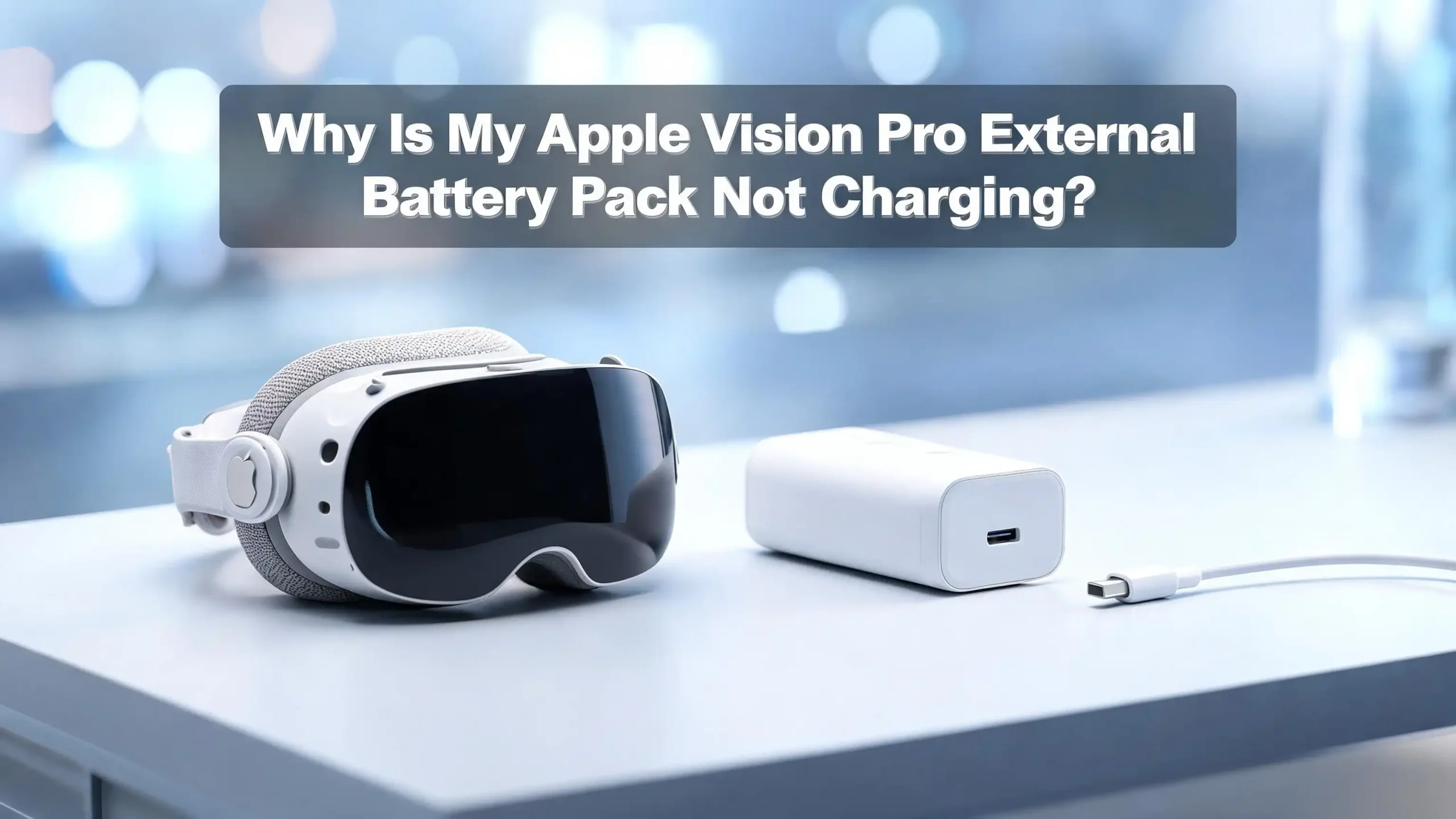
The Apple Vision Pro uses an external battery pack made from machined aluminum. It weighs about 353 grams and houses three lithium cells connected in series. The total capacity is 9,498 mAh (35.9 Wh). This gives you roughly 2 to 2.5 hours of general use or up to 3 hours of video playback, depending on your model.
The battery has two ports. The USB-C port on the side accepts charging input up to 67W using the USB Power Delivery standard. The output port uses a proprietary connector that Apple designed with a self locking mechanism. This connector feeds power to the headset through a woven cable. You cannot replace this cable with a standard Lightning or USB-C cable.
Understanding this setup matters because the charging issue could originate at any point in this chain. The wall outlet, the USB-C cable, the power adapter, the USB-C port on the battery, or the internal firmware could each be the source. Knowing the hardware helps you troubleshoot faster.
Check Your Power Adapter Wattage First
The single most common reason the Apple Vision Pro battery pack will not charge is an underpowered adapter. Apple requires a USB-C power adapter rated for 30 watts or higher. Many people grab whatever charger is nearby and plug it in. A 20W iPhone charger or a 15W iPad charger will not deliver enough power.
Look at the fine print on your power adapter. It should say 30W, 35W, 45W, 67W, 96W, or another number at or above 30. If you are using the adapter that shipped with your Vision Pro, you already have the right one. If you are using a third party adapter, confirm its output rating.
Here is a quick test. Try the charger that came with a MacBook Pro or MacBook Air. These are typically rated at 30W or higher. If the battery starts charging with this adapter, your original charger was the problem. Replace it with any quality USB-C adapter rated for 30W or more. The battery supports up to 67W input, so a higher wattage adapter will charge it faster without causing any damage.
Inspect and Replace Your USB-C Charging Cable
A faulty USB-C cable is another frequent culprit. Not all USB-C cables carry the same amount of power. Some cheap cables only support 15W or less, even if your adapter outputs 30W or more. The cable becomes the bottleneck.
Start by examining the cable visually. Look for fraying, kinks, or bent connectors at either end. Even small damage to the internal wires can reduce power delivery below the minimum threshold. If the cable looks worn, replace it.
Next, try a different cable entirely. Use the USB-C cable that came with your Vision Pro if you have it handy. If not, grab a cable from a MacBook charger or another high quality source. Make sure the replacement cable supports USB Power Delivery. Avoid using very long cables (over 2 meters) because power can drop over longer distances, especially with thinner gauge wires. A short, thick USB-C cable rated for 60W or more is ideal for testing.
Try a Different Wall Outlet or Power Source
This step sounds obvious, but it solves the problem more often than you might expect. Some wall outlets deliver inconsistent power. Power strips with surge protectors can sometimes limit current flow. Extension cords with multiple devices plugged in may not supply enough wattage.
Plug your charger directly into a wall outlet. Remove any power strips, extension cords, or adapters from the chain. Try a different outlet in a different room if the first one does not work. If you are in a hotel, airport, or airplane, the power supply from the seat or wall outlet may be limited to 10W or 15W. That is not enough.
You can verify the outlet works by charging a different device, like a laptop or phone, from the same outlet. If other devices charge fine, the outlet is not the issue. But if multiple devices struggle to charge from that outlet, you have found the source of your problem.
Perform Apple’s Official Battery Reset Procedure
Apple has a specific reset process for the Vision Pro battery pack. If your battery is connected to power but the light will not come on, or if visionOS shows the battery is not charging, follow these steps exactly.
Step 1: Disconnect the battery from your Apple Vision Pro headset. Turn the power cable counterclockwise until it detaches from the Audio Strap.
Step 2: Make sure the battery is connected to a USB-C charger via a wall outlet. Then unplug it from the charger.
Step 3: Wait five seconds.
Step 4: Plug the battery back into the charger.
Step 5: Wait five seconds again.
Step 6: Reconnect the battery to your Apple Vision Pro headset.
This cycle resets the power management system inside the battery. Many users report that this sequence alone restored their charging. If the battery begins to show a steady or slow pulsing amber light after this reset, it is working. Give it at least 10 minutes before checking the charge level.
Reseat the Proprietary Power Cable with a SIM Ejector Tool
The woven power cable that connects the battery pack to the headset is held in place by a self locking mechanism. Over time, this connection can develop a poor contact. The fix is simple but requires a SIM ejector tool or a thin pin.
Look at the battery pack near the output port. You will see a small pinhole to the left of the connector. Insert the SIM ejector tool into this pinhole and press gently. This releases the internal lock and allows you to pull the cable free.
Once the cable is out, wait three to five seconds. Then push the cable firmly back into the connector until it clicks and locks in place. This single step has fixed the charging issue for a large number of users. The act of disconnecting and reconnecting the cable appears to reset something in the battery’s power delivery system. You do not even need to fully remove the cable. Some users found that simply inserting the SIM tool into the pinhole and pressing was enough to trigger a reset.
Let a Completely Dead Battery Charge for at Least 10 Minutes
A critically low battery behaves differently than one with some charge remaining. If your battery has fully drained, you may plug it in and see nothing happen for several minutes. No light, no indication of charging. This can feel alarming, but it is normal.
The battery needs a minimum charge level before it can power any indicator lights or respond to taps. Apple says you should leave the battery connected to power for at least 10 minutes when the charge is critically low. During this time, the amber light may not appear at all.
After 10 minutes, gently tap the battery. If you see a slow amber pulse, the battery is charging but still too low to power the headset. If you see a steady amber light, the battery has enough charge to use. If you still see nothing after 15 to 20 minutes, the issue is likely deeper than a simple drain. Move on to the next troubleshooting steps.
Drain the Battery Completely and Recharge from Zero
This approach sounds counterintuitive, but it has a solid track record. Several Apple Vision Pro owners reported their battery got stuck at a certain charge level. The percentage would not increase no matter how long they left it on the charger. In some cases, the battery even showed a false reading, displaying 1% while actually holding a full charge.
The fix is to let the battery drain all the way to zero. Disconnect it from the charger. Leave the headset connected and powered on if possible. Let it run until the battery dies completely and the headset shuts off.
Once the battery is fully dead, wait five minutes. Then plug it into your 30W or higher USB-C charger and leave it alone for at least 30 minutes. This full discharge and recharge cycle can reset the battery’s power management firmware. One user on Reddit described this as resetting “some power management” system inside the battery. After completing this cycle, check if the battery charges normally and shows accurate percentage readings.
Check for Debris or Moisture in the USB-C Port
The USB-C charging port on the battery pack sits on the side of the aluminum housing. This port is exposed whenever the battery is in your pocket, bag, or sitting on a desk. Lint, dust, and tiny debris particles can accumulate inside the port over time.
Use a flashlight to look inside the USB-C port. If you see lint or debris, use a wooden or plastic toothpick to gently remove it. Do not use metal tools inside the port because they can damage the pins or short circuit the connection. Compressed air can also help dislodge particles.
If you suspect moisture has entered the port, do not plug in the charging cable. Apple warns against charging if liquid is present in the port. Let the battery air dry at room temperature for several hours. You can place it in a dry, well ventilated area. Do not use a hair dryer or direct heat source, as excessive heat can damage the internal cells. Once the port is dry, try charging again.
Avoid Charging in Hot or Enclosed Environments
Lithium batteries are sensitive to temperature. The Apple Vision Pro battery pack generates heat during charging, and Apple specifically warns users to remove the battery from pockets or enclosed spaces while charging. A warm battery may slow or pause its charging cycle to protect the cells from damage.
If you have been using the headset and the battery feels warm, let it cool down for 10 to 15 minutes before plugging it in. Do not charge the battery in direct sunlight, near a heater, or inside a closed bag. Room temperature is ideal.
Cold temperatures can also affect charging. If the battery has been in a cold car or outdoor environment, bring it indoors and let it reach room temperature before attempting to charge. Extreme cold causes lithium cells to resist accepting a charge. The battery may appear dead when it is simply too cold to function.
Force Restart Your Apple Vision Pro Headset
Sometimes the charging issue is not with the battery at all. The headset’s software can display incorrect charging information. Several users found that their battery was actually charging, but visionOS showed 1% or displayed a “not charging” status incorrectly.
To force restart your Apple Vision Pro, press and hold the top button and the Digital Crown at the same time. Hold both for about 10 seconds until the device turns off. Release both buttons, then press and hold the top button for three seconds to turn it back on.
After the restart, check the battery percentage in Control Center. If the number jumps up significantly, the problem was a software glitch in the charge reporting system. If the percentage remains low and the battery still shows no sign of charging, the issue is hardware related. This restart takes less than 30 seconds and should be part of your standard troubleshooting routine.
Update visionOS to the Latest Version
Apple regularly releases software updates that fix bugs, including battery and power management issues. An outdated version of visionOS might have a known bug that interferes with charge reporting or battery communication.
To check for updates, put on your Apple Vision Pro and go to Settings, then General, then Software Update. If an update is available, download and install it. Make sure your battery has at least 50% charge before starting the update, or keep the battery connected to a charger during the process.
Apple has released several visionOS updates since launch that addressed power management, battery indicator accuracy, and charging behavior. Running the latest version gives you the best chance of avoiding software related charging bugs. If your battery is too low to power the headset for an update, charge it first using the reset methods described earlier in this guide.
Contact Apple Support or Visit the Genius Bar
If you have tried every step above and the battery still will not charge, the problem is likely a hardware defect. The internal power management chip, the charging circuitry, or the battery cells themselves may have failed.
Apple offers battery service for the Vision Pro. Under the standard one year warranty or AppleCare+, Apple will replace the battery at no extra charge if its capacity drops below 80%. If your battery is defective and will not charge at all, this qualifies for warranty replacement.
You have two options. You can visit a Genius Bar at an Apple Store for in person support. The technician will run diagnostics on your battery and headset. You can also contact Apple Support online or by phone to arrange a mail in repair. Apple will send you a prepaid shipping box. Turnaround time is typically 4 to 5 business days. Some users report that Apple replaced only the battery pack at the store rather than shipping the entire headset, which saved significant time.
Prevent Future Charging Problems
Prevention saves time and frustration. A few simple habits will keep your Apple Vision Pro battery pack healthy and reduce the chance of charging failures.
Always use a 30W or higher USB-C adapter. Store your original Apple charger with your Vision Pro travel case so you always have the right adapter. Avoid using cheap, unbranded power adapters.
Disconnect the battery from the headset when you are not using it for extended periods. Apple says the headset turns off automatically after 48 hours of inactivity (on visionOS 26.1 or later). Leaving the battery connected and draining during long idle periods can cause the battery to drop to critically low levels where it stops responding.
Store the battery at room temperature. Avoid leaving it in a hot car, cold garage, or humid environment. Charge it at least once every few weeks if you are not using the headset regularly. Lithium batteries degrade faster when stored at extremely low or high charge levels for long periods. Keeping the battery between 20% and 80% during storage is ideal for long term health.
Understanding the Battery Indicator Lights
The small LED light next to the USB-C port on the battery pack tells you its status. Knowing what each light pattern means can save you from unnecessary panic.
Green light for several seconds (when connected to power) means the battery is fully charged. Steady amber light means the battery is below 100% but has enough charge to power the headset. Slowly pulsing amber light means the charge is critically low, and the battery cannot power the headset yet. You need to charge it for at least 10 minutes.
When the battery is not connected to power, a green light means 50% or higher. A steady amber light means between 5% and 49%. A slowly pulsing amber light again means critically low. You can trigger the light by gently tapping the battery or moving it. The battery contains an accelerometer that detects motion and briefly illuminates the indicator. If tapping produces no light at all, the battery is either completely dead or has a hardware failure.
When to Consider Buying a Replacement Battery
If your battery is out of warranty and Apple confirms a hardware failure, you will need a replacement. Apple sells the Vision Pro battery pack as a standalone accessory. This is also worth considering if your battery’s capacity has degraded significantly after heavy daily use.
Before purchasing, confirm with Apple Support that the battery is the actual problem. In rare cases, the issue can be with the headset’s power connector rather than the battery itself. A Genius Bar diagnostic can confirm this. If the headset works perfectly with a store battery but not with yours, the battery is at fault.
Keep your old battery and its cable for potential recycling through Apple’s trade in and recycling program. Do not throw lithium batteries in regular trash. They require proper disposal at certified recycling centers or through Apple’s own recycling initiative.
FAQs
How do I know if my Apple Vision Pro battery is charging?
Plug the battery into a 30W or higher USB-C adapter. The LED indicator next to the USB-C port should light up briefly. Amber means it is charging but not full. Green means it is fully charged. You can also tap the battery gently at any time to trigger the indicator light. If no light appears after 10 minutes on the charger, the battery may have a hardware issue.
Can I use any USB-C charger for the Apple Vision Pro battery?
You can use any USB-C charger rated at 30W or higher. Apple recommends its own 30W USB-C adapter. Chargers from MacBooks, iPads (30W models), or quality third party brands also work. Chargers rated below 30W will not provide enough power and the battery will not charge.
Why does my Apple Vision Pro battery show it is charging but the percentage does not increase?
This is often a software glitch. Try force restarting your Apple Vision Pro by holding the top button and Digital Crown for 10 seconds. After the restart, check the battery level again. If the percentage is still stuck, perform a full drain and recharge cycle to reset the power management system.
How long does the Apple Vision Pro battery take to fully charge?
A full charge from zero takes roughly 1 to 2 hours depending on your adapter’s wattage. A 30W adapter charges slower than a 67W adapter. If charging takes significantly longer than 2 hours, inspect your cable, adapter, and USB-C port for issues.
Does Apple replace the Vision Pro battery for free?
Apple replaces the battery at no charge under warranty or AppleCare+ if its capacity drops below 80%. If the battery has a manufacturing defect that prevents charging, this also qualifies for free replacement. Out of warranty battery service will involve a fee. Contact Apple Support or visit a Genius Bar for a diagnostic and cost estimate.
Can I use the Apple Vision Pro while the battery charges?
Yes. Apple confirms that you can use the Vision Pro while the battery is connected to a charger. The headset supports all day use when plugged in. However, high performance tasks will slow the charging rate because the headset draws significant power during use.