How to Recover Corrupted Save Files on Xbox Series S?
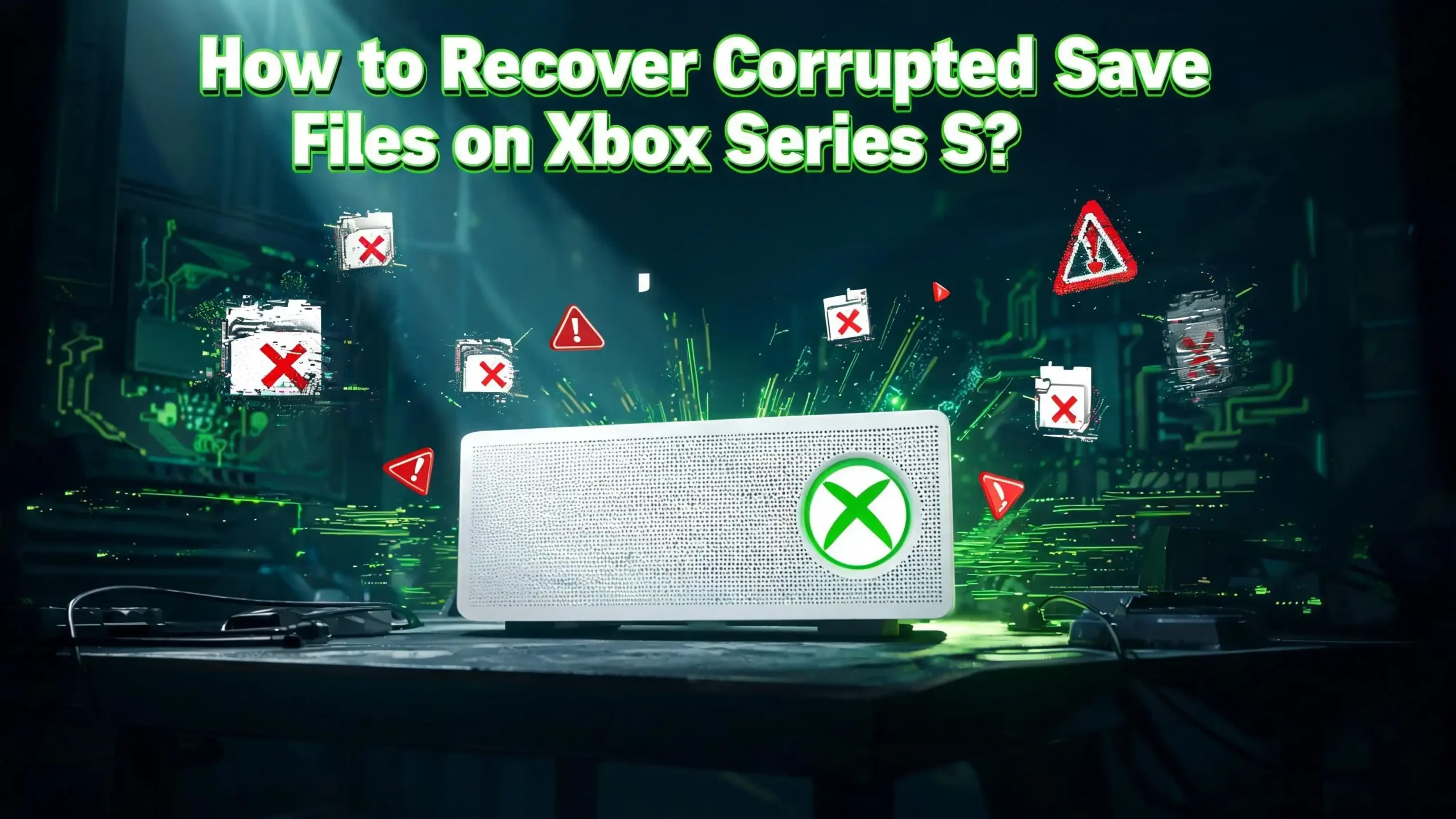
You just loaded up your favorite game on your Xbox Series S, ready to pick up where you left off. But instead of your progress, you see an error message telling you your save file is corrupted. Your heart sinks. Hours, maybe even weeks, of gameplay could be gone in an instant.
Save file corruption on the Xbox Series S is more common than most players think. Power outages, failed cloud syncs, game crashes, and even system updates can all damage your saved data. The good news is that most corrupted save files can be recovered if you act quickly and follow the right steps.
This guide walks you through every possible solution to get your save data back. From simple cache clears to cloud sync tricks and full console resets, you will find a fix that works for your situation.
Key Takeaways
- Xbox cloud saves are your safety net. The Xbox Series S automatically backs up your save files to the cloud when connected to the internet. This means your most recent synced save is likely still safe on Microsoft’s servers, even if your local file is corrupted.
- Clearing local saved games does not erase cloud saves. You can safely delete local save files through Settings and force your console to re-download the cloud version. This is often the fastest fix for corrupted data.
- Deleting reserved space can fix certain corruption issues. Some players have found success by removing a game’s reserved space through the Manage Game menu. This resets temporary game data without deleting your actual save files stored in the cloud.
- A power cycle clears the console cache. Unplugging your Xbox Series S from the wall for at least two minutes clears cached data that may be causing save file errors. This simple step resolves many corruption problems.
- Factory resetting with the “Keep My Games and Apps” option preserves cloud saves. If nothing else works, a soft reset of the console can fix deep system issues while keeping your installed games intact. Cloud saves will re-sync after you sign back in.
- Acting fast matters. If you suspect save corruption, avoid launching the affected game again before troubleshooting. Re-launching could overwrite your cloud save with the corrupted local version.
What Causes Save File Corruption on Xbox Series S
Understanding why save files become corrupted helps you prevent the problem from happening again. Several common situations lead to damaged save data on the Xbox Series S.
Sudden power loss is one of the most frequent causes. If your console loses power while a game is actively saving data, the save file may only write partially. This creates an incomplete file that the game cannot read.
Game crashes and system freezes also cause corruption. When a game stops responding and you need to force it closed, any save operation in progress gets interrupted. The Xbox Series S uses a solid state drive that writes data quickly, but a crash at the exact wrong moment can still damage files.
Failed cloud sync operations are another common culprit. If your internet connection drops while the console is uploading save data to Xbox’s cloud servers, the local and cloud versions of your save can fall out of sync. This mismatch sometimes causes the console to flag the data as corrupted.
System updates that interrupt background processes can also trigger corruption. The same goes for game updates that change how save data is structured. A save file created on an older version of a game may not always work correctly after a major patch.
Finally, storage issues on the internal SSD can play a role. If the drive is nearly full, the console may struggle to write save data properly. Keeping at least 10% of your storage free is a good habit.
Stop Playing the Game Immediately
The first and most important step after you discover a corrupted save file is to stop playing the affected game right away. This might sound counterintuitive, but there is a critical reason for it.
Your Xbox Series S stores save files in two places: locally on the console’s internal SSD and remotely on Microsoft’s cloud servers. When you launch a game, the console compares these two versions and syncs them. If you continue playing with a corrupted local save, the console may upload that corrupted file to the cloud, overwriting your last good backup.
Once the corrupted version replaces the cloud copy, recovery becomes much harder. So the moment you see a save error or notice missing progress, close the game completely. Press the Xbox button on your controller, highlight the game, press the Menu button, and select Quit. Do not just return to the home screen, because the game may continue running in the background.
If the game crashed and you have not relaunched it yet, that is actually the best scenario. Your cloud save likely still holds your most recent good data. From this point forward, every troubleshooting step you take will focus on preserving that cloud copy and removing the corrupted local file.
Take a breath and resist the urge to reload. Your data probably still exists in the cloud. The steps below will help you get it back safely.
Power Cycle Your Xbox Series S
A full power cycle is the simplest and often the most effective first step. This process clears the console’s temporary cache memory, which can resolve many save file issues without touching your actual data.
Here is how to do it. Press and hold the Xbox button on the front of your console for about 10 seconds. The console will shut down completely. This is different from a normal shutdown, which puts the console in standby mode. You need a full power down.
After the console turns off, unplug the power cable from the back of the Xbox Series S. Wait at least two full minutes. This waiting period allows the internal capacitors to discharge and clears all cached data from the system memory.
Plug the power cable back in and press the Xbox button to turn the console on. You will notice the startup takes a bit longer than usual. This is normal. The console is rebuilding its cache from scratch, which is exactly what you want.
Once the console boots up, sign in to your Xbox account and try launching the game again. The console will attempt to sync your save data from the cloud. If the corruption was caused by bad cached data, this simple fix often resolves the problem completely.
Power cycling costs you nothing and risks nothing. It should always be your first troubleshooting step for any Xbox issue, not just save file corruption.
Clear Local Saved Games to Force a Cloud Re-Sync
If a power cycle did not fix the problem, the next step is to clear your local saved games. This forces the Xbox Series S to download fresh copies of all your save files from the cloud.
Go to Settings on your Xbox Series S. Select System, then choose Storage Devices. You will see an option called Clear Local Saved Games. Select it and confirm the action.
This will delete every locally stored save file on your console. It does not delete your cloud saves. As long as your console was connected to the internet during your recent play sessions, Microsoft’s servers hold a copy of your progress.
After clearing local saves, restart your console with a full power cycle using the method described above. Then sign in and launch the affected game. The console will detect that no local save exists and will download the cloud version automatically.
You should see a sync screen when the game starts. Let this process complete without interruption. Do not turn off your console or disconnect from the internet during the sync.
One important caution: if you have been playing offline for an extended period, your cloud saves may not reflect your latest progress. The cloud only stores data that was successfully uploaded during an online session. If you played 50 hours offline and never synced, those 50 hours exist only on your local drive. Clearing local saves in that situation would result in lost progress.
For most players who game with an active internet connection, this method is safe and effective.
Delete the Game’s Reserved Space
Reserved space is a block of storage that games set aside on your Xbox Series S for save data, settings, and temporary files. Corrupted reserved space can prevent a game from reading your saves properly, even when the save files themselves are fine.
To delete reserved space, go to your game library or home screen. Highlight the affected game and press the Menu button on your controller (the button with three horizontal lines). Select Manage Game and Add-Ons from the menu that appears.
Inside the management screen, look for a tab or section labeled Saved Data. You may see entries for your profile’s saved data and a separate entry for Reserved Space. Select Reserved Space and choose to delete it.
Be careful to delete only the Reserved Space and not your Saved Data entry. These are two different things. Reserved Space contains configuration files, cached settings, and temporary game data. Your actual save progress is stored in the Saved Data entry and in the cloud.
After deleting the reserved space, launch the game. It will recreate the reserved space automatically with fresh, clean data. Your in-game settings like graphics options and control mappings may reset to defaults, but your save progress should remain intact.
This method has helped many players recover from corruption caused by game crashes. Community members on Reddit and Xbox forums have reported success with this approach across multiple games. It is a low-risk step that targets a common source of corruption without affecting your core save data.
Re-Sync Your Cloud Saves Manually
Sometimes the automatic cloud sync fails or gets stuck. You can take steps to force a fresh sync between your console and Microsoft’s cloud servers.
First, make sure your Xbox Series S is connected to the internet. Go to Settings, then General, then Network Settings. Run the Test Network Connection option to confirm you have a stable connection. Save file syncing requires a reliable internet link, and a weak connection can cause sync failures.
If your connection is solid, try signing out of your Xbox account and signing back in. Go to Settings, select Account, and choose Sign Out. Wait about 30 seconds, then sign back in. This refreshes your connection to Xbox’s cloud services and often triggers a new sync attempt.
Another approach is to launch the game and wait for the sync prompt. If the console detects a conflict between the local and cloud versions, it will present you with a choice. Always select the cloud version if you suspect local corruption. The prompt will typically show you timestamps for each version, so pick the one with the most recent date from before the corruption occurred.
If you do not see a sync prompt at all, the console may think the local and cloud versions match. In that case, go back and clear your local saved games first (as described in the earlier section), and then launch the game to force a fresh download from the cloud.
Patience is key during this process. Large save files can take several minutes to sync, especially on slower connections. Let the process finish completely before interacting with the game.
Clear Persistent Storage on Xbox Series S
Persistent storage is separate from your game saves and cache. It stores data related to Blu-Ray discs, streaming apps, and certain system processes. Clearing it can resolve background issues that indirectly affect save file operations.
To clear persistent storage, go to Settings on your Xbox Series S. Select Devices and Connections, then choose Blu-Ray. Inside the Blu-Ray settings, you will find an option for Persistent Storage. Select it and choose Clear Persistent Storage.
You may need to repeat this process three times for it to fully clear all stored data. Microsoft recommends selecting the clear option multiple times to ensure everything is wiped. After clearing, restart your console.
This step is especially helpful if you have noticed general sluggishness on your console alongside save file issues. Persistent storage buildup can slow down system processes, including the background operations that handle save file management and cloud syncing.
Clearing persistent storage does not affect your games, apps, or save files. It only removes temporary system data that the console can regenerate on its own. Think of it as cleaning out a cluttered closet so the important stuff is easier to find.
While this step alone may not fix severe save corruption, it works well as part of a comprehensive troubleshooting approach. Combine it with a power cycle and a local save clear for the best results.
Uninstall and Reinstall the Affected Game
If the above steps have not resolved the corruption, try a full reinstall of the game. Corrupted game files can cause save data to appear damaged even when the save itself is fine.
Go to your game library, highlight the affected game, and press the Menu button. Select Uninstall. Choose to Uninstall All to remove the base game and all associated add-ons. This gives you the cleanest possible fresh start.
After the uninstall completes, power cycle your console using the method described earlier. Unplug the console for two minutes to clear any remaining cached data from the uninstalled game.
Plug the console back in, turn it on, and reinstall the game from your library or the Microsoft Store. Make sure you install any available updates before launching the game. Outdated game files are a known source of compatibility issues with save data.
When you launch the freshly installed game, the console will sync your cloud saves automatically. Wait for the sync to complete before starting gameplay. If the corruption was caused by damaged game files rather than damaged save data, this reinstall process should fix the problem.
One tip from the gaming community: after reinstalling, launch the game and immediately pause at the main menu. Give the sync process plenty of time to finish before loading any save file. Rushing this step can create new sync conflicts.
Check for Xbox System Updates
Running an outdated system software version on your Xbox Series S can cause all sorts of problems, including save file corruption. Microsoft regularly releases updates that fix bugs related to storage management and cloud syncing.
Go to Settings, then System, then Updates. If an update is available, install it before attempting any further troubleshooting. Let the update install completely and allow the console to restart on its own.
Game updates matter just as much as system updates. Developers frequently release patches that fix save related bugs in their games. A known issue in one version of a game might already have a fix in a newer patch.
To check for game updates, highlight the game on your home screen, press the Menu button, and select Manage Game and Add-Ons. Look for any available updates in the Updates section. Install all pending updates.
After updating both the system and the game, try loading your save file again. Many players have reported that save corruption errors disappeared after applying updates they had been postponing.
If you have automatic updates enabled, your console should handle this on its own. But if you frequently use Instant On mode, updates sometimes queue without installing. Switching to Energy Saver mode for a while can help ensure updates install properly during the next boot.
Perform a Factory Reset While Keeping Games and Apps
If nothing else has worked, a factory reset may be necessary. The Xbox Series S offers a reset option that preserves your installed games and apps while refreshing the operating system.
Go to Settings, then System, then Console Info. Select Reset Console. You will see two options. Choose Reset and Keep My Games and Apps. This option reinstalls the Xbox operating system without deleting your game library.
Your local save files will be removed during this process, but your cloud saves remain safe on Microsoft’s servers. After the reset completes, you will need to sign back in to your Xbox account and go through the initial setup process.
Once signed in, launch the affected game. The console will download your cloud saves during the sync process. With a fresh operating system and clean system files, many deep-rooted corruption issues get resolved.
This process takes about 10 to 20 minutes depending on your console. Do not turn off the console or unplug it during the reset. Interrupting a factory reset can cause serious system problems.
This is the most aggressive fix before a full factory wipe. It resolves system-level issues that individual game fixes cannot reach. The vast majority of save corruption cases are resolved by this step or one of the earlier methods.
Prevent Save File Corruption in the Future
Once you have recovered your save data, take steps to prevent corruption from happening again. A few simple habits can protect your progress going forward.
Never turn off your console while a game is saving. Look for the save icon on screen, usually a spinning circle or a disc symbol, and wait for it to disappear before shutting down. If a game appears frozen during a save, give it at least two minutes before forcing a shutdown.
Keep your console connected to the internet whenever possible. This ensures your save files sync to the cloud regularly. Cloud saves are your best insurance against local file corruption. Every time you finish a play session, confirm that the cloud sync completes before turning off the console.
Avoid filling your internal SSD to capacity. The Xbox Series S has a relatively small 364 GB usable storage space. When the drive gets too full, write operations slow down and errors become more likely. Try to keep at least 30 to 50 GB free at all times.
Use manual saves in addition to auto-saves whenever a game allows it. Keep multiple save slots rather than relying on a single auto-save. If one save file becomes corrupted, you can fall back to an earlier manual save.
Install system and game updates promptly. Updates often include fixes for known save-related bugs. Delaying updates increases your risk of encountering issues that have already been patched.
Contact Xbox Support for Unresolvable Issues
If you have tried every method in this guide and your save files remain corrupted, it is time to contact Xbox Support directly. Microsoft’s support team has access to tools and diagnostic information that are not available to regular users.
Visit the Xbox Support website at support.xbox.com. You can start a chat with a virtual agent or request a callback from a real support representative. Have your console’s serial number ready, along with the name of the affected game and a description of the error messages you have seen.
Xbox Support can sometimes recover cloud save data that appears lost from the user side. They can also identify server-side issues that might be affecting your account’s save sync functionality.
If the issue is specific to one game, also consider reaching out to the game’s developer or publisher. Many studios maintain their own support channels and bug tracking systems. A save corruption issue affecting many players will often get a dedicated fix in a future patch.
Before contacting support, take screenshots of any error messages you see. Document the steps you have already tried. This information helps the support team diagnose your issue faster and avoids having them walk you through steps you have already completed.
Community forums like Reddit’s r/XboxSeriesS and the official Xbox community forums are also valuable resources. Other players may have found solutions to the exact same corruption issue you are facing.
When Save Files Cannot Be Recovered
Sometimes, despite your best efforts, a corrupted save file is truly gone. This is rare, but it does happen. If the corruption affected both the local file and the cloud backup, or if you were playing offline without any cloud sync, recovery may not be possible.
If you find yourself in this situation, give yourself permission to be frustrated. Losing dozens or hundreds of hours of game progress is genuinely upsetting. Many gamers have been through this exact experience, and the disappointment is valid.
Some games offer community-created tools or workarounds for lost progress. Check game-specific subreddits and forums for advice. Certain games allow you to start a new save while retaining some unlocks or achievements. Others may have a New Game Plus mode that lets you carry over key items.
Going forward, consider using an external USB drive as a secondary backup location for critical saves. While the Xbox Series S does not support running games from USB, some save management options exist through the console’s settings.
The most important takeaway from an unrecoverable loss is prevention. Set up your habits and your console’s settings so that cloud syncing happens reliably. Check your internet connection before every play session. Use multiple save slots. These small steps add up to significant protection over time.
Losing a save file is painful, but it does not have to happen twice.
Frequently Asked Questions
Does clearing local saved games on Xbox Series S delete my cloud saves?
No. Clearing local saved games only removes the save files stored on your console’s internal SSD. Your cloud saves remain intact on Microsoft’s servers. The next time you launch a game after clearing local saves, the console will download your most recent cloud backup automatically. Just make sure your console was connected to the internet during your recent play sessions so the cloud copies are up to date.
How do I know if my Xbox Series S save files are backed up to the cloud?
Your Xbox Series S automatically uploads save files to the cloud whenever you are connected to the internet. You can verify this by launching a game and watching for the “Syncing Data” message at startup. If you see this message, the console is communicating with the cloud. You can also check by going to Settings, then System, then Storage Devices to see if cloud storage is listed.
Can a power outage corrupt my Xbox Series S save files?
Yes. If your Xbox Series S loses power during an active save operation, the save file may write only partially. This creates an incomplete and unreadable file. Using a surge protector or an uninterruptible power supply can help protect against power-related corruption. Always wait for save operations to finish before turning off your console.
Will a factory reset fix corrupted save files on Xbox Series S?
A factory reset can fix corruption caused by system-level software issues. Use the Reset and Keep My Games and Apps option to preserve your installed games. Your local saves will be deleted, but cloud saves remain safe. After the reset, your console will re-download cloud saves when you launch each game.
How long does it take for Xbox cloud saves to sync?
Cloud sync times depend on your internet speed and the size of the save files. Most saves sync within a few seconds to a couple of minutes. Larger save files from open-world games with hundreds of hours of progress may take a bit longer. Always wait for the sync screen to complete before loading a game to avoid conflicts between local and cloud data.
Can I recover a save file if I was playing offline on Xbox Series S?
If you were playing completely offline and never synced your save data to the cloud, recovery options are limited. The local file on your console may be the only copy in existence. You can try a power cycle and cache clear to see if the file becomes readable. If the local file is too damaged and no cloud backup exists, the save may be unrecoverable. This is why maintaining an internet connection during gameplay is so important.