What to Do When Step Counter Stops Updating on Smartwatch?
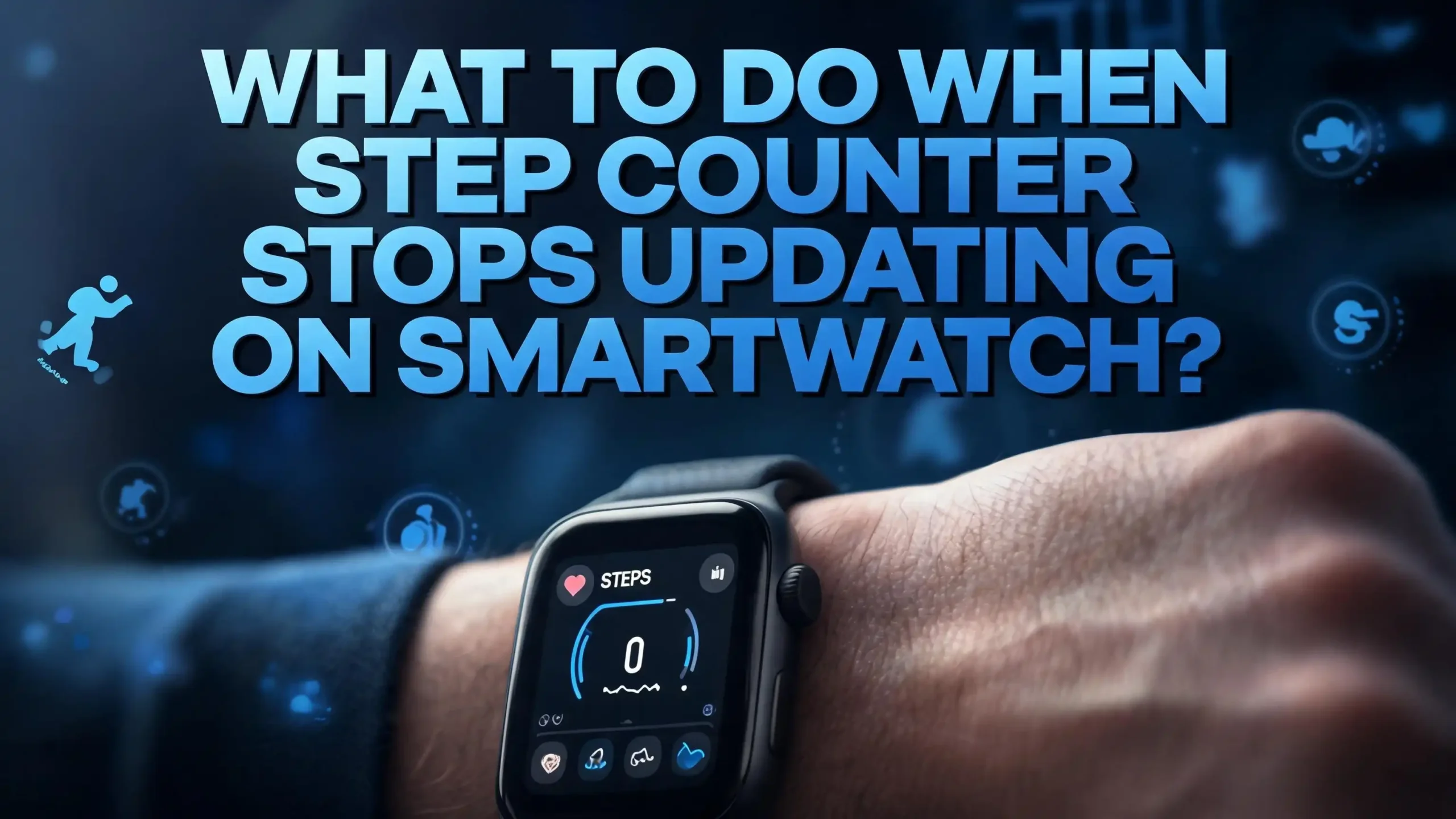
You glance at your smartwatch after a long morning walk, and the step counter still shows zero. Or maybe it stopped updating halfway through your day. Either way, your smartwatch is supposed to track every step you take, and right now, it is failing at its most basic job.
This problem is more common than you might think. Thousands of smartwatch users across every major brand report step counter issues each year. The good news?
Most of these problems have simple fixes that take just minutes. The issue could be a small software glitch, a wrong setting, a sync failure, or even the way you wear your watch on your wrist.
This guide covers every practical fix you need to get your step counter working again. Each fix is clear, direct, and easy to follow. By the end of this post, you will know exactly what went wrong and how to solve it fast.
In a Nutshell
- Restart your smartwatch and phone first. A simple reboot clears temporary software glitches that freeze the step counter. This single step fixes the problem for a large number of users.
- Check that step tracking is turned on in your settings. Battery saver modes and accidental toggles can quietly disable your pedometer without any warning or notification.
- Make sure your watch fits snugly on your wrist. The accelerometer sensor needs consistent skin contact to detect your arm movements and count steps accurately.
- Update your smartwatch firmware and companion app. Outdated software often contains bugs that interfere with sensor data processing and step count syncing.
- Verify app permissions on your phone. Your companion app needs permission to access motion data, fitness tracking, and Bluetooth connections to display your step count correctly.
- Factory reset is the last resort for persistent issues. If nothing else works, a full reset can clear deep software corruption, but always back up your data first before performing this step.
How Your Smartwatch Counts Steps in the First Place
Understanding how step tracking works will help you fix problems faster. Your smartwatch does not actually “count” your footsteps hitting the ground. It uses a tiny sensor called an accelerometer to measure movement along three axes.
The accelerometer detects the back and forth swing of your arm as you walk. It records this motion data and sends it to a software algorithm inside the watch. The algorithm then analyzes the pattern of movement to determine if you are walking, running, or doing something else entirely.
Many modern smartwatches also include a gyroscope that tracks rotational movement. This sensor works alongside the accelerometer to improve accuracy. Some watches use GPS data to cross reference your step count with the actual distance you traveled during outdoor activities.
This means your step counter depends on three things working together: functional hardware sensors, properly running software, and a stable connection to your companion app. A failure in any of these areas can cause the step counter to stop updating.
Restart Your Smartwatch and Phone
The fastest fix for a frozen step counter is a full restart. Temporary software glitches can freeze background processes that handle sensor data. A restart clears these glitches and gives your watch a fresh start.
Power off your smartwatch completely. Do not just put it to sleep. Hold the power button until the shutdown option appears and select it. Wait at least 30 seconds before turning it back on. This pause allows the device memory to fully clear.
Restart your phone at the same time. Your smartwatch sends step data to a companion app on your phone through Bluetooth. If there is a communication error between the two devices, restarting both will reset that connection and restore normal data flow.
After both devices power back on, take a short walk of about 50 steps and check your watch. If the step counter is now updating, the issue was a temporary glitch. Many users on Reddit and Samsung community forums report that this simple restart resolves their step counter problems immediately.
Check if Step Tracking Is Enabled
This sounds obvious, but it catches many people off guard. Step tracking can get disabled without you realizing it. A software update might reset your preferences. A battery saver mode might turn off fitness tracking. Or you might have accidentally toggled the setting off.
On Apple Watch, open the Watch app on your iPhone, go to Privacy, and make sure Fitness Tracking is turned on. Also check that Motion Calibration and Distance is enabled under Settings, then Privacy and Security, then Location Services, then System Services.
On Samsung Galaxy Watch, open Samsung Health on your watch and check if the step counter widget is active. Also go to Settings, then Apps, then Permissions, and make sure Health Services has all necessary permissions enabled.
On Fitbit devices, open the Fitbit app on your phone and check your device settings. Make sure All Day Activity tracking is turned on. Some Fitbit models let you customize which stats appear on the watch face, so confirm that steps are included.
On Garmin watches, go to Settings, then Activity Tracking, and verify that the Move Alert and step counter features are active. A quick check of these settings can save you hours of troubleshooting.
Ensure a Proper Fit on Your Wrist
The way you wear your smartwatch has a direct impact on step tracking accuracy. If the watch sits too loosely on your wrist, the accelerometer cannot reliably detect your arm movements. If it is too tight, it might cause discomfort that makes you remove the watch frequently.
Your smartwatch should sit about one finger width above your wrist bone. It should be snug enough that it does not slide around but loose enough that you can slip a finger underneath the band. This position gives the sensors the best contact with your skin.
Some smartwatches ask you to specify whether you wear the watch on your dominant or non dominant hand. This detail helps the algorithm filter out false steps from everyday hand gestures. Check your watch settings or companion app to make sure this information is correct.
Also inspect your watch band for wear and tear. A stretched or damaged band might not hold the watch securely against your wrist. If your band has lost its grip, replacing it with a fresh one can immediately improve step tracking performance and consistency.
Update Firmware and Companion App
Outdated software is one of the most frequent causes of step counter problems. Smartwatch manufacturers release firmware updates regularly to fix bugs, improve sensor accuracy, and patch software errors that affect tracking features.
Check for firmware updates on your smartwatch by opening Settings and looking for a Software Update or System Update option. Many watches will download updates automatically when connected to Wi-Fi and plugged into their charger. Make sure you allow the update to install fully before using the watch again.
Update the companion app on your phone as well. Go to the App Store or Google Play Store and search for your watch’s app. If an update is available, install it right away. App updates often include critical fixes for data sync issues that prevent step counts from displaying correctly.
Google even released a specific Pixel Watch software update to fix an issue with inflated step counts. Samsung has pushed similar updates for Galaxy Watch models. These examples show that step counter bugs are common enough for manufacturers to address them directly through software patches. Keeping everything up to date is one of the easiest ways to prevent problems.
Clear App Cache and Data
Over time, your companion app accumulates cached data that can become corrupted. This corrupted data can interfere with how step counts are recorded, displayed, and synced between your watch and phone.
On Android phones, go to Settings, then Apps, find your health app (Samsung Health, Fitbit, Google Fit, etc.), and tap Storage. Select Clear Cache first. If that does not fix the problem, try Clear Data. Note that clearing data may remove some locally stored activity history, so sync your data to the cloud before doing this.
On iPhones, you cannot clear cache directly. Instead, delete the companion app and reinstall it from the App Store. This gives you a clean version of the app with no corrupted files. Log back into your account after reinstalling and let your data sync from the cloud.
After clearing the cache or reinstalling, open the app and force a manual sync with your watch. Then take a short walk and check if the step counter updates properly. Users on multiple forums have confirmed that this fix resolves step tracking issues that persisted through restarts and updates.
Verify Bluetooth Connection and Sync Settings
Your smartwatch relies on Bluetooth to send step data to your phone. If the Bluetooth connection is weak, unstable, or interrupted, your step count may not update on your phone even though the watch itself is tracking correctly.
Open your phone’s Bluetooth settings and confirm that your smartwatch appears as a connected device. If it shows as disconnected, try turning Bluetooth off and back on. Move your watch closer to your phone and wait for the connection to re establish.
Sometimes other Bluetooth devices like wireless earbuds, car systems, or speakers can create interference. If you have multiple Bluetooth devices connected at the same time, try disconnecting the others temporarily and see if your watch syncs more reliably.
You should also check the sync frequency in your companion app. Some apps sync data only at specific intervals rather than in real time. Fitbit, for example, has an “All Day Sync” feature that you can enable in the app settings. Turning this on ensures that your step data transfers continuously throughout the day rather than waiting for you to open the app manually.
Check Battery Saver and Power Modes
Many smartwatches include a battery saver or power saving mode that extends battery life by disabling certain features. Step tracking is often one of the first features to get reduced or turned off in these modes.
Check your watch for any active power saving mode. On Samsung Galaxy Watch, go to Settings, then Battery, and see if Power Saving is enabled. On Apple Watch, check if Low Power Mode is active by swiping up to the Control Center. On Garmin watches, look for Battery Saver options in the Settings menu.
When your watch battery drops below a certain level (often around 10 to 20 percent), some devices automatically activate power saving without notifying you. This can silently stop the step counter from updating. The fix is simple: charge your watch.
For the best step tracking experience, keep your smartwatch charged above 20 percent at all times. If you need to use battery saver mode, check your watch settings to see if you can customize which features stay active. Some watches allow you to keep step tracking on while disabling other features like the always on display or Wi-Fi.
Recalibrate Your Smartwatch Sensors
If your step counter updates but shows incorrect numbers, the sensors may need recalibration. Calibration teaches the watch’s algorithm to match your specific walking style, stride length, and movement patterns.
For Apple Watch, make sure Location Services and Motion Calibration are enabled. Then go outdoors to a flat, open area with good GPS reception. Open the Workout app, select Outdoor Walk, and walk at your normal pace for about 20 minutes. This process allows the watch to sync GPS data with accelerometer readings and improve its accuracy.
For Fitbit and Garmin watches, calibration usually happens automatically. However, you can improve it by entering accurate personal information in your profile. Your height, weight, and stride length all affect how the algorithm calculates steps. Open your companion app, go to your profile, and double check that these details are correct.
If calibration does not help, you can reset your calibration data. On Apple Watch, go to Settings, then Privacy and Security, then Location Services, then System Services, and select Reset Fitness Calibration Data. After resetting, repeat the outdoor walk to build fresh calibration data from scratch.
Unpair and Re Pair Your Smartwatch
Sometimes the connection between your smartwatch and phone develops problems that restarts cannot fix. Unpairing and re pairing the devices creates a completely fresh connection and often resolves persistent sync issues.
Before you unpair, make sure all your health and fitness data is backed up to the cloud. Most companion apps sync data automatically, but verify this in your account settings. Once you confirm your backup, proceed with the unpairing process.
On your phone, go to the smartwatch companion app and select the option to remove or unpair your device. Also delete the watch from your phone’s Bluetooth settings. Restart both your phone and watch. Then set up the watch again as if it were brand new by opening the companion app and following the pairing instructions.
This process refreshes all communication protocols between the devices. It clears any corrupted pairing data and establishes a clean data pipeline. After re pairing, give the watch a few minutes to sync historical data and then test the step counter with a short walk.
Perform a Factory Reset as a Last Resort
If you have tried everything else and your step counter still refuses to update, a factory reset is your final software fix. This erases all data and settings on your watch and returns it to its original state.
Back up all your data before proceeding. Sync your watch with the companion app and ensure your activity history is stored in the cloud. Note down any custom settings like watch faces, notification preferences, and workout goals so you can restore them later.
To factory reset, go to Settings on your smartwatch and look for the Reset or System option. Select Factory Reset and confirm. The process takes a few minutes. Once complete, pair the watch with your phone again and set it up from scratch with fresh settings.
A factory reset can fix deep software corruption, stuck processes, and persistent bugs that other fixes miss. Many users on community forums report that this step resolved step counter issues they had been dealing with for weeks. While it takes more time and effort, it is highly effective for software related problems.
Rule Out Hardware Problems
If a factory reset does not fix your step counter, the problem may be hardware related. The accelerometer or gyroscope inside your watch could be damaged or defective. Physical damage from drops, water exposure beyond the rated depth, or manufacturing defects can all cause sensor failure.
Test your watch’s sensors by opening a compass or level app if one is available. If these apps also show incorrect readings or fail to respond, the motion sensors may be faulty. Some watches include built in diagnostic tools that you can access through hidden menus.
Check if your watch is still under warranty. Most manufacturers provide at least a one year warranty that covers sensor malfunctions. Gather your purchase receipt, serial number, and any screenshots showing the step counter problem. Contact the manufacturer’s support team through their website, phone line, or authorized service center.
If your warranty has expired, ask for a repair estimate. In some cases, the cost of repairing a sensor is close to the price of a new watch, and replacing the device might make more financial sense than fixing it.
Prevent Step Counter Problems From Happening Again
Prevention saves you from repeating this troubleshooting process in the future. A few simple habits can keep your step counter running smoothly for months and years.
Keep your software updated at all times. Enable automatic updates on both your smartwatch and companion app. This ensures you receive bug fixes and improvements as soon as they become available.
Restart your smartwatch at least once a week. This clears accumulated background processes and frees up memory that can slow down sensor data processing. A weekly restart takes just 30 seconds and can prevent many common issues.
Wear your watch correctly every day. Maintain a snug fit above your wrist bone and keep the sensor area clean and dry. Sweat, lotion, and dirt can build up on the back of the watch and reduce sensor accuracy over time. Wipe the sensors with a soft, damp cloth regularly.
Finally, avoid installing too many third party apps that access your health data simultaneously. Multiple apps pulling sensor data at the same time can create conflicts. Stick to one primary health app for step tracking and disable data access for apps you do not actively use.
Frequently Asked Questions
Why does my smartwatch show zero steps even though I have been walking?
This usually happens because of a software glitch or a disabled setting. Start by restarting your watch and phone. Then check that step tracking is enabled in both the watch settings and companion app. If the counter still shows zero, clear the app cache and try syncing manually. A frozen step counter almost always has a software cause rather than a hardware one.
Can wearing my smartwatch on different wrists affect step counting?
Yes, it can. Most smartwatches ask you to specify which wrist you wear the watch on during setup. If you switch wrists without updating this setting, the algorithm may misinterpret your arm movements. Always update your wrist preference in the companion app if you change which arm you wear your watch on.
Why does my step count on the watch differ from the count on my phone app?
This happens because of sync delays. Your watch records steps in real time, but the data transfers to your phone only during sync events. If Bluetooth is off or the connection is weak, the phone app will show an outdated number. Enable all day sync in your companion app and keep Bluetooth active to minimize this difference.
How accurate are smartwatch step counters?
Research shows that most modern smartwatches are accurate within 5 to 10 percent of actual steps. Factors like walking speed, arm swing, terrain, and how the watch sits on your wrist all affect accuracy. Activities where your wrist stays still, such as pushing a cart or holding a railing on a treadmill, will cause undercounting.
Should I factory reset my smartwatch to fix step counter issues?
A factory reset should be your last option after trying simpler fixes like restarting, updating software, clearing cache, and re pairing. It erases all your data and settings, so back up everything first. However, a factory reset is very effective at fixing persistent software problems that other solutions cannot resolve.
When should I contact the manufacturer about step counter problems?
Contact the manufacturer if your step counter still does not work after trying all the software fixes listed in this guide, including a factory reset. This suggests a possible hardware issue with the accelerometer or gyroscope. If your watch is still under warranty, the repair or replacement may be covered at no extra cost to you.