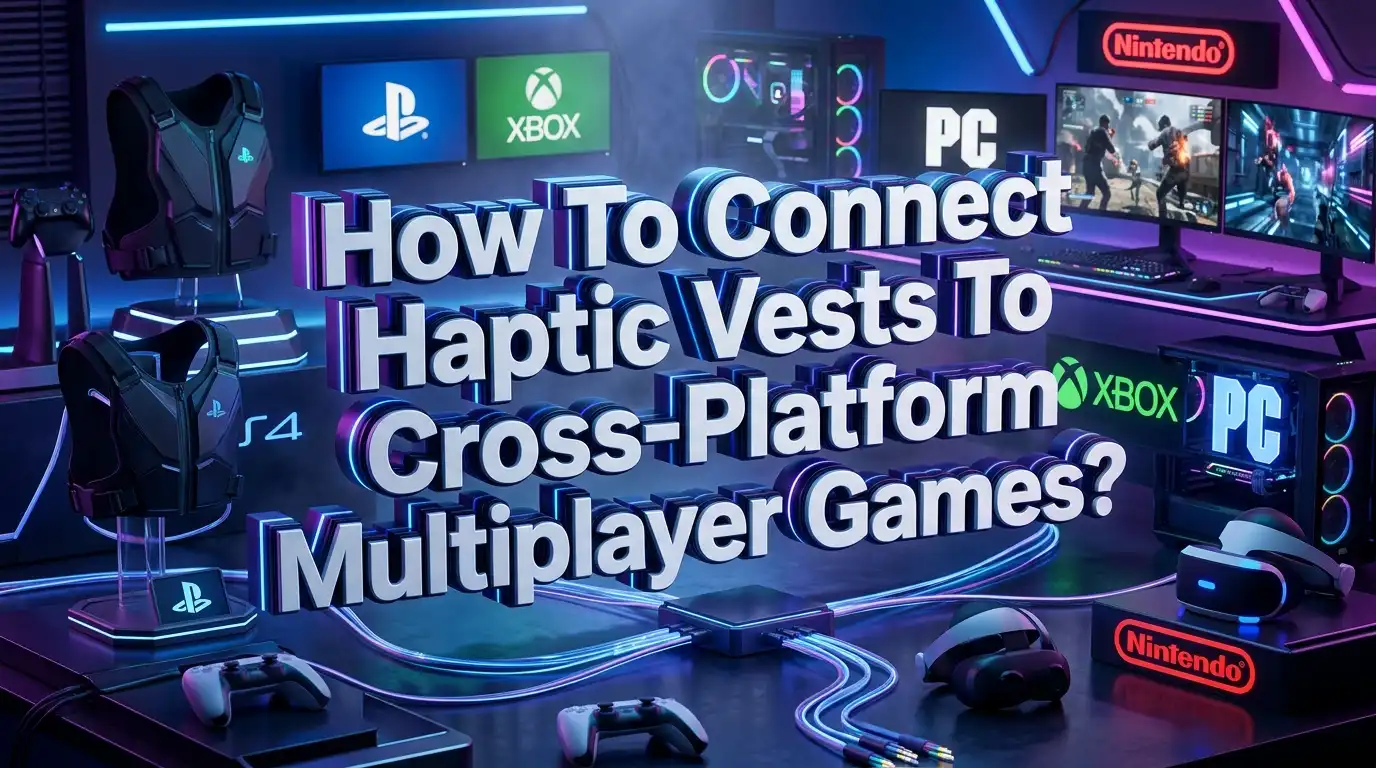
How to Connect Haptic Vests to Cross-Platform Multiplayer Games?
Imagine playing a cross-platform shooter where your friend on PC and you on a Meta Quest both feel the same explosion rumble through your torsos at the exact same moment. The bullet hits, the engine roars, the arrow lands — and your body knows it before your eyes do.
Yet connecting a haptic vest to a cross-platform multiplayer game remains a puzzle for most gamers. Different platforms use different haptic protocols. Some games have native vest support.
Others rely on audio-to-haptics conversion. And syncing those sensations across players on different devices introduces networking challenges that even experienced developers find tricky.
This guide breaks down every method, tool, and technique you need. You will learn how to connect haptic vests to games running on Unity and Unreal Engine, how to sync haptic events across players in a multiplayer session, and how to use community tools when native integration is not available.
Key Takeaways
- Three main connection methods exist: Native SDK integration using official bHaptics or OWO APIs, audio-to-haptics conversion that works with any game, and mod/community tools for titles without built-in support.
- Game engines are your best bridge. Both Unity and Unreal Engine offer official haptic SDK plugins. You link your game to a haptic app via an App ID and API key, add a prefab or game instance node, and trigger events with simple function calls.
- Multiplayer haptic sync requires explicit replication design. Haptic events must be sent as remote procedure calls or replicated variables through your networking layer — whether that is Photon, Mirror, Netcode for GameObjects, or Unreal replication.
- Audio-to-haptics is the universal fallback. When a game lacks SDK or mod support, tools like the bHaptics Player and Voicemeeter can route game audio to your vest wirelessly, making every title haptic-capable regardless of platform.
- Open-source firmware opens DIY paths. Projects like SenseShift let you build your own ESP32-based haptic vest that connects via Bluetooth LE and mimics a bHaptics device, reducing the hardware cost from hundreds of dollars to around seventy dollars.
- Cross-platform means cross-protocol. PC, Quest, PlayStation, and Xbox each handle haptic output differently. The Interhaptics SDK and OpenXR standard help unify haptic authoring across these ecosystems.
Understanding How Haptic Vests Communicate with Games
Every haptic vest works the same fundamental way. A game sends a command — “play explosion pattern on the chest and back” — and the vest translates that command into physical vibrations through its motor array. The difference lies in how that command travels from the game to the vest.
bHaptics devices, which dominate the consumer market, use a layered communication model. The game sends events to the bHaptics Player software running on your PC or headset. That player software then pushes instructions to the vest over Bluetooth or a wired audio jack. The bHaptics Player acts as middleware between game logic and hardware. The same architecture applies to the OWO Skin system, where the My OWO app bridges the game and the vest.
Woojer vests take a simpler route. They use an audio-driven approach. The vest has no concept of game events. It listens to the audio output stream and converts low-frequency sounds into haptic pulses using its built-in transducers. This makes Woojer devices instantly compatible with any game, movie, or music source, but you lose the precision of event-driven feedback. An explosion in-game feels identical to a loud musical cue.
The vest model you own determines which connection methods are available. SDK-native vests like bHaptics TactSuit X40 and OWO Skin let games send targeted motor commands. Audio-driven vests like Woojer work everywhere but lack spatial precision. DIY open-source vests using SenseShift firmware on ESP32 boards can impersonate bHaptics devices over Bluetooth LE, giving you the best of both worlds at a fraction of the cost.
Identifying the Type of Haptic Support Your Game Has
Before diving into setup steps, check what kind of haptic support your target game offers. This single check determines your entire workflow.
Native support means the game developer integrated the haptic SDK directly into the game code. bHaptics lists over 300 titles with native support. In these games, the vest responds to specific in-game events — gunshots fire front motors, back hits activate rear motors, and environmental effects like wind trigger subtle patterns. You simply pair your vest and launch the game. No extra configuration is needed.
Mod support means the community or the manufacturer created a plugin that reads game memory or network packets to extract event data and translate it into haptic commands. Mods can deliver near-native precision, but they carry risks. Some anti-cheat systems flag modded game processes. Mods also break when the game updates. Always check the mod’s compatibility with your current game version before relying on it.
Audio-to-haptics support is the universal fallback. The bHaptics Player includes an audio-to-haptics mode that listens to your system audio output and converts bass frequencies into vest vibrations. You can create custom profiles that map specific frequency ranges and stereo channels to different motor zones. This method works with literally any game on any platform, but it cannot distinguish a footstep from a gunshot — all low-frequency sounds trigger the same response.
Pros of native support: precise, low-latency, spatially accurate. Cons: limited to SDK-supported games.
Pros of mod support: precise, community-maintained. Cons: fragile, anti-cheat risk.
Pros of audio-to-haptics: universal, instant setup. Cons: low precision, frequency-only mapping.
Using the bHaptics SDK in Unity for Cross-Platform Games
Unity remains the most popular game engine for cross-platform development. The bHaptics Unity SDK plugin connects your game to the bHaptics Player and lets you fire haptic events from any script.
Start by importing the bHaptics Haptic Plugin from the Unity Asset Store into your project. The plugin requires Unity 2019.4.0 or later and runs on Windows, macOS, Meta Horizon OS, and PlayStation 5. Next, create a haptic application in the bHaptics Developer Portal. This generates an App ID and an API Key — the credentials that link your Unity project to the haptic events you design.
Open the bHaptics Developer Window from Unity’s toolbar menu. Enter your App ID and API Key, then click Link. The window confirms the connection and shows your deployed haptic events. Now drag the [bHaptics] prefab from Assets/Bhaptics/SDK2/Prefabs into your first scene. This prefab initializes the haptic environment using a DontDestroyOnLoad singleton. Place it once and it persists across all scenes.
Triggering a haptic event requires one line of code. Call BhapticsSDK2.Play("event_name") from any C# script. You design the event in the Developer Portal using patterns that specify which motors activate, at what intensity, and for how long. For multiplayer scenarios, wrap this call in a network event so all connected players receive the same haptic command at the same moment.
If your game targets Android — especially Meta Quest — update the AndroidManifest.xml file. Add Bluetooth permissions and a queries element pointing to the bHaptics Player package. Without this step, the vest cannot connect on standalone headsets. The official documentation provides the exact XML block to copy and paste.
Pros: full control over motor patterns, direct event-driven feedback, official support. Cons: requires coding, tied to a specific SDK ecosystem.
Using the bHaptics SDK in Unreal Engine for Cross-Platform Games
Unreal Engine 5 dominates the high-fidelity multiplayer space. The bHaptics Unreal SDK plugin supports Unreal Engine versions 4.26 through 5.6 and runs on Windows, Meta Horizon OS, and PlayStation 5.
Install the plugin either as an engine plugin via Fab or as a game plugin by copying the folder into your project’s Plugins directory. Game plugins bundle with your project, which is required for console certification. After installation, open Project Settings and find the bHaptics plugin settings panel. Enter your App ID and API Key from the Developer Portal and press “Link bHaptics.” A success message confirms the connection.
The recommended setup method uses the GameInstance class. Create a Blueprint class inheriting from GameInstance. In its Event Graph, connect “Initialize bHaptics” after Event Init and “Destroy bHaptics” after Event Shutdown. Then set this GameInstance class in Project Settings under Maps & Modes. This ensures the haptic environment lives for the entire game session.
For C++ projects, add "BhapticsPlugin" to your PrivateDependencyModuleNames in the Build.cs file. Include "BhapticsSDK2.h" in any class that needs haptic functions. Call UBhapticsSDK2::Initialize() in BeginPlay and UBhapticsSDK2::Destroy() in EndPlay.
Triggering events in Blueprint uses the “Play Haptic Event” node with the event name as a string parameter. In C++, use UBhapticsSDK2::Play("event_name"). For multiplayer replication, call this function inside a multicast RPC so all clients feel the same haptic feedback when a server-authoritative event occurs.
Pros: deep engine integration, Blueprint and C++ support, console-ready. Cons: steeper learning curve, requires plugin maintenance across engine updates.
Syncing Haptic Events Across Multiple Players in a Networked Game
This is the hardest part of connecting haptic vests to multiplayer games. A single-player experience only needs local haptic calls. But when Player A shoots Player B, both players should feel different haptic sensations — Player A feels the recoil on their right shoulder, and Player B feels the impact on their chest.
The solution depends on your networking architecture. In Unity with Mirror or Netcode for GameObjects, create a server-authoritative haptic manager. When a haptic-worthy event occurs on the server, invoke a ClientRpc that passes the event name and target player ID. Each client checks if the target ID matches their local player. If yes, the client calls the haptic SDK function. This ensures only the intended recipient feels the feedback.
With Photon PUN or Fusion, use RPCs with RpcTarget targeting. Send haptic events to specific players using photonView.RPC("PlayHaptic", RpcTarget.All, eventName) and filter on the receiving end. For events that everyone should feel — like a map-wide explosion — broadcast to all players without filtering.
In Unreal Engine, use replicated variables or multicast RPCs. Create a server-side function that determines who should feel the haptic event. Call a multicast RPC that passes the event string and an array of affected player indices. Each client’s game instance checks if their local player index appears in the array before triggering the haptic device.
A critical optimization: never replicate every single haptic event. Network bandwidth is limited. Combine rapid-fire events into a single “intensity level” variable that updates a few times per second. The client-side haptic manager then generates continuous feedback from this variable rather than processing dozens of discrete RPCs.
Pros: shared tactile experience across platforms, increased immersion. Cons: adds network complexity, requires careful bandwidth management.
Leveraging Audio-to-Haptics as a Universal Cross-Platform Bridge
When SDK integration is not an option — maybe you are a player, not a developer — audio-to-haptics becomes your most powerful tool. This method works across every platform and every game because it operates outside the game engine entirely.
The bHaptics Player audio-to-haptics feature listens to your system audio output. On Windows PC, it works wirelessly over Bluetooth. On other platforms, the vest connects via a 3.5mm audio cable. You enable audio-to-haptics mode by clicking the music note icon in the bHaptics Player interface, then selecting a haptic profile from the library.
Profiles define how audio frequencies map to motor zones. A well-tuned profile routes low-frequency booms to the chest and back, mid-range impacts to the shoulders, and high-frequency ricochets to the sides. You can create your own profiles or download community-made ones from the Explore tab.
For cross-platform multiplayer scenarios, route the game audio using Voicemeeter on PC. Set up Voicemeeter to send game audio to both your headphones and the bHaptics virtual audio device simultaneously. This dual-output routing ensures you hear the game normally while the vest processes the same audio stream for haptic conversion. Console players can use a headphone splitter — one output to headphones, one to the vest’s audio input — to achieve the same parallel routing.
The Intiface Game Haptics Router offers an alternative for PC games using XInput. It intercepts controller rumble signals and forwards them to compatible hardware. While originally designed for a different hardware ecosystem, the approach of hijacking rumble signals can inspire custom solutions for vest owners who want gamepad-rumble-to-vest conversion.
Pros: works with any game on any platform, no coding required. Cons: low spatial precision, cannot distinguish event types, requires profile tuning per game.
Setting Up OSC-Based Haptic Communication for VRChat and Social Platforms
VRChat represents a unique cross-platform multiplayer use case. Players on PC, Quest, and desktop mode all inhabit the same worlds. Haptic vests can work here through the OSC (Open Sound Control) protocol.
The bHaptics VRChatOSC tool bridges the bHaptics Player with VRChat’s OSC system. Download and run both bHaptics Player and bHapticsOSC.exe. When you enter a world that supports bHaptics avatars or update your avatar with haptic contact receivers, the OSC bridge translates avatar interaction events into vest motor commands.
To set up your avatar for haptic feedback, use the bHaptics Unity integration within the VRChat avatar SDK. Add haptic contact receivers to avatar body parts. When another player touches those contact zones — via hand colliders or avatar dynamics — the OSC system sends a message to the bHaptics Player, which activates the corresponding motors on your vest. This creates a genuinely social tactile experience.
The system works because OSC is protocol-agnostic. It sends UDP packets over localhost from Unity to the bHaptics Player. No game engine modification is required beyond adding the contact receiver components. This same OSC approach can be adapted for any application that supports OSC output, opening possibilities for custom game mods and creative applications.
Pros: works within VRChat’s existing framework, cross-platform, no game code changes. Cons: limited to supported avatar systems, requires running multiple background applications.
Building a DIY Haptic Vest with Open-Source Firmware
Hardware cost remains a barrier. Commercial vests range from $200 to $500. The open-source SenseShift firmware project changes this equation by letting you build a fully compatible vest for around $70.
SenseShift runs on ESP32 microcontrollers and emulates the bHaptics Bluetooth LE protocol. The bHaptics Player recognizes a SenseShift device as if it were an official TactSuit. You get native SDK compatibility, mod support, and audio-to-haptics functionality without buying commercial hardware.
The build requires an ESP32 development board, a PCA9685 PWM driver board, coin vibration motors, a power source, and a vest or harness to mount everything. The firmware supports up to 40 motors (matching the TactSuit X40 layout) or 16 motors (matching the X16). Detailed hardware schematics and flashing guides are available on the SenseShift documentation site.
Flashing is straightforward using PlatformIO or the Arduino IDE. Configure the firmware to match your motor count and PWM driver type, compile, and upload via USB. After a one-time Bluetooth pairing, your PC or Quest headset detects the DIY vest as a standard bHaptics device. All games that support bHaptics natively or through mods will work immediately.
The SenseShift project also supports haptic gloves, face interfaces, arm sleeves, and foot devices — a full modular ecosystem. The community Discord server provides active troubleshooting help and hardware sourcing advice.
Pros: dramatically cheaper, fully compatible with the bHaptics ecosystem, open-source. Cons: requires soldering and basic electronics knowledge, no commercial warranty.
Working with the OWO Skin SDK for Multi-Platform Haptics
The OWO Skin system takes a different approach to haptic feedback. Instead of individual vibration motors, it uses electrode-based muscle stimulation calibrated to each user’s body. The My OWO app performs a calibration routine that maps sensation types to specific muscle responses. This calibration travels with the player across games.
The OWO SDK supports Unity, Unreal Engine, C#, and C++. Integration follows a pattern similar to bHaptics. You download the SDK, design sensations using the Sensation Creator desktop tool, and trigger them from game code with a single function call. The Sensation Creator lets you adjust frequency, duration, intensity, and even assign custom names and categories.
For multiplayer games, the sensation trigger works the same as any other networked event. Call the OWO sensation function inside an RPC or replicated event handler. Because the calibration is stored on the player’s device, each player feels the sensation according to their personal calibration profile — the same “gun recoil” event might feel slightly different from person to person based on their sensitivity settings.
OWO also offers a game verification program. Verified games appear in the My OWO app with a dedicated calibration space and fast-connect shortcut. This creates a smoother player experience and adds brand visibility. The verification process involves working with OWO’s developer support team to integrate and test sensations before public release.
Pros: unique muscle-stimulation feedback, personal calibration, broad engine support. Cons: smaller game library than bHaptics, requires users to wear the vest against bare skin.
Using Interhaptics for Unified Cross-Platform Haptic Authoring
Managing separate haptic implementations for different platforms creates maintenance headaches. The Interhaptics SDK, acquired by Razer in 2022, solves this by providing a single haptic authoring pipeline that deploys to PlayStation, Xbox, Meta Quest, iOS, Android, and PC.
Interhaptics uses the Haptic Composer tool to design effects. You create haptic patterns that include vibration, texture, and stiffness modalities. The Composer exports .haps files that the Interhaptics Engine plays back at runtime. The engine automatically translates the abstract haptic description into the best available output on each platform — DualSense adaptive triggers on PlayStation, XInput rumble on Xbox, and full-body motor arrays on haptic vests.
For Unity and Unreal projects, import the Interhaptics plugin and load .haps files as assets. Call the play function with a reference to the haptic asset. The engine handles device detection and output mapping. For multiplayer games, sync the play call across the network the same way you would with any other SDK.
The biggest advantage is future-proofing. When a new haptic device hits the market, Interhaptics updates its engine mapping. Your game gains support for that device without code changes. The SDK is free for game studios and developers.
Pros: write once, deploy everywhere; automatic device mapping; free for developers. Cons: adds middleware dependency, less control over device-specific features.
Routing Audio Through Voicemeeter for Simultaneous Game and Vest Output
Many gamers use audio-to-haptics alongside their normal audio output. The problem is that Windows routes audio to one device at a time by default. Voicemeeter solves this with virtual audio routing.
Download and install Voicemeeter Banana. In Windows Sound settings, set Voicemeeter Input as your default playback device. Inside Voicemeeter, route the virtual input to two hardware outputs — Hardware Out A1 for your headphones or speakers, and Hardware Out A2 for the vest’s audio input device. This creates a parallel audio stream. You hear the game through your headphones while the vest receives the same audio for haptic conversion.
The setup works for any game on PC. Console players can use a physical audio splitter connected to the controller’s headphone jack. One output feeds a headset. The other feeds the vest’s 3.5mm input. This physical split achieves the same parallel routing without software.
For advanced users, Voicemeeter’s EQ and compression features let you shape the audio signal before it reaches the vest. Boosting low frequencies and cutting highs improves haptic response because vests respond best to bass and sub-bass content. Dial the EQ to emphasize explosions, engine rumbles, and impacts while reducing dialogue and ambient noise.
Pros: system-wide solution, works with any application, fine EQ control. Cons: Windows only, adds slight audio latency, requires initial configuration.
Troubleshooting Common Connection and Sync Issues
Connection problems frustrate more users than any other issue. Start with the simplest check — is Bluetooth enabled and is the vest charged? The bHaptics Player shows connection status for each device. If the device appears but does not connect, restart the Player and toggle the vest’s power.
On Meta Quest, Bluetooth pairing requires the bHaptics Player app installed on the headset. The Quest’s system Bluetooth menu does not pair vests directly. Open the bHaptics Player on the Quest, put the vest in pairing mode, and connect within the app. If the vest connects and disconnects repeatedly, move other Bluetooth devices away from your play area to reduce interference.
Audio-to-haptics not working usually means the wrong audio device is selected. In the bHaptics Player, check the audio device dropdown under Audio-to-Haptics settings. It should match the device that is receiving game audio. If you use Voicemeeter, select the Voicemeeter virtual output device.
In multiplayer scenarios, haptic events not syncing across players often means the RPC or replication call is not reaching all clients. Add debug logs to your haptic trigger functions. Verify that the server-side event fires and that the client-side handler receives it. Use Unity’s Network Manager HUD or Unreal’s network profiler to confirm RPC delivery.
Android builds require special attention. Target API level 30 and above needs Bluetooth permissions in the AndroidManifest.xml. Also add a queries element for the bHaptics Player package. Without these additions, the haptic SDK cannot communicate with the Player app on the device.
Making the Final Choice: Which Method Fits Your Project
Your choice depends on whether you are a developer or a player, and what hardware you own.
If you are a game developer building a cross-platform multiplayer title, implement the bHaptics SDK for the widest device compatibility. Add Interhaptics as a second layer for future-proofing. Design haptic events in the bHaptics Designer or Haptic Composer. Sync them through your networking layer using targeted RPCs. Test on all target platforms in multiplayer sessions.
If you are a player with a bHaptics vest, check the supported games list first. If native support exists, simply pair and play. If not, try mod support. If neither exists, use audio-to-haptics with a well-tuned profile. For VRChat, set up the OSC bridge.
If you are on a tight budget, build a DIY vest using SenseShift firmware on an ESP32 board. The $70 investment unlocks the entire bHaptics-compatible game library.
If you own a Woojer vest, accept that your connection path is audio-only. Focus on audio routing setups like Voicemeeter or headphone splitters. Your vest will never get event-driven feedback, but the audio-based haptics still add significant immersion.
If you prioritize muscle stimulation over vibration, invest in the OWO Skin system and target games with OWO SDK integration or audio conversion.
Cross-platform haptic vest connectivity is not a single button press. It requires understanding your hardware, your game’s support level, and your networking architecture. But once configured correctly, the result transforms multiplayer gaming into a shared physical experience that sight and sound alone cannot deliver.
FAQs
Can I use a haptic vest with console games like PlayStation or Xbox?
Yes, with caveats. PlayStation 5 supports bHaptics vests through native SDK integration in supported titles. Xbox does not have official haptic vest support, but you can use audio-to-haptics by connecting the vest to the controller’s audio output through a splitter. The vest converts game audio into vibrations regardless of the source platform.
Do I need to install anything on a Meta Quest to use a haptic vest?
You must install the bHaptics Player app from the Meta Quest store. The Quest’s built-in Bluetooth menu does not pair with haptic vests. All pairing and management happens within the bHaptics Player app. The app runs in the background while you play.
Will anti-cheat software ban me for using haptic mods?
Some anti-cheat systems flag process injection tools used by certain haptic mods. Check the mod’s documentation before using it in competitive online games. Audio-to-haptics is completely safe because it operates outside the game process and does not modify any game files or memory.
How many motors do I need for a good haptic experience?
A 16-motor vest provides solid front and back coverage. A 40-motor vest adds directional precision — you can feel exactly where on your body an impact lands, including sides and shoulders. For most gamers, 16 motors deliver enough immersion to justify the investment. Competitive players benefit from the extra spatial resolution of 40 motors.
Can two players with different brands of haptic vests feel the same feedback?
Yes, if the game uses a cross-device SDK like Interhaptics. The SDK plays the same haptic pattern and each vest renders it according to its hardware capabilities. With audio-to-haptics, both vests receive the same audio stream and produce similar output. The experience will not be identical between brands, but the timing and intensity remain synchronized.
Does haptic feedback add noticeable latency to gameplay?
Native SDK integration adds less than 5 milliseconds of latency. Audio-to-haptics adds around 20 to 30 milliseconds due to audio buffer processing. Neither amount is perceptible during normal gameplay. Bluetooth latency on the vest itself is typically under 10 milliseconds for SDK commands.