How to Fix Samsung Galaxy S26 Ultra Camera Blur?
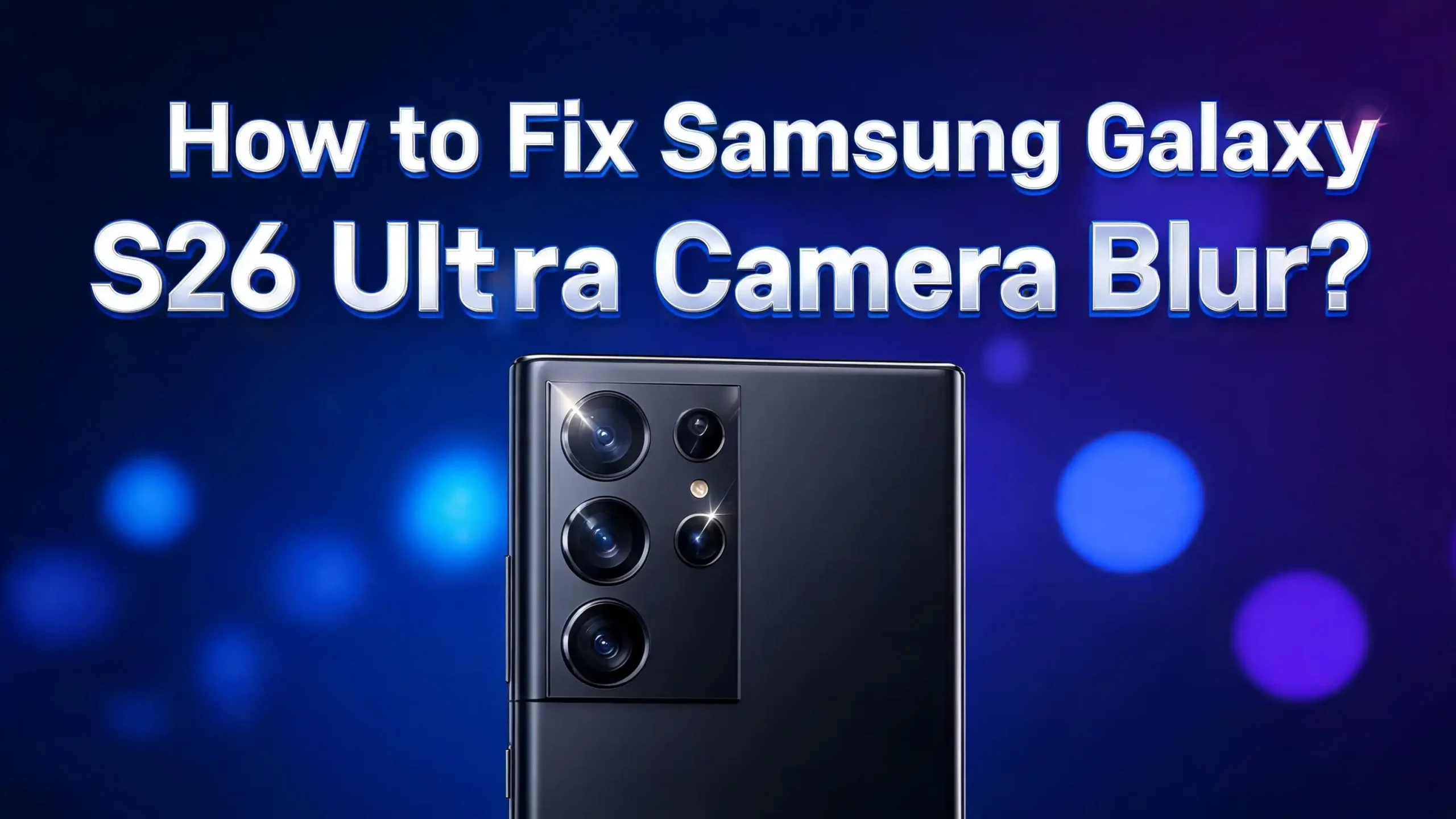
The Samsung Galaxy S26 Ultra packs one of the most powerful camera systems on any smartphone. It features a 200MP main sensor, a 50MP ultra wide lens, a 10MP 3x telephoto lens, and a 50MP 5x periscope lens. Yet many owners have noticed something frustrating. Their photos turn out blurry, soft, or out of focus.
The company pushed a fix through the April 2026 security patch. But the 3x zoom bug is only one of several reasons your S26 Ultra camera might produce blurry images.
Motion blur, autofocus failures, dirty lenses, wrong settings, and software glitches can all cause soft or unclear photos. The good news? Most of these issues have simple fixes you can apply right now.
This guide walks you through every solution, from quick setting changes to deeper troubleshooting steps that will get your Galaxy S26 Ultra camera back to peak performance.
Key Takeaways
- Samsung confirmed a 3x zoom blur bug on the Galaxy S26 Ultra and released a fix in the April 2026 security update. Installing the latest software update is the first step you should take.
- Shutter lag causes motion blur on Samsung phones. You can reduce this by using faster shutter speeds in Pro mode or Expert RAW. A speed of 1/800 outdoors and 1/100 indoors helps prevent blurry shots.
- A dirty camera lens is one of the most common and overlooked causes of blurry photos. Clean all rear lenses with a soft microfiber cloth before troubleshooting software issues.
- Clearing the camera app cache can fix software related blur caused by corrupted temporary files. Go to Settings, then Apps, then Camera, then Storage, and tap Clear Cache.
- Scene Optimizer and AI processing can sometimes over process images and create unnatural softness. Try turning off Scene Optimizer and setting Intelligent Optimization to Medium instead of Maximum.
- A factory reset of camera settings can solve persistent blur problems caused by conflicting or incorrect configurations. You can reset camera settings without losing any photos or personal data.
Update Your Galaxy S26 Ultra Software Immediately
The most important fix for camera blur on the Galaxy S26 Ultra is a software update. Samsung confirmed that blurry photos at 3x zoom were caused by a software bug, not a hardware defect. The company addressed this issue in the April 2026 security patch.
The bug caused images to go soft the moment the phone switched to the 3x telephoto lens. It happened in both bright daylight and low light conditions. Samsung’s camera team analyzed diagnostic logs from affected users and confirmed the problem lived at the software level.
To update your phone, go to Settings > Software update > Download and install. If an update is available, install it immediately and restart your phone. Check the update changelog for any camera related fixes mentioned. If no update appears yet, check back regularly because Samsung rolls out updates in stages across different regions and carriers.
After installing the update, test your camera at 3x zoom in both bright and dim lighting. Shoot several test photos and compare them to earlier blurry images. This single step has resolved the issue for many S26 Ultra owners who reported the problem on Samsung’s community forums.
Clean Your Camera Lenses Properly
A smudged or dirty lens is the simplest explanation for blurry photos, and it is often the one people overlook first. The Galaxy S26 Ultra has four rear camera lenses and one front facing sensor. Fingerprints, oil from your skin, dust, and pocket lint can all create a hazy film over any of these lenses.
Use a clean, dry microfiber cloth to gently wipe each lens on the back of your phone. Do not use paper towels, tissues, or your shirt sleeve. These materials can leave behind fibers or micro scratches on the lens coating. Pay special attention to the area around each lens ring where grime tends to accumulate.
If the smudge is stubborn, lightly dampen a corner of the microfiber cloth with distilled water. Avoid household cleaners, alcohol wipes, or any chemical solutions that could damage the lens coating. After cleaning, hold your phone under a light and check each lens for remaining spots or streaks.
Some phone cases can also press against the camera bump and leave residue on the lenses. Remove your case periodically and clean the area around the camera module. If you notice moisture or fog inside the lens, this could indicate a seal issue. Place your phone in a dry environment for a few hours. If the fog persists, contact Samsung support because internal moisture may need professional attention.
Fix Motion Blur With Faster Shutter Speeds
Motion blur is one of the most common complaints among Galaxy S26 Ultra owners. This happens because the camera’s automatic mode sometimes selects a slow shutter speed, especially indoors or in mixed lighting. Any movement from your hands or your subject during a slow shutter creates a blurry image.
Open the camera app and switch to Pro mode. Look for the shutter speed setting, often displayed as a fraction like 1/30 or 1/60. For outdoor photos, set the shutter speed to 1/800 or faster. For indoor photos, aim for at least 1/100. These values give the sensor less time to capture light, which freezes motion and eliminates blur from hand shake.
You can also download Expert RAW from the Galaxy Store. This Samsung app gives you even more control over manual settings. It lets you set precise ISO values alongside shutter speed for the best balance of brightness and sharpness.
If you prefer using automatic mode, try tapping the screen to lock focus on your subject before pressing the shutter button. Hold your phone steady with both hands and press the volume button to take the photo instead of tapping the screen. This reduces the small movement that happens when you tap the display. Bracing your elbows against your body or leaning against a stable surface also helps minimize hand shake.
Clear the Camera App Cache and Data
Corrupted cache files inside the camera app can cause unexpected behavior, including blurry previews and soft images. Clearing the cache forces the app to rebuild its temporary files from scratch. This fix takes less than a minute and does not delete your saved photos.
Go to Settings > Apps > Camera > Storage. Tap Clear Cache first. Close the camera app completely by swiping it away from your recent apps list. Reopen the camera and test it on a few subjects at different zoom levels.
If clearing the cache does not fix the problem, go back to the same screen and tap Clear Data. This will reset the camera app to its default state, removing any custom settings you applied. You will need to reconfigure your preferred settings afterward, but this step often resolves persistent glitches that a simple cache clear cannot fix.
After clearing data, restart your phone before opening the camera app again. A fresh restart ensures all background processes reload properly. This combination of clearing data and restarting has solved camera issues for many Samsung users who posted about their experiences on community forums.
Turn Off Scene Optimizer and Adjust AI Processing
The Galaxy S26 Ultra uses AI powered scene optimization to automatically detect what you are photographing and adjust settings. While this feature can improve photos in many situations, it sometimes over processes images. The result can be unnatural softness, aggressive smoothing, or loss of fine detail.
Open the camera app and tap the Settings gear icon. Find Scene Optimizer and toggle it off. This stops the camera from automatically applying its AI adjustments based on what it thinks you are shooting. Take a few test photos to see if sharpness improves.
Next, look for the Intelligent Optimization setting. This controls how aggressively the camera applies its processing pipeline. If it is set to Maximum, change it to Medium. The Maximum setting applies heavy AI enhancement that can smooth out textures and edges, making photos appear softer than they should. The Medium setting preserves more natural detail while still applying basic corrections.
Samsung also introduced a Photo Softening control inside the Camera Assistant app. This tool adjusts how the AI handles edges and textures across the board. While Samsung has stated this tool does not specifically fix the 3x zoom bug, it can improve the general sharpness of your images. Download Camera Assistant from the Galaxy Store if you do not already have it installed and explore its options.
Reset All Camera Settings to Default
If you have been adjusting camera settings over time and cannot identify which change caused the blur problem, a full camera settings reset is the fastest solution. This brings every option back to Samsung’s factory default configuration without affecting your photos, apps, or personal data.
Open the Camera app and tap the Settings gear icon in the top left corner. Scroll down to find the Reset settings option. Tap it and confirm the reset. The camera app will return to its original state as if you just unboxed your phone.
After the reset, close the camera app completely and reopen it. The app will load with all default values for resolution, aspect ratio, timer, flash, and all other options. Test the camera in various conditions: close up, landscape, portrait, low light, and zoom.
Many users on Reddit and Samsung Community forums have reported that resetting camera settings fixed persistent blur issues that other troubleshooting steps could not resolve. The reason is simple. Sometimes a combination of changed settings creates a conflict that degrades image quality. A full reset eliminates all those variables at once so you can start fresh.
Disable the Focus Enhancer Feature
The Galaxy S26 Ultra includes a Focus Enhancer feature that automatically activates when the camera detects a close up subject. This feature switches the phone to its ultra wide lens to achieve a macro like effect. While useful for intentional macro photography, it can cause unwanted blur during regular close range shots.
When Focus Enhancer activates, you will see a small flower icon appear on the camera screen. The phone switches lenses without asking you, and this lens transition can cause the image to lose sharpness, especially if the subject is not perfectly still.
To disable it, open the camera app and look for the flower icon on the viewfinder screen. Tap it to turn off Focus Enhancer. With this feature disabled, the camera will stay on the main sensor even for close up subjects. This gives you more consistent results because the 200MP main sensor generally produces sharper images than the ultra wide sensor used for macro mode.
If you do want macro style photos, you can always switch to the ultra wide lens manually. This gives you full control over when the lens change happens instead of letting the phone decide. Manual control means you can position your phone, stabilize your hands, and frame the shot before switching, which leads to much sharper results.
Fix the 3x Zoom Blur Bug Specifically
The 3x zoom blur issue deserves its own section because Samsung officially acknowledged it as a bug. The problem occurs at exactly 3x zoom and does not affect other zoom levels like 1x, 2x, or 5x. The blur appears because of how the software manages the transition from the main sensor to the dedicated 3x telephoto lens.
The Galaxy S26 Ultra uses a 10MP telephoto sensor for 3x zoom. The switch from the main 200MP sensor to this smaller telephoto involves a completely different processing profile. Different sharpening algorithms, different tone mapping, and different computational logic all kick in during this transition. If something in that handoff breaks, photos at 3x appear soft while everything else looks fine.
Samsung’s April 2026 security update addressed this issue for most users. If you have already installed the update and still see blur at 3x, try these additional steps. Force close the camera app, clear its cache, and reopen it. Take several test shots at 3x in bright daylight. If blur persists, submit a bug report through the Samsung Members app with sample photos attached.
Some users have also found that briefly zooming past 3x to 3.5x or 4x and then returning to 3x forces the camera to re engage the telephoto lens and can produce sharper results. This is a workaround rather than a permanent fix, but it can help while waiting for further software refinements.
Use Tap to Focus for Sharper Subjects
The autofocus system on the Galaxy S26 Ultra uses multi directional Phase Detection Autofocus (PDAF) and Optical Image Stabilization (OIS). These systems work together to lock focus and reduce blur from hand movement. But the camera does not always choose the right focus point automatically.
Before pressing the shutter button, tap directly on your subject on the screen. A yellow circle or square will appear to confirm the focus point. The camera will adjust focus and exposure specifically for that area. This is especially important for group photos where the camera might focus on the wrong person.
For moving subjects like pets or children, tap and hold on the subject to activate focus tracking. The camera will follow the subject across the frame and keep it in focus. This feature works in both photo and video modes and dramatically reduces the chance of a blurry shot.
In low light situations, the autofocus can struggle or slow down. The Galaxy S26 Ultra can experience a capture delay of 0.5 to 1.5 seconds in dim conditions. During this delay, any movement creates blur. Tap to focus before the shot gives the autofocus system a head start, reducing the delay and improving your chances of a sharp image.
Adjust Resolution and Photo Format Settings
The resolution and file format you choose can affect the perceived sharpness of your photos. The Galaxy S26 Ultra defaults to 12MP output in standard mode, which downsamples from the 200MP sensor. This produces good results in most conditions, but you can get sharper images by changing these settings.
Open the camera app and look for the resolution option at the top of the screen. Switch to 50MP or 200MP mode for maximum detail. The 200MP mode captures the full resolution of the main sensor and preserves the finest textures. The trade off is larger file sizes and slightly longer processing times.
In Camera Assistant, look for Advanced Resolution Options. Enable 24MP output for a balance between detail and file size. Many photography enthusiasts on social media have noted that 24MP is the sweet spot between sharp detail and manageable storage use on the S26 Ultra.
You should also check the Advanced Picture Options in camera settings. Set the format to High Efficiency or RAW depending on your needs. RAW files capture unprocessed data directly from the sensor, giving you the sharpest possible starting point for editing. High Efficiency uses HEIF format, which preserves more detail than standard JPEG at smaller file sizes.
Improve Low Light and Night Photography Sharpness
Low light photography is a challenge for every smartphone camera, including the Galaxy S26 Ultra. The f/1.4 aperture on the main sensor is the widest in any Galaxy flagship, which helps gather more light. But the camera still needs to use longer exposure times in dark conditions, which increases the chance of motion blur.
Use Nightography mode for dedicated low light shooting. This mode captures multiple frames and combines them to reduce noise and improve sharpness. Hold your phone as still as possible during the capture process. The camera may take a second or two to process the image, and any movement during this time will cause blur.
For handheld night shots, lean your phone against a stable surface whenever possible. A wall, a table, or even your car can serve as a makeshift tripod. If you have a phone tripod, use it. The OIS system on the S26 Ultra helps, but physical stability always produces the best results.
Avoid using digital zoom in low light conditions. Each increase in zoom level amplifies the noise and reduces sharpness. Stick to 1x or switch to the 5x optical zoom if you need to get closer. The 5x telephoto lens on the S26 Ultra has a larger 50MP sensor compared to the 10MP 3x lens, which means it captures more light and detail in dim situations.
Boot Into Safe Mode to Rule Out Third Party Apps
Sometimes a third party app can interfere with the camera system and cause blur, lag, or focus problems. Safe mode starts your Galaxy S26 Ultra with only the built in system apps running. If the camera works perfectly in safe mode, a third party app is the culprit.
To enter safe mode, press and hold the power button until the power menu appears. Then press and hold the Power off option until you see the Safe mode prompt. Tap Safe mode to confirm. Your phone will restart with a “Safe mode” label in the bottom left corner of the screen.
Open the camera app and take several test photos at different zoom levels. Test close ups, landscapes, and portraits. If every photo comes out sharp and clear, then a recently installed app is causing the issue. Boot back into normal mode by restarting your phone normally.
Start by uninstalling the most recently installed apps one at a time. Test the camera after each uninstall. Camera filter apps, photo editors, and apps that use the camera in the background are the most common offenders. Social media apps with built in cameras can also sometimes interfere with the stock camera app’s performance.
Perform a Factory Reset as a Last Resort
If every other solution has failed and your Galaxy S26 Ultra camera still produces blurry photos, a factory reset can resolve deep software issues that other methods cannot reach. This is a last resort because it erases all data on your phone.
Before resetting, back up everything. Use Samsung Cloud, Google Drive, or connect your phone to a computer to copy photos, videos, contacts, and app data. Make sure your backup is complete before proceeding.
Go to Settings > General management > Reset > Factory data reset. Read the information on screen and tap Reset. Enter your PIN or password to confirm. Your phone will restart and begin the reset process, which takes several minutes.
After the reset, set up your phone and install the latest software update before restoring your apps and data. Test the camera before reinstalling any third party apps. This helps you confirm the camera works properly with a clean system. If blur returns after you restore your apps, you know a third party app is involved and can investigate further.
Contact Samsung Support for Hardware Inspection
If none of the software fixes resolve your camera blur problem, a hardware issue may be responsible. A cracked internal lens element, a loose OIS mechanism, or moisture inside the camera module can all cause persistent blur that no software update can fix.
Contact Samsung Support through the Samsung Members app or visit a Samsung authorized service center. Describe the issue in detail and bring sample photos that show the blur problem. Mention which troubleshooting steps you have already tried. This information helps the technician diagnose the issue faster.
Samsung’s warranty covers manufacturing defects in the camera module. If your phone is still within the warranty period, repairs or replacements should be free of charge. If you purchased Samsung Care+, your coverage may also include accidental damage that could affect camera quality.
Before visiting a service center, save your diagnostic logs. Open the Samsung Members app and tap Get help > Diagnostics. Run the camera diagnostic test. If the test flags any issues, share the results with the service technician. These logs provide valuable data that can help Samsung’s team determine whether the problem is hardware or software related.
FAQs
Why is my Samsung Galaxy S26 Ultra camera blurry at 3x zoom?
Samsung confirmed that blurry photos at 3x zoom on the Galaxy S26 Ultra were caused by a software bug. The issue was related to how the camera processes the switch from the main sensor to the 3x telephoto lens. Samsung fixed this problem in the April 2026 security update. Go to Settings > Software update and install the latest patch to resolve the issue.
How do I fix motion blur on my Galaxy S26 Ultra?
Motion blur happens because of slow shutter speeds. Switch to Pro mode or use the Expert RAW app and set your shutter speed to 1/800 for outdoor shots and 1/100 for indoor shots. Hold your phone steady with both hands, brace your elbows against your body, and use the volume button to take photos instead of tapping the screen.
Does clearing the camera cache fix blurry photos?
Yes, clearing the camera cache can fix blurry photos caused by corrupted temporary files. Go to Settings > Apps > Camera > Storage > Clear Cache. If that does not work, tap Clear Data to reset the camera app completely. Restart your phone afterward for best results.
Should I use 200MP mode for sharper photos on the S26 Ultra?
The 200MP mode captures the maximum detail from the main sensor. It produces sharper photos with more texture and fine detail. However, file sizes are much larger. For everyday use, 24MP or 50MP modes offer a good balance between sharpness and storage space. Use 200MP mode for important shots where detail matters most.
Why are my Galaxy S26 Ultra photos blurry indoors?
Indoor photos often come out blurry because the camera uses slower shutter speeds in lower light conditions. The autofocus can also take longer to lock on. Use tap to focus on your subject, increase the lighting in the room if possible, and avoid digital zoom. Switching to Nightography mode can also help in dimly lit indoor spaces.
Will Samsung release more camera updates for the Galaxy S26 Ultra?
Samsung typically releases monthly security updates that can include camera improvements and bug fixes. The company also releases larger One UI updates that often contain significant camera processing changes. Keep your phone updated to the latest software version to receive all available camera improvements as they become available.