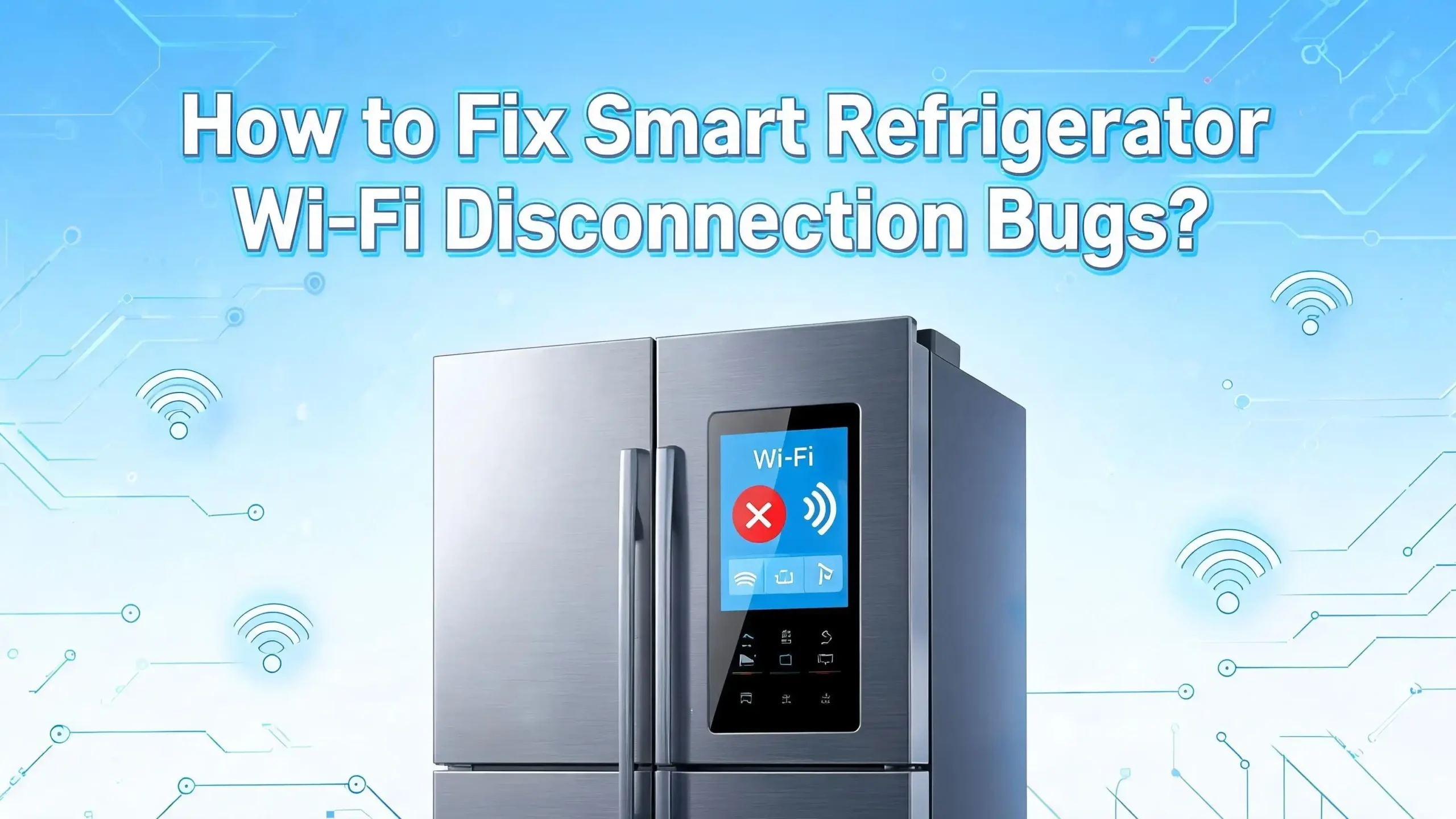
How to Fix Smart Refrigerator Wi-Fi Disconnection Bugs?
Smart refrigerator Wi-Fi disconnection is one of the most common complaints among smart appliance owners today. The good news? Most of these bugs have simple fixes that you can do yourself at home.
Whether you own a Samsung Family Hub, an LG ThinQ fridge, or a GE Profile smart refrigerator, Wi-Fi drops happen for predictable reasons. Outdated firmware, wrong frequency bands, router conflicts, and signal interference are the usual suspects.
This guide walks you through every possible cause and gives you clear, actionable solutions to get your fridge back online and keep it connected for good.
By the end of this post, you will know exactly how to diagnose the problem, fix it step by step, and prevent future disconnections. Let’s get your smart fridge back on track.
Key Takeaways
- Most smart refrigerators only support 2.4 GHz Wi-Fi networks. If your router is pushing the fridge to a 5 GHz band, the connection will fail repeatedly. Separating your Wi-Fi bands or disabling band steering often solves the problem instantly.
- A simple power cycle fixes a surprising number of disconnection bugs. Unplug your refrigerator for 30 seconds, restart your router, and try reconnecting. This clears temporary software glitches in both devices.
- Outdated firmware is a leading cause of Wi-Fi drops. Check your refrigerator’s companion app for pending software updates. Manufacturers release patches specifically to fix connectivity bugs.
- Router settings like MAC address filtering, device limits, and security protocols can block your fridge. Make sure your router allows the refrigerator’s MAC address, supports WPA2 security, and has not reached its maximum connected device limit.
- Kitchen interference from microwaves, metal surfaces, and thick walls weakens Wi-Fi signals. Placing a mesh Wi-Fi node or range extender near your refrigerator can eliminate signal issues entirely.
- Setting a static IP address for your smart refrigerator prevents DHCP conflicts that cause random disconnections. You can configure this through your router’s admin panel in just a few minutes.
Why Your Smart Refrigerator Keeps Losing Wi-Fi
Smart refrigerators depend on a stable internet connection for features like remote temperature monitoring, grocery management, and software updates. When that connection drops, the fridge itself still works fine, but all the smart features stop functioning.
The most common reason for disconnection is a mismatch between what your router broadcasts and what your refrigerator can receive. Many smart fridges only have 2.4 GHz Wi-Fi radios. Modern routers often merge 2.4 GHz and 5 GHz bands into a single network name. Your fridge may try to connect to the 5 GHz band, fail, and then appear offline.
Other frequent causes include router firmware bugs, crowded Wi-Fi channels, DHCP address conflicts, and weak signal strength in the kitchen. Firmware updates from the manufacturer can also introduce new bugs that break previously stable connections.
Understanding the root cause saves you hours of frustration. The sections below cover each cause in detail and give you the exact steps to resolve it.
Check Your Wi-Fi Frequency Band Settings
This is the number one fix for smart refrigerator Wi-Fi problems. Most smart refrigerators only work on 2.4 GHz Wi-Fi networks. They do not support 5 GHz connections. If your router uses band steering or broadcasts both bands under the same network name, your fridge may repeatedly try to join the wrong band.
To fix this, log in to your router’s admin panel. You can usually access it by typing 192.168.1.1 or 192.168.0.1 into your web browser. Look for wireless settings and check if band steering is enabled. If it is, disable it and create separate network names for 2.4 GHz and 5 GHz.
For example, name your 2.4 GHz network “HomeWiFi” and your 5 GHz network “HomeWiFi_5G.” Then connect your smart refrigerator to the 2.4 GHz network only. The 2.4 GHz band has longer range and better wall penetration, which makes it ideal for kitchen appliances.
After separating the bands, go to your refrigerator’s Wi-Fi settings and select the 2.4 GHz network. Enter the password carefully and wait for the connection to establish. This single change fixes the majority of smart fridge Wi-Fi issues.
Power Cycle Your Refrigerator and Router
A power cycle clears temporary bugs in both your refrigerator’s software and your router’s memory. It is the simplest fix and works more often than you might expect.
Start with your router. Unplug it from the wall outlet. Wait at least 30 seconds. This allows the router to fully clear its memory cache and release all active connections. Plug it back in and wait two to three minutes for it to fully restart and broadcast the network again.
Next, power cycle your refrigerator. Unplug the fridge from the wall or flip the circuit breaker that controls it. Wait 30 seconds, then restore power. The refrigerator’s Wi-Fi module will reinitialize and attempt a fresh connection to the network.
After both devices are back online, open your refrigerator’s companion app on your phone. Check if the fridge appears as connected. If it does not reconnect automatically, go to the Wi-Fi settings on the refrigerator’s display panel and manually select your network again.
Power cycling resolves issues caused by memory leaks, frozen processes, and temporary IP conflicts. It costs nothing and takes less than five minutes. Always try this before moving on to more advanced fixes.
Update Your Refrigerator’s Firmware
Manufacturers regularly release firmware updates that fix known Wi-Fi bugs. If your smart refrigerator started disconnecting after a software update, a newer patch may already exist to fix the problem.
Open the companion app for your refrigerator brand. For Samsung, use the SmartThings app. For LG, use the ThinQ app. For GE, use the SmartHQ app. Check for available firmware updates within the app’s device settings.
Some refrigerators also allow you to check for updates directly on the built in display panel. Navigate to Settings, then About or Software Update, and select Check for Updates. If an update is available, install it while the fridge has a stable Wi-Fi connection.
Important: Do not unplug your refrigerator during a firmware update. Interrupting the update can corrupt the software and cause more serious connectivity problems. Let the update complete fully, even if it takes 10 to 15 minutes.
If your fridge cannot connect to Wi-Fi long enough to download the update, try moving a mobile hotspot closer to the refrigerator temporarily. Some brands also allow firmware updates via USB drive. Check your manufacturer’s support page for instructions specific to your model.
Reset Your Refrigerator’s Network Settings
If a power cycle and firmware update did not solve the problem, resetting the network settings on your refrigerator is the next step. This clears all saved Wi-Fi credentials and forces the fridge to start the connection process from scratch.
On Samsung Family Hub models, go to Settings, tap About Family Hub, and then tap Reset Network Settings. This removes all saved networks without affecting your other refrigerator settings like temperature or food management data.
On LG ThinQ refrigerators, press and hold the Wi-Fi button on the control panel for three to five seconds until the indicator light blinks. This puts the fridge back into pairing mode so you can set up the connection again through the ThinQ app.
On GE SmartHQ models, navigate to the Wi-Fi settings on the display or use the physical button combination described in your owner’s manual. The goal is to clear the old connection data and start fresh.
After resetting, reconnect your refrigerator to your 2.4 GHz network. Enter the password carefully, paying attention to uppercase and lowercase letters. A wrong password is a surprisingly common cause of failed connections that users often overlook.
Set Up a Static IP Address for Your Fridge
Random Wi-Fi disconnections can happen when your router assigns a new IP address to the refrigerator each time it reconnects. This is called DHCP conflict, and it causes dropped connections when two devices receive the same IP address or when the lease expires.
Setting a static IP address eliminates this problem. Log in to your router’s admin panel and find the DHCP reservation or address reservation section. You will need your refrigerator’s MAC address, which you can find in the fridge’s Wi-Fi settings or Network Information menu on its display panel.
Add a new reservation with the refrigerator’s MAC address and assign it a specific IP address. Choose an IP address outside your router’s normal DHCP range. For example, if your router assigns addresses from 192.168.1.2 to 192.168.1.100, set your fridge’s static IP to 192.168.1.150.
Some smart refrigerators also let you configure a static IP directly on the appliance. Samsung Family Hub models allow this under Settings then Connections then Wi-Fi then Advanced IP Settings. Change the setting from DHCP to Static and enter the IP address, subnet mask (255.255.255.0), gateway, and DNS addresses.
This fix is especially effective for households with many connected devices competing for IP addresses on the same network.
Check Your Router’s Security Settings
Your router’s security protocol can prevent your smart refrigerator from connecting. Many older smart fridges do not support the latest WPA3 security standard. If your router is set to WPA3 only, the fridge will fail to authenticate and stay disconnected.
Log in to your router’s admin panel and find the wireless security settings. Change the security mode to WPA2/WPA3 mixed mode or WPA2 Personal. This allows older smart devices to connect while still maintaining strong security for newer devices on your network.
Also check if your router has MAC address filtering enabled. This feature restricts network access to a list of approved devices. If your refrigerator’s MAC address is not on the approved list, the router will block it. Either add the fridge’s MAC address to the whitelist or disable MAC filtering entirely.
Firewall settings on your router can also interfere with smart appliance connections. Some routers have aggressive firewall rules that block the communication ports used by smart home devices. Try temporarily lowering the firewall level to see if the refrigerator connects. If it does, adjust the firewall rules to allow traffic from your fridge’s IP address.
Finally, make sure your router does not have a maximum device limit set too low. Smart homes often have dozens of connected devices. If the limit is reached, new connections like your fridge will be rejected.
Reduce Wi-Fi Interference in Your Kitchen
Kitchens are one of the worst locations for Wi-Fi signals. Metal appliances, stone countertops, thick walls, and microwave ovens all interfere with 2.4 GHz signals. Your smart refrigerator sits right in the middle of this interference zone.
Microwave ovens are the biggest offenders. They operate at 2.45 GHz, which directly overlaps with the 2.4 GHz Wi-Fi band. Every time you run the microwave, it can disrupt your refrigerator’s Wi-Fi connection. Avoid placing your router or Wi-Fi extender near the microwave.
Large metal surfaces on refrigerators, ovens, and dishwashers reflect Wi-Fi signals and create dead zones. If your router is on the other side of the house, the signal may not reach your fridge reliably.
The best solution is to add a mesh Wi-Fi node or a dedicated range extender in or near the kitchen. Place it within clear line of sight of the refrigerator, away from other large metal appliances. A mesh system maintains a strong, consistent signal throughout your home and solves most range related disconnection issues.
You can also try changing your router’s Wi-Fi channel. Channels 1, 6, and 11 are the least overlapping on the 2.4 GHz band. Use a free Wi-Fi analyzer app on your phone to find the least congested channel in your area.
Verify Your Router’s Firmware Is Current
An outdated router is just as likely to cause problems as an outdated refrigerator. Router manufacturers release firmware updates that fix bugs, improve device compatibility, and enhance Wi-Fi stability. Running old router firmware can lead to dropped connections with smart appliances.
To update your router, log in to the admin panel and look for a Firmware Update or Software Update option. Many modern routers from brands like Netgear, TP Link, and Asus also have companion apps that notify you about available updates.
Some Internet Service Providers (ISPs) provide router/modem combos that update automatically. If you use an ISP provided device, contact your provider to confirm the firmware is current. Outdated ISP equipment is a common hidden cause of smart home disconnection problems.
After updating your router firmware, restart the router and let all devices reconnect. Test your refrigerator’s connection and monitor it for 24 hours to see if the disconnection issue has stopped. If it has, your router’s old firmware was the problem.
Consider replacing your router if it is more than four or five years old. Older routers may not handle the number of smart devices in a modern household. Newer routers with Wi-Fi 6 or Wi-Fi 6E technology manage multiple device connections much more efficiently.
Check for App and Account Issues
Sometimes the problem is not with the Wi-Fi connection at all. Your refrigerator may be connected to the network, but the companion app on your phone shows it as offline because of an app glitch or account issue.
Start by force closing the app on your phone and reopening it. On iPhone, swipe up from the bottom of the screen and swipe the app away. On Android, go to Settings, then Apps, find the companion app, and tap Force Stop. Reopen the app and check if the fridge appears online.
If the app still shows the fridge as disconnected, log out of your account and log back in. This refreshes the connection between the cloud server and your devices. Account tokens can expire or become corrupted, which causes the app to lose contact with the refrigerator even though the fridge is online.
Also check if the app has a pending update in your phone’s app store. An outdated app version may not communicate properly with the latest refrigerator firmware. Update the app and try again.
If you recently changed your Wi-Fi network name or password, the app may need to be reconfigured. Remove the refrigerator from the app, then add it again as a new device. Follow the in app setup wizard to reconnect everything from scratch.
Inspect the Refrigerator’s Wi-Fi Module
If you have tried every software fix and the refrigerator still cannot maintain a Wi-Fi connection, the internal Wi-Fi module may be damaged or failing. This is a hardware issue that requires a different approach.
Signs of a failing Wi-Fi module include the refrigerator’s Wi-Fi option being grayed out, the device never finding any networks, or the connection dropping within seconds of connecting every single time. If you see error codes on the display that reference the communication module or network hardware, this points to a hardware fault.
Do not open the refrigerator’s control panel yourself. Smart refrigerator electronics contain sensitive components, and opening sealed panels can void your warranty. Instead, contact your manufacturer’s support line or schedule a service visit with a certified technician.
Samsung, LG, and GE all offer in home repair services for smart appliance hardware issues. If your refrigerator is still under warranty, the Wi-Fi module replacement may be covered at no cost. Check your warranty documentation or the manufacturer’s website for coverage details.
A technician can run diagnostic tests, check antenna connections, and replace the Wi-Fi module if needed. This repair typically costs between $150 and $300 if your fridge is out of warranty, but it permanently solves hardware related disconnection problems.
Avoid Common Mistakes During Troubleshooting
Many users make the problem worse by skipping steps or trying advanced fixes before basic ones. Here are the most common mistakes to avoid.
Do not factory reset your refrigerator unless the manufacturer specifically tells you to. A factory reset erases all your settings, food management data, and custom preferences. It should be a last resort, not a first step. A network settings reset is almost always sufficient.
Do not change multiple router settings at once. If you change the security protocol, the Wi-Fi channel, and the band settings all at the same time, you will not know which change actually fixed the problem. Make one change, test the connection, and then move on if needed.
Do not ignore error codes on your refrigerator’s display. These codes exist for a reason. Write down the exact code and look it up on the manufacturer’s support page. The code often tells you exactly what is wrong, saving you from hours of trial and error.
Do not place your router inside a cabinet or closet. Enclosed spaces trap heat and block Wi-Fi signals. Your router should sit in an open area, elevated off the floor, and ideally in a central location in your home.
Do not forget to reconnect after changing your Wi-Fi password. If you recently updated your network password for security reasons, every smart device needs the new password, including your refrigerator.
Prevent Future Wi-Fi Disconnections
Once you fix the immediate problem, take a few preventive steps to keep your smart refrigerator connected long term.
Enable automatic firmware updates on both your refrigerator and your router. This ensures you always have the latest bug fixes without having to remember to check manually. Most companion apps have an auto update toggle in the settings menu.
Reserve a DHCP address for your fridge in your router’s settings. As discussed earlier, this prevents IP conflicts and keeps the connection stable even when other devices join or leave the network.
Schedule periodic router restarts. Some routers develop memory issues after running for weeks without a restart. A weekly automatic restart, which many routers support through their admin settings, keeps the network fresh and responsive.
Keep a record of your refrigerator’s MAC address, assigned IP address, and the Wi-Fi network name and password. Store this information somewhere safe. If you ever need to reconfigure the connection, having these details ready saves significant time.
Monitor your network’s device count. As you add more smart devices to your home, your router handles more simultaneous connections. If you notice slowdowns or disconnections across multiple devices, consider upgrading to a mesh Wi-Fi system that can support 50 or more devices without performance drops.
When to Contact the Manufacturer
There are situations where DIY fixes cannot solve the problem. If your refrigerator’s Wi-Fi module is physically damaged, if a firmware update bricked the connectivity features, or if you see persistent hardware error codes, professional help is the right choice.
Contact your manufacturer’s support team if the refrigerator has never successfully connected to Wi-Fi since purchase, if the Wi-Fi setting is missing or grayed out on the display, or if the fridge shows the same error code after every troubleshooting step.
Samsung offers support through the SmartThings app and their website. LG provides a Smart Diagnosis feature within the ThinQ app that can run remote tests on your refrigerator. GE has a dedicated Connected Home support line for smart appliance issues.
If your refrigerator is within the warranty period, repairs and module replacements are typically free. Even if the warranty has expired, manufacturers sometimes offer goodwill repairs for known firmware bugs that caused widespread connectivity issues.
Document everything before calling support. Write down the model number, serial number, firmware version, error codes, and the steps you have already tried. This speeds up the support process and helps the technician diagnose the issue faster.
Frequently Asked Questions
Why does my smart refrigerator keep disconnecting from Wi-Fi at night?
Many routers perform automatic updates or restarts during off peak hours, usually late at night. This temporarily drops all connected devices. Your refrigerator may not reconnect automatically after the router restarts. Check your router’s scheduling settings and adjust the restart time. Also, setting a static IP for the fridge helps it reconnect faster after a router reboot.
Can too many smart devices on my network cause my fridge to disconnect?
Yes. Most consumer routers can handle between 20 and 50 simultaneous device connections. If your home has many smart bulbs, cameras, speakers, and appliances all connected at once, the router may drop low priority connections. Upgrading to a mesh Wi-Fi system or a router with higher device capacity can fix this issue.
Does my smart refrigerator need 5 GHz Wi-Fi to work properly?
No. In fact, most smart refrigerators only support 2.4 GHz Wi-Fi. The 2.4 GHz band has better range and wall penetration, which makes it ideal for kitchen appliances. If your fridge cannot find your network, make sure you have a separate 2.4 GHz SSID or disable band steering on your router.
Will a factory reset fix my refrigerator’s Wi-Fi problem?
A factory reset should be your last resort. It erases all your custom settings and stored data. In most cases, a network settings reset is enough to fix Wi-Fi problems without losing other data. Only perform a full factory reset if the manufacturer’s support team specifically recommends it for your situation.
How do I find my smart refrigerator’s MAC address?
You can find the MAC address in your refrigerator’s settings menu. Go to Settings, then Network or Wi-Fi, and look for Network Information or About. The MAC address is a 12 character code separated by colons. You need this address to set up DHCP reservations or to whitelist the fridge on your router.
Should I use a Wi-Fi extender or a mesh system for my smart fridge?
A mesh Wi-Fi system is the better long term solution. Wi-Fi extenders create a separate network that can cause handoff issues. Mesh systems use a single network name and provide seamless coverage throughout your home. Place one mesh node in or near the kitchen for the best results with your smart refrigerator.