How To Fix Hydration Tracker Bottle Not Syncing With App?
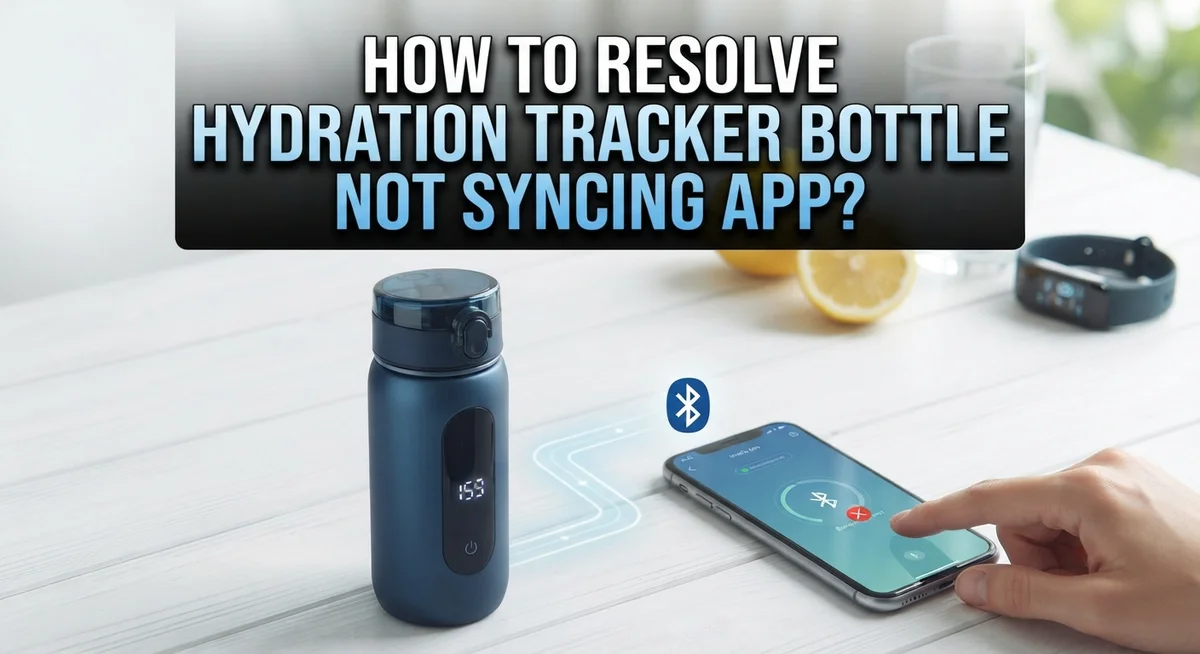
Your hydration tracker bottle stopped syncing with the app. It’s frustrating, especially when you’re trying to stay on top of your daily water intake goals.
This is actually a very common issue, and the good news is that most sync problems have simple fixes. The problem usually comes down to Bluetooth connectivity, app behavior, or sensor conditions.
In this guide, you’ll learn exactly why your hydration tracker bottle is not syncing with its app. You’ll also get clear, step-by-step solutions that actually work.
We’ll cover everything from checking your Bluetooth settings to restarting your bottle and app the right way. We’ll also explain how to clean your sensor, reset your device, and recalibrate when needed.
Let’s get started.
In a Nutshell
Sync failures usually come down to Bluetooth issues, an inactive app, or a dirty/uncharged sensor puck — all of which are easy to fix.
Always keep Bluetooth fully enabled on your phone. The bottle cannot transmit data without an active Bluetooth connection.
Manually opening the app regularly is essential. Your bottle will not sync reliably if the app stays closed in the background.
Charge your sensor puck by removing it from the bottom of the bottle. A low battery is one of the most overlooked causes of sync problems.
Clean the sensor regularly. Dirt or moisture on the sensor can block accurate readings and prevent data from transmitting correctly.
If basic steps don’t work, restart both your phone and the bottle, toggle airplane mode for 30 seconds, reset the sensor puck, and recalibrate the bottle inside the app.
Why Your Hydration Tracker Bottle Stops Syncing
Hydration tracker bottles stop syncing for a few key reasons. Understanding these causes helps you fix the problem faster.
Bluetooth disconnection is the most common culprit. Your phone and bottle communicate through Bluetooth, and if this connection drops, data won’t transfer. Bluetooth can disconnect when it’s turned off, when your phone is too far from the bottle, or when interference from other devices disrupts the signal.
Your app state matters more than you think. If you leave the app closed or running only in the background, your bottle can’t send water intake data. The app needs to be actively open on your screen for the sync process to work properly.
A dirty or depleted sensor puck prevents accurate readings. The sensor sits at the bottom of your bottle and detects when you drink water. Dust, moisture, or mineral buildup blocks this detection. When the sensor can’t read properly, it has nothing to sync to your app.
Low battery on the sensor also stops syncing. Your sensor puck requires a charge to function. If the battery runs too low, the bottle loses power to communicate with your phone.
App glitches and outdated software can cause sync failures too. Sometimes the app freezes or gets stuck in an error state. Running an older version of the app may also create compatibility issues with your bottle.
Phone system problems occasionally interfere with syncing. Your phone’s Bluetooth settings, background app restrictions, or system cache can prevent proper communication with your bottle.
The good news is that most of these issues have straightforward solutions. In the next sections, you’ll learn exactly how to address each cause and get your bottle syncing again.
How Bluetooth and App State Affect Syncing
Your bottle’s Bluetooth connection and whether your app is actively running work together to keep data flowing. When either one fails, syncing stops.
Bluetooth acts as the bridge between your bottle and phone. If Bluetooth is disabled or turns off unexpectedly, your bottle cannot send water intake data to the app. Even when Bluetooth shows as “on,” it can drop the connection if your phone moves too far away or if interference from other devices disrupts the signal. The bottle needs a stable, active Bluetooth connection to transmit any information.
App state is equally important. Your bottle will not sync reliably if the app stays closed or runs only in the background. Many people assume the bottle works independently, but it actually needs the app to be open and active to receive and process data. When you close the app completely, your bottle loses its communication channel. The app must be manually opened on a regular basis for syncing to happen consistently.
Check your connection status indicator in the app’s upper left corner. This shows whether your bottle is actually connected or just paired. Connected means active communication is happening right now. Paired means the devices recognize each other but are not currently talking.
When Bluetooth is enabled and your app is actively running, your bottle can transmit water intake readings in real time. The sensor puck detects when you drink and sends that data through Bluetooth to the open app. The app then records and displays your hydration progress.
If your bottle shows as connected but still won’t sync, restart both the app and the bottle. Close the app completely, turn off the bottle, wait 10 seconds, then turn both back on. This refreshes the Bluetooth connection and forces the app to re establish communication. This simple step resolves most sync problems related to Bluetooth or app state issues.
How To Charge and Inspect the Sensor Puck
Your sensor puck is the small component at the bottom of your bottle that tracks water intake and communicates with your app. When this part fails to charge or becomes contaminated, syncing stops working. Let’s walk through how to properly maintain it.
Start by removing the sensor puck from your bottle’s base. Most bottles have a simple twist or pull mechanism. Gently detach it without forcing anything. Look at the metal contacts on both the puck and the bottle bottom. These contacts must be clean for power to transfer.
Inspect the sensor puck closely for any visible damage, dirt, or moisture. Wipe the metal contacts on both the puck and bottle bottom with a soft, dry cloth. Dust, water residue, or dried mineral deposits can block the charging connection completely. Pay special attention to the grooves where contacts sit.
Check for any cracks or discoloration on the puck itself. A damaged sensor cannot charge properly and will prevent syncing. If you notice physical damage, the puck may need replacement.
Now let’s charge the sensor puck. Place it back into the bottle’s base, ensuring the metal contacts align perfectly. Insert your bottle into its charging dock or connect the charging cable according to your bottle’s design. Most sensor pucks charge fully within 1 to 2 hours.
While charging, keep your bottle in a dry location away from extreme heat. Don’t interrupt the charging cycle early. A fully charged sensor is essential for reliable syncing.
After charging completes, remove the puck again and inspect those metal contacts one more time. They should look shiny and clean. Reinsert the puck firmly into the bottle base until you hear or feel it click into place.
This simple maintenance routine prevents most sensor related sync failures and keeps your hydration tracking accurate.
Step-by-Step Guide To Restore the Sync Connection
When your hydration tracker bottle connects to your app but data doesn’t flow through, you need a systematic approach to restore the connection. Start by ensuring Bluetooth is fully enabled on your phone. Many sync failures happen simply because Bluetooth got turned off or switched to a limited state.
Next, close your app completely and reopen it fresh. Look at the status text next to your bottle icon on the home screen. This indicator tells you whether your bottle is truly communicating or just appearing connected. If the status shows disconnected or unknown, your app hasn’t established real data flow yet.
Restart both devices in this order. First, power down your bottle completely if it has a power button, or remove the sensor puck for 10 seconds to force a reset. Then restart your phone. This clears temporary connection errors that often block syncing.
Once both devices restart, open your app again and wait 30 seconds for the connection to establish. Check that upper left corner connection status indicator. It should show a solid connection symbol, not a warning or question mark.
If the status still shows problems, manually open your app regularly. Your bottle won’t sync reliably without active app engagement. The app needs to be running and actively checking for data from your bottle. Passive background syncing often fails, so make opening the app part of your routine.
Clean the sensor puck contacts with a dry cloth. Dirt or moisture on the metal contact points prevents proper data transmission. Align the contacts perfectly when reinserting the puck into the bottle base.
If you’ve completed these steps and syncing still fails, your sensor puck may need a full reset and recalibration. Consult your bottle’s manual for the specific reset procedure, as this process varies by model.
How To Reset and Recalibrate Your Bottle Sensor
Resetting and recalibrating your bottle sensor is the final step when standard troubleshooting doesn’t work. This process clears any corrupted data stored in your sensor puck and restores it to factory settings.
Start by locating the reset button or mechanism on your sensor puck. Most bottles have a small recessed button at the bottom or side of the puck. Use a paperclip or small tool to press and hold this button for 10 to 15 seconds. You’ll usually see a light indicator flash or change color, signaling the reset is complete.
After resetting, remove the sensor puck from your bottle entirely. Let both the puck and bottle base sit for a few minutes. This brief pause helps clear any remaining electronic memory. Then reinsert the puck, making sure the metal contacts align properly with the bottle’s charging points.
Now you need to recalibrate the bottle. Open your app and look for a settings or calibration menu, usually found under bottle settings or device preferences. Select the option to recalibrate or pair your bottle as if it’s new. Follow the on screen prompts carefully. Your app will guide you through the recalibration process step by step.
During recalibration, keep your phone close to the bottle. Bluetooth range matters here. Don’t move away from the bottle or switch apps during this process.
Once recalibration finishes, charge your sensor puck fully while it sits in the bottle base. Wait at least one hour for a complete charge. Then test the sync by taking a drink and opening your app. Your water intake should now record and display correctly.
If syncing still fails after a complete reset and recalibration, your sensor hardware may need professional service or replacement.
Tips To Keep Your Hydration Tracker Syncing Reliably
Keeping your hydration tracker syncing reliably requires consistent attention to a few key habits. The most important step is opening your app regularly. Your bottle won’t transmit data automatically if the app sits closed on your phone. Make it a routine to open the app at least once daily, even if you’re just checking your intake progress.
Enable Bluetooth fully on your phone and keep it active throughout the day. Bluetooth disabled is the most common reason for sync failures. Check your phone’s settings and confirm Bluetooth stays on, not just in airplane mode.
Monitor the connection status indicator in your app’s upper left corner. This small icon tells you whether your bottle is actively connected. If it shows disconnected, your data won’t flow through. A quick app restart often fixes this issue.
Clean your sensor puck regularly to prevent dirt or moisture from blocking readings. Use a dry cloth and wipe the metal contacts at the bottle’s base. This simple maintenance stops many sync problems before they start.
Restart your phone occasionally to refresh the connection between devices. Toggle airplane mode on for 30 seconds, then turn it off. This action resets your Bluetooth connection without affecting other functions.
If syncing problems persist after these steps, restart both your bottle and app in order. Close the app completely, wait 10 seconds, then reopen it. Wait 30 seconds for the connection to establish before checking status.
Check the status text next to your Bottle icon on the home screen. This message tells you exactly what’s happening with your connection. Understanding this feedback helps you spot problems quickly.
These reliable habits prevent most sync issues before they develop. Consistency matters more than occasional deep troubleshooting. Keep your app active, Bluetooth enabled, and your sensor clean for steady performance.
Common Mistakes That Cause Sync Failures
Most sync problems happen because users skip simple setup steps. Your bottle needs active Bluetooth to communicate with your phone. If Bluetooth stays off, the connection never starts.
Many people forget that the app must stay open to trigger syncing. Your bottle won’t automatically send data if the app runs in the background. You need to manually open your app regularly to pull water intake information from the sensor.
Sensor contamination blocks data transfer. Dirt, dust, or moisture on the sensor puck prevents accurate readings. A quick wipe with a dry cloth solves this issue fast.
Restarting only one device creates a mismatch between your bottle and phone. Both devices need to restart to establish a fresh connection. Restart your phone first, then your bottle, then open the app again.
Ignoring the connection status indicator wastes troubleshooting time. Check the status text next to your Bottle icon on your home screen. This tells you exactly where the problem sits.
Leaving your phone on airplane mode accidentally blocks Bluetooth signals. Toggle airplane mode off and on for 30 seconds to refresh the connection. This simple step fixes many mysterious sync failures.
Some users charge their sensor while it stays inside the bottle. Remove the sensor puck from the bottle base before charging. Charging it separately ensures proper power delivery.
Skipping recalibration after sensor issues causes ongoing problems. If your sensor puck shows errors, you must recalibrate through your app settings. Keep your phone close to the bottle during this process.
The most common mistake is impatience. Syncing takes time after restart. Wait at least 30 seconds before checking the status again. Rushing through steps leads to incomplete connections and failed data transfers.
Final Thoughts
Syncing problems with your hydration tracker bottle are frustrating, but they are almost always fixable with the right steps.
The core issue is almost always one of three things: Bluetooth is off, the app isn’t actively open, or the sensor needs attention.
Start with the simple fixes first. Enable Bluetooth, open the app manually, and check the connection status indicator in the upper left corner. These small actions solve most problems quickly.
If the basic steps don’t work, move deeper into troubleshooting. Restart both your bottle and your app together, not just one of them. Restarting only one device often creates a communication mismatch that keeps the problem going.
Toggle airplane mode on your phone for 30 seconds, then turn it off again. This refreshes your phone’s wireless connections and often clears stubborn sync issues without any extra effort.
Clean your sensor puck if you haven’t already. Dirt and moisture block the sensor from reading your intake correctly. A quick wipe can restore function faster than any settings change.
If none of those steps work, reset and recalibrate your sensor puck. This is the deepest fix available and handles cases where standard restarts fail.
After recalibration, charge your sensor fully before testing again. A low battery causes unreliable syncing even when everything else is set up correctly.
Going forward, build a habit of opening your app regularly throughout the day. Your bottle won’t sync reliably without active app engagement.
The most important takeaway is this: work through each step in order and don’t skip ahead. Jumping straight to advanced fixes while Bluetooth is still off wastes your time.
Consistent habits and regular maintenance keep your hydration tracker syncing smoothly every day. Small actions done consistently beat complicated fixes done occasionally.
Frequently Asked Questions
Why is my bottle connected but still not syncing data?
Your bottle may show a connection but fail to send water intake data for a few reasons. First, check that Bluetooth remains fully enabled on your phone. Next, open your app and look at the status text next to your Bottle icon on the home screen. The app must stay active to trigger syncing. Try restarting both your bottle and app together.
If the problem continues, your sensor puck may need cleaning. Dirt or moisture can block readings even when the connection appears active. Gently wipe the sensor with a dry cloth.
What does the connection status indicator tell me?
The connection status indicator sits in your app’s upper left corner. This small icon shows whether your phone and bottle are communicating. A green or active indicator means Bluetooth is working.
If the indicator shows red or disconnected, Bluetooth has dropped. Toggle Bluetooth off and back on. Wait a few seconds for the connection to reestablish.
How often should I manually open my app?
You should open your app regularly throughout the day. Your bottle won’t sync reliably without active app engagement. Think of it like checking in with your hydration progress.
Opening the app triggers the sync process. Set a habit to check your app every few hours, especially after drinking water.
What should I do if restarting doesn’t help?
Reset your sensor puck completely. Remove it from the bottle bottom and hold the reset button for ten seconds. Then recalibrate your bottle through the app settings.
After recalibration, charge your sensor fully before testing again. This process clears any software conflicts between your devices.