What to Do When Apple Pencil 3 Won’t Charge?
Has your Apple Pencil 3 (Apple Pencil Pro) suddenly stopped charging and left you staring at a dead stylus before an important project? You are not alone. This is one of the most reported issues by iPad users, and the good news is that most charging problems have a clear, fixable cause.
Whether your Apple Pencil Pro shows no battery indicator at all, gets stuck at 0%, stops at an odd percentage, or simply refuses to respond when attached to the magnetic connector, this guide walks you through every solution step by step.
Read this post all the way through before you try anything, because the order matters and each section builds on the one before it.
Key Takeaways
- Check physical connection first. The Apple Pencil Pro charges magnetically, so even a small misalignment or a dirty connector can stop the charging process entirely. This is the most common cause and the easiest to fix.
- Bluetooth must be enabled. The Apple Pencil Pro pairs and communicates over Bluetooth. If Bluetooth is off, the iPad cannot detect the pencil, and charging will not register.
- A deeply discharged battery can appear broken. If the pencil has been left uncharged for a long time, the battery may seem dead when it is actually just in a deep discharge state. Leaving it on the connector for 15 to 30 minutes often revives it.
- iPadOS software bugs can block charging. Several users have confirmed that charging problems started after an iPadOS update. A forced restart of your iPad or a re-pairing of the pencil usually resolves this.
- Compatibility matters. The Apple Pencil Pro only works with specific iPad models, including iPad Pro 11-inch M4/M5, iPad Pro 13-inch M4/M5, iPad Air 11-inch M2/M3/M4, iPad Air 13-inch M2/M3/M4, and iPad mini A17 Pro. Using it with an incompatible iPad will prevent both pairing and charging.
- Hardware damage is rare but possible. Physical damage, debris in the connector area, or a failed internal battery are less common causes. If all software fixes fail, Apple Support is the next logical step.
Understanding How the Apple Pencil Pro Charges
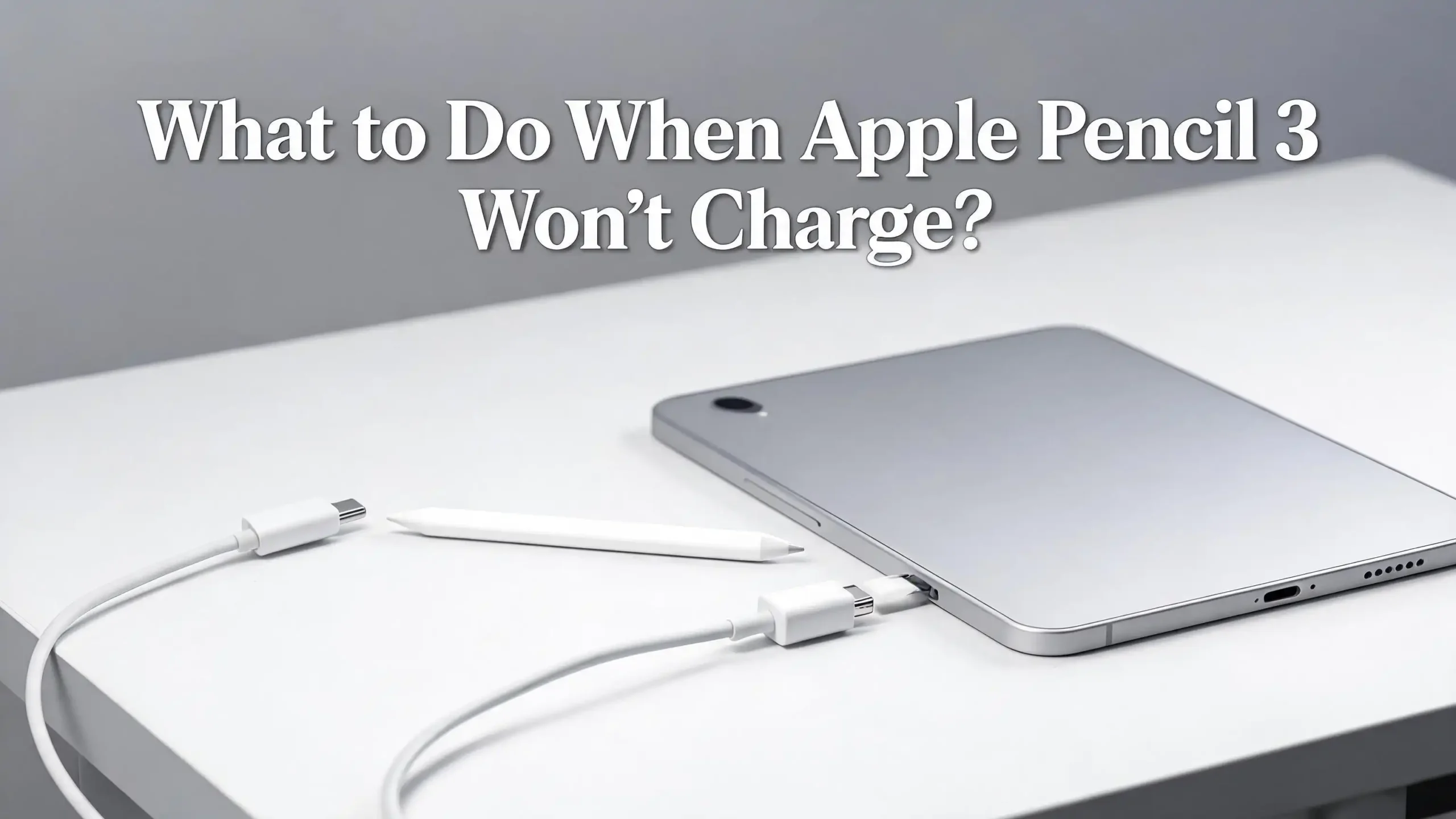
Before jumping into fixes, it helps to understand how charging actually works on the Apple Pencil Pro. The Apple Pencil Pro does not have a Lightning port or a USB-C port. It charges exclusively through a magnetic connector located on the flat side of compatible iPads. You simply align the flat side of the pencil against the magnetic strip on the edge of the iPad, and charging begins automatically.
This method is elegant, but it also means charging depends on multiple things working at the same time: a clean and aligned magnetic surface, an active Bluetooth connection, a functioning battery inside the pencil, and a compatible iPad with enough power to share.
The battery inside the Apple Pencil Pro is a small lithium-ion cell. Like all lithium-ion batteries, it can drop into a deep discharge state if left unused for too long. Once this happens, the pencil may not show any charging indicator at all, and many users mistakenly assume the pencil is broken. Understanding this saves a lot of unnecessary stress.
The full charge time for the Apple Pencil Pro is relatively quick, and even a 15-second charge gives you roughly 30 minutes of use according to Apple. So if your pencil charges even a little, that is a very good sign.
Fix 1: Check That Your iPad Is Compatible with the Apple Pencil Pro
The very first thing to confirm is that your iPad actually supports the Apple Pencil Pro. This may seem basic, but it is a step many users skip and then spend hours troubleshooting something that was never going to work.
The Apple Pencil Pro is compatible with the following iPad models: iPad Pro 11-inch (M4 and M5), iPad Pro 13-inch (M4 and M5), iPad Air 11-inch (M2, M3, and M4), iPad Air 13-inch (M2, M3, and M4), and iPad mini (A17 Pro).
If your iPad is not on this list, the Apple Pencil Pro will not charge or pair with it. This is a hardware limitation, not a bug. For example, the iPad Pro 12.9-inch 6th generation uses the Apple Pencil 2nd generation, not the Apple Pencil Pro.
To confirm which iPad you own, go to Settings > General > About and look at the Model Name field. Cross-check this with Apple’s official compatibility list. You can also visit support.apple.com and search for “Apple Pencil compatibility” to see the full, updated list.
This step takes less than one minute and can save you hours of troubleshooting an incompatibility problem. If your iPad is not compatible, the pencil will need to be used with the correct device.
Fix 2: Make Sure the Magnetic Connector Is Properly Aligned
The Apple Pencil Pro uses a magnetic charging connection. If the pencil is even slightly off-center on the connector rail, it will not charge. This sounds simple, but it catches many users off guard because the magnets can attract the pencil at a slight angle that feels correct but is not.
To align the pencil properly, hold it flat and attach it to the long magnetic edge on the side of your iPad. You should feel a gentle snap. The flat face of the pencil should sit flush against the flat side of the iPad. There should be no tilting or gap between the two surfaces.
Look at the pencil from above after attaching it. If one end is slightly higher or the pencil appears crooked, reattach it. Slide it gently left and right until it snaps fully into the center position.
Also check whether you have a case on your iPad. Thick cases or cases with raised edges can physically prevent the pencil from making full contact with the connector. Remove any case or cover and try attaching the pencil directly to the bare iPad to see if charging begins. Apple specifically recommends removing cases if the pencil is not pairing or charging. Once you confirm charging works without the case, you may need to find a case that is specifically designed for use with the Apple Pencil Pro.
Fix 3: Clean the Magnetic Connector on Both the iPad and the Pencil
Even a small amount of dust, lint, or skin oil on the magnetic connector can disrupt the electrical contact needed for charging. This is a surprisingly common cause of intermittent charging failure that most users never think to check.
To clean the connector area, power off your iPad first for safety. Then take a soft, dry, lint-free cloth, such as a microfiber cloth, and gently wipe the magnetic strip on the side of the iPad. Also wipe the flat charging surface on the side of the Apple Pencil Pro. Do not use water, rubbing alcohol, or any liquid cleaners directly on the connector. These can damage the internal electronics.
If you notice a buildup of debris in the small gap of the magnetic connector, you can use a clean, dry toothbrush or a wooden toothpick to gently dislodge it. Avoid using metal objects near the connector because they can cause scratches or even short circuits.
After cleaning, reattach the pencil to the iPad and wait 30 seconds. Look for the charging animation or battery indicator that normally appears on screen when the pencil connects. If it shows up, you have solved the problem. Going forward, try to keep your iPad and pencil stored in a clean, lint-free environment to prevent this issue from happening again.
Fix 4: Check the Apple Pencil Battery Level and Confirm It Is Charging
Sometimes users panic about a charging failure when the pencil is actually charging fine but showing it in an unexpected way. Knowing how to check the battery level correctly is important.
To check the Apple Pencil Pro battery level, attach the pencil to the iPad. A small charging notification will usually appear at the top of the iPad screen showing the battery percentage. If it does not appear immediately, wait about 10 seconds.
You can also check battery status by going to Settings > Apple Pencil on your iPad. The battery percentage is shown there. Another method is to add the Batteries widget to your Home Screen or Today View. Press and hold on the Home Screen, tap the plus sign, search for “Batteries,” and add the widget. This widget shows the charge level of your Apple Pencil Pro at all times.
If the battery percentage is rising over time, the pencil is charging correctly and there is no problem. If the percentage stays at exactly 0% or does not move at all after 15 minutes, continue to the next fixes. A pencil that shows 0% but is still responding to touch may have a battery sensor issue, which is a different kind of problem that may require a software reset or Apple service.
Fix 5: Leave the Pencil on the Connector for an Extended Time to Recover from Deep Discharge
This is one of the most important fixes that most troubleshooting guides leave out. If your Apple Pencil Pro has been sitting unused for several weeks or months with a depleted battery, the lithium-ion cell inside may have entered a deep discharge state.
In deep discharge, the battery voltage drops so low that the charging circuit cannot recognize the battery right away. The pencil will appear completely dead. It will not vibrate, will not show a battery indicator, and the iPad will not detect it. This does not mean the pencil is broken.
To recover from deep discharge, attach the pencil to the magnetic connector on a fully charged iPad. Leave it attached without moving it for at least 15 to 30 minutes. Do not detach and reattach it. Just let it sit. After this period, the battery should recover enough charge for the charging circuit to engage properly, and you will begin to see a charging indicator.
Apple’s own guidance recommends keeping your Apple Pencil charged at all times, even keeping it at 10% to 15% so it never fully drains. Going forward, make this a habit. If you store the pencil for long periods, check its charge level at least once a month and top it up as needed. Preventing deep discharge is far easier than recovering from it.
Fix 6: Restart Your iPad
A software glitch in iPadOS can cause the iPad to fail to recognize the Apple Pencil Pro or to stop sending power to the magnetic connector. A simple restart clears these temporary software issues and resets the connection between the iPad and the pencil.
To restart your iPad, press and hold the top button and either volume button at the same time until the power off slider appears. Drag the slider to turn the iPad off. Wait 30 seconds, then press and hold the top button again until the Apple logo appears. Let the iPad fully restart before reattaching the pencil.
After the iPad restarts, attach the Apple Pencil Pro to the magnetic connector and wait for the pairing or charging notification. In many reported cases on Apple’s community forums, a simple restart immediately resolved charging failures that had been going on for hours.
If your iPad is completely frozen and will not respond to the normal restart method, you will need to perform a force restart. For iPad models without a Home button: press and quickly release the volume up button, press and quickly release the volume down button, then press and hold the top button until the Apple logo appears. Multiple Apple Pencil Pro users on Reddit confirmed that a force restart fixed their pencil charging issue after an iPadOS update.
Fix 7: Turn Bluetooth Off and On Again
The Apple Pencil Pro relies on Bluetooth to communicate with the iPad. If Bluetooth is experiencing a connection glitch, the iPad may not properly recognize or charge the pencil even if it is physically attached to the connector.
To toggle Bluetooth, go to Settings > Bluetooth and tap the green toggle to turn it off. Wait about 10 seconds, then tap the toggle again to turn Bluetooth back on. Do not toggle Bluetooth from the Control Center alone, as this only disconnects devices temporarily and does not fully restart the Bluetooth stack. Always use the Settings app for a full toggle.
After turning Bluetooth back on, reattach the Apple Pencil Pro to the magnetic connector. Wait a few seconds. You should see a charging notification appear on the screen. If it does, the Bluetooth glitch was the cause of your problem.
If Bluetooth keeps dropping or failing to recognize the pencil after multiple toggles, try the next step, which involves completely forgetting and re-pairing the pencil. That process gives you a clean Bluetooth connection from scratch and resolves more persistent communication errors.
Fix 8: Forget and Re-Pair the Apple Pencil Pro
If toggling Bluetooth did not work, the next step is to completely remove the pencil from the iPad’s Bluetooth settings and pair it again from scratch. This clears any corrupted pairing data that might be blocking charging or communication.
Follow these steps to forget and re-pair:
- Go to Settings > Bluetooth on your iPad.
- Find “Apple Pencil” in the list under My Devices.
- Tap the small info icon (the letter “i” in a circle) next to it.
- Tap Forget This Device and confirm.
- Now detach the Apple Pencil Pro from the iPad.
- Wait 15 seconds, then reattach the pencil to the magnetic connector.
- A Pair button should appear on the screen within a few seconds.
- Tap Pair to complete the connection.
If the Pair button does not appear immediately, wait for one full minute while the pencil charges slightly, then detach and reattach it. The Pair button should appear after the pencil gains just a small amount of charge.
This process has worked for many users who saw the pencil disappear from Bluetooth or stopped getting a charging indicator after updating iPadOS. It is one of Apple’s recommended steps for resolving pairing and charging issues.
Fix 9: Update iPadOS to the Latest Version
Outdated software is a very common cause of Apple Pencil Pro charging failures. Apple releases iPadOS updates that contain bug fixes specifically for accessory compatibility, including charging behavior for the Apple Pencil Pro.
To check for and install updates, go to Settings > General > Software Update. If an update is available, tap Download and Install. Make sure your iPad is plugged into power during the update process to avoid any interruption.
Multiple users on Apple’s discussion forums reported that after updating to a newer iPadOS version, their Apple Pencil Pro immediately started charging again without any other changes. The reverse is also true: some users found that a specific update caused the problem. In those cases, re-pairing the pencil after the update resolved the issue.
Keeping iPadOS up to date is always good practice. Updates fix security vulnerabilities, improve performance, and often resolve accessory bugs that can affect devices like the Apple Pencil Pro. If you have been putting off an update, now is the time to install it.
Fix 10: Check for Physical Damage on the Pencil or the iPad Connector
If none of the software fixes have worked, it is time to take a close physical look at both the Apple Pencil Pro and the magnetic connector on your iPad. Physical damage is less common, but it is a real possibility, especially if the pencil has been dropped.
Examine the flat side of the Apple Pencil Pro carefully. Look for any scratches, dents, or deformations along the charging surface. Even a small bend or scratch in the charging contact strip can interrupt the electrical connection. Also look for any cracks along the body of the pencil, especially near the flat side.
Inspect the magnetic connector rail on the side of your iPad. Look for any debris, bent contact points, or corrosion. If you see any green or white discoloration on the metal contact points, this could indicate moisture damage or oxidation.
If you find physical damage on either the pencil or the iPad, software fixes will not resolve the problem. In this case, you need to contact Apple Support or visit an Apple Store or Apple Authorized Service Provider for a hardware assessment. Do not attempt to repair the connector yourself, as this can void your warranty.
Fix 11: Test the Pencil on a Different Compatible iPad
One very effective way to isolate the problem is to test your Apple Pencil Pro on a different compatible iPad. This tells you immediately whether the issue is with the pencil itself or with your specific iPad.
If you have access to another compatible iPad, attach your Apple Pencil Pro to its magnetic connector. If it charges normally on the second iPad, the problem is with your original iPad’s connector, Bluetooth hardware, or software. If it fails to charge on both iPads, the problem is with the pencil itself.
You can also test the other way around. Borrow a friend’s Apple Pencil Pro that is known to be working and attach it to your iPad. If the borrowed pencil charges fine on your iPad, your original pencil has a hardware issue. If the borrowed pencil also fails to charge on your iPad, your iPad’s magnetic connector is the problem.
This test takes just a few minutes and gives you a clear answer about where the fault lies. Armed with this information, you can go to Apple Support with a specific description of the problem, which speeds up the diagnosis and repair process significantly.
Fix 12: Reset All Settings on Your iPad
If you have tried all the previous steps and the Apple Pencil Pro still will not charge, resetting all settings on your iPad is the next option. This resets all system preferences, including Bluetooth settings, network settings, and accessibility configurations, back to their factory defaults. It does not delete your apps, photos, or personal data.
To reset all settings, go to Settings > General > Transfer or Reset iPad > Reset > Reset All Settings. You will be asked to enter your passcode. Confirm the reset and wait for the iPad to restart.
After the restart, go to Settings > Bluetooth and make sure Bluetooth is turned on. Then reattach your Apple Pencil Pro to the magnetic connector. You may need to go through the pairing process again by tapping the Pair button when it appears.
This step resolves issues caused by corrupted system preferences that standard troubleshooting cannot fix. It is a more thorough reset than simply restarting the iPad, and it has resolved persistent charging issues for users who had tried everything else. After the reset, reconnect your Wi-Fi network and sign back into any services that require a fresh login.
Fix 13: Contact Apple Support or Visit an Apple Store
If you have worked through every fix in this guide and the Apple Pencil Pro still will not charge, the issue is very likely a hardware defect that requires professional attention. This is the time to contact Apple Support.
Before you go, check whether your Apple Pencil Pro is still under warranty. Apple products come with a one-year limited warranty, and you may also have coverage through AppleCare+ if you purchased it. A failed battery or damaged charging circuit within the warranty period is typically repaired or replaced at no cost.
To get support, go to getsupport.apple.com and select your product. You can choose to chat online, schedule a call, or make a Genius Bar appointment at an Apple Store. Bring both your iPad and your Apple Pencil Pro to the appointment so the technician can test both devices together.
If your pencil is out of warranty, Apple offers out-of-warranty service for a fixed fee. The representative will diagnose the issue and give you a clear repair or replacement cost before any work begins. In some cases, an out-of-warranty pencil with a failed battery may be more cost-effective to replace than to repair, and the Apple representative can advise you on that.
Preventing Future Charging Issues with Your Apple Pencil Pro
Once you have resolved the charging problem, a few good habits will keep it from coming back. Prevention is always easier than fixing a broken device.
Always keep your Apple Pencil Pro charged. Never let it sit at 0% for extended periods. The lithium-ion battery inside degrades faster and enters deep discharge more easily if repeatedly drained completely. Keeping it above 10% at all times extends battery life significantly.
Store the pencil attached to your iPad when not in use. This keeps it topped up passively and prevents deep discharge from happening. If you store it separately, check the charge level every few weeks and attach it to the iPad briefly to refresh the battery.
Keep iPadOS updated. Software updates often include fixes for accessory compatibility and charging behavior. Staying current reduces the risk of a software bug causing charging failures after a future update.
Use a case that is compatible with the Apple Pencil Pro. Look for cases that specifically cut out or accommodate the magnetic connector area so the pencil can charge while in its case. This is particularly useful for students and professionals who need the pencil charged and ready at all times.
Avoid exposing the pencil to extreme heat or cold. High temperatures degrade the battery faster, and extremely cold environments can temporarily reduce battery performance. Store and use the pencil at room temperature whenever possible.
FAQs
Why is my Apple Pencil Pro stuck at 0% and not charging?
Your Apple Pencil Pro may be in a deep discharge state, which happens when the battery drains completely and sits empty for a long time. Attach the pencil to a fully charged iPad using the magnetic connector and leave it there for 20 to 30 minutes without disturbing it. The battery should recover enough charge for the charging process to resume. If it still shows 0% after 30 minutes, try restarting your iPad and re-pairing the pencil.
Does the Apple Pencil Pro need Bluetooth to charge?
Yes. While the physical power transfer happens through the magnetic connector, the Apple Pencil Pro requires Bluetooth to be enabled on your iPad to pair, communicate, and have its charge level recognized. If Bluetooth is off, your iPad will not detect the pencil and the charging indicator will not appear, even if the pencil is physically attached.
How do I know if my Apple Pencil Pro is actually charging?
When you attach the Apple Pencil Pro to the magnetic connector on a compatible iPad, a small notification appears near the top of the iPad screen showing the current battery percentage and a charging indicator. You can also check Settings > Apple Pencil to see the live battery percentage, or add the Batteries widget to your Home Screen for an always-visible readout.
Can a case stop the Apple Pencil Pro from charging?
Yes. A thick case or one with raised edges around the magnetic connector area can prevent the Apple Pencil Pro from making proper contact with the charging surface. Apple specifically recommends removing cases when troubleshooting pairing or charging issues. Try charging the pencil with the case removed to see if that solves the problem.
How long does it take to fully charge the Apple Pencil Pro?
The Apple Pencil Pro charges quickly. According to Apple, a full charge typically takes less than an hour. Importantly, even a very short charging period, around 15 seconds, provides approximately 30 minutes of use. So if your pencil charges even briefly, you can use it right away while it continues to charge.
What should I do if my Apple Pencil Pro charges on one iPad but not another?
If the pencil charges on one compatible iPad but not a second one, the issue is likely with the second iPad’s magnetic connector, Bluetooth hardware, or software. Try cleaning the connector on the second iPad, restarting it, and re-pairing the pencil. If it still fails, contact Apple Support about the iPad’s magnetic connector, not the pencil itself.
Is it worth repairing an Apple Pencil Pro with a dead battery?
If the pencil is within its one-year warranty or covered by AppleCare+, Apple will repair or replace it at no charge. If it is out of warranty, Apple charges a fixed service fee. Depending on the age of the pencil and the repair cost, it may be more practical to replace it. An Apple Support representative can give you a specific cost estimate before any work is done.
Can leaving the Apple Pencil Pro unused for months damage the battery?
Yes. Lithium-ion batteries degrade faster when stored at 0% for long periods. If you leave your Apple Pencil Pro completely discharged for months, the battery may enter a deep discharge state from which it can sometimes not recover. To avoid permanent battery damage, always store the pencil with at least a 10% to 15% charge and check it monthly to top it up.