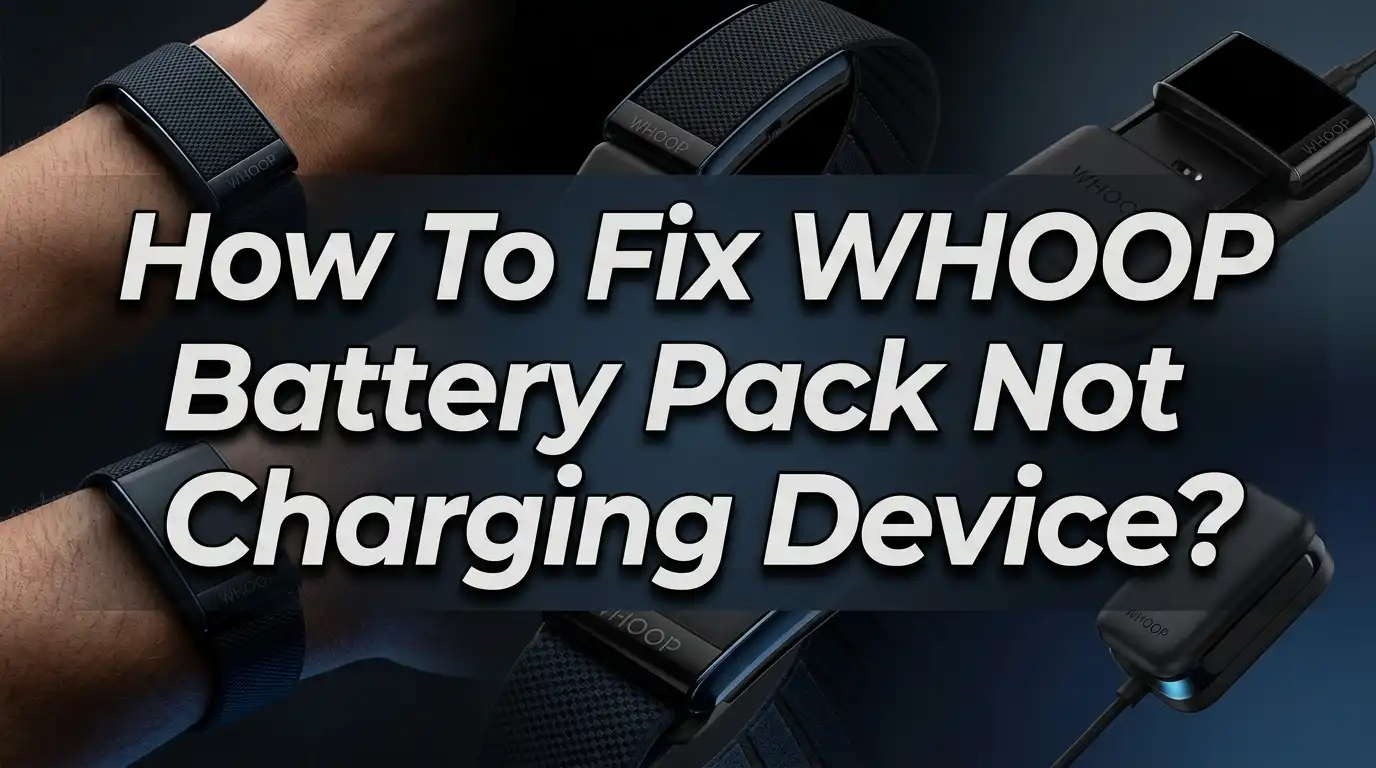
How To Fix WHOOP Battery Pack Not Charging Device?
Your WHOOP battery pack is supposed to make life easier. But when it stops charging your device, it can feel frustrating fast.
The good news? Most charging issues have simple fixes. You don’t need to be tech-savvy to solve them. A few quick checks and steps can get things working again in minutes.
This article walks you through everything you need to know. We cover the most common reasons your WHOOP battery pack stops charging the device. We also explain how to fix each one, step by step.
Let’s get your WHOOP back up and running.
In a Nutshell
Check the LED indicator first. Double-tap the top of your WHOOP device to see the battery level. No LED means something is wrong with the power source or connection.
Test a different USB adapter and outlet. A faulty charger or dead outlet is one of the most common reasons your battery pack stops working.
Charge the battery pack for 5 to 10 minutes before troubleshooting further. Sometimes it just needs a short boost to respond.
Update your firmware using the Battery Pack Updater software. Skipping firmware updates is a frequent mistake that causes charging problems.
Try a software reset if the basics don’t work. Plug into your computer, close and reopen the Updater software, then unplug and replug the battery pack.
Perform a hard reset as a last step. Remove the battery pack, hold the sensor button for 10 to 15 seconds, then reattach it.
How the WHOOP Battery Pack Charging System Works
Your WHOOP battery pack works by connecting directly to your device. When you attach the pack, it transfers power through contact points on both surfaces. This simple connection allows your strap to charge while you wear it or keep it nearby.
The charging process starts the moment you plug the battery pack into power. An LED indicator lights up to show you the status. Green means it’s charging. Red means there’s a problem. No light at all suggests the pack itself isn’t receiving power.
You can check your device’s battery level without looking at the pack. Just double tap the top of your WHOOP. The LED will flash to show you how much charge remains. This helps you know when to plug in before the battery dies completely.
The battery pack uses firmware to manage power delivery. This software runs in the background and controls how electricity flows to your device. When firmware is outdated, charging can fail even though everything looks connected properly.
Your WHOOP app also tracks battery status. Open the app to see real time power levels and charging history. This gives you another way to monitor what’s happening beyond the LED indicator.
The pack charges most efficiently when your device is removed from your wrist. This lets the battery focus all its power on charging rather than powering your active strap. You can charge the pack and device together or separately depending on your schedule.
Understanding these basics helps you troubleshoot faster. You’ll know what the LED means, how to check battery levels, and why firmware matters. This knowledge makes fixing charging problems much simpler when issues arise.
How To Read the LED Indicator to Diagnose Charging Issues
The LED indicator on your WHOOP battery pack tells you exactly what’s happening. Learning to read it saves you time and frustration when charging problems occur.
Double tap the top of your WHOOP device to activate the LED display. This simple action shows your current battery level. The light will blink in a specific pattern based on how much charge remains. A solid light means your battery is full. Rapid blinking indicates low battery. Slow blinking shows medium charge levels.
When you connect your battery pack to power, watch for an LED response. If no light appears within 30 seconds, your charger or outlet likely has an issue. Try a different USB adapter first. Then test another wall outlet. Sometimes the problem is not the battery pack at all.
Pay attention to the LED color and behavior during charging. A steady light means charging is happening correctly. If the light flickers or disappears, disconnect immediately and try troubleshooting again.
Check your WHOOP app to confirm what the LED is telling you. The app displays battery percentage and gives you real time updates. This double check helps you spot problems faster. If the app shows low battery but the LED appears full, a firmware update might be needed.
The LED indicator also helps you understand if your battery pack itself needs charging. Sometimes the pack runs low on power and cannot charge your device. Charge the pack alone for 5 to 10 minutes before connecting your WHOOP device.
Recognizing LED patterns prevents unnecessary troubleshooting steps. You’ll know immediately whether the issue is power related or software related. This knowledge makes fixing charging problems quick and easy.
How To Rule Out Power Source and USB Adapter Problems
Your power source and USB adapter are often the culprits behind charging failures. Start by testing a completely different electrical outlet in another room. Outlets can fail without warning, so this simple step eliminates a major variable.
Next, try a different USB adapter if you have one available. Not all adapters deliver the same power output. Some older adapters or those designed for different devices may not provide enough current to charge your battery pack. Look for an adapter that matches the original specifications your WHOOP battery pack requires.
Plug the battery pack into your computer using the USB cable. This gives you direct feedback about whether the power connection itself works. If your computer recognizes the connection and the Battery Pack Updater software opens, your power delivery chain is functioning properly.
Check the USB cable for visible damage. Frayed wires, bent connectors, or cracked insulation prevent proper power transfer. Even small damage can stop charging completely. Swap in a different USB cable if you have one to rule this out.
Wait five to ten minutes after connecting to a new power source. Sometimes the battery pack needs a moment to respond. Watch for any LED activity during this window. If you still see no LED indicator after trying multiple outlets and adapters, the issue likely lies elsewhere in your device.
Document which combinations you’ve tested. Note which outlets worked or failed, which adapters you tried, and what LED responses you observed. This information helps you narrow down whether your problem stems from power delivery or from your device itself. This systematic approach saves time and prevents repeated troubleshooting steps.
How To Update WHOOP Battery Pack Firmware Using the Battery Pack Updater
The Battery Pack Updater software is your main tool for keeping your WHOOP battery pack running smoothly. This program handles firmware updates and runs diagnostic checks on your device.
Start by downloading the Battery Pack Updater from the official WHOOP website onto your computer. Connect your battery pack to your computer using the USB cable. The software will recognize your device automatically within a few seconds.
Open the Updater application. The program scans your battery pack and checks if a newer firmware version exists. If an update is available, you’ll see a clear notification on your screen.
Click the update button to begin the process. Your battery pack LED may blink during this time. Do not disconnect the USB cable until the update finishes completely. This usually takes between two to five minutes.
Once the update completes, the software displays a confirmation message. Your battery pack now has the latest firmware installed. This update improves charging efficiency and fixes known issues.
The Updater also includes a diagnostic tool. Run this tool to check if your battery pack has any hardware problems. The diagnostics test the charging circuit and battery health. Results appear immediately in the software window.
If you encounter errors during the update, try a software reset. Close the Updater application completely. Unplug your battery pack from the computer. Wait ten seconds, then plug it back in and reopen the software.
Keep your Battery Pack Updater software current as well. Check for application updates regularly. Updated software ensures compatibility with new battery pack firmware versions.
Updating firmware regularly prevents charging problems before they start. Make this part of your routine maintenance schedule.
How To Perform a Software Reset on the WHOOP Battery Pack
A software reset clears temporary glitches that prevent your battery pack from charging your WHOOP device. This process restarts the pack’s internal system without erasing your data or settings.
Start by connecting your battery pack to your computer using the USB cable. Make sure you use a working power source and a compatible adapter. Wait a few seconds for the connection to establish properly.
Open the Battery Pack Updater software on your computer. This application communicates directly with your battery pack and controls its functions. If the software was already open, close it completely and then reopen it fresh.
This refresh helps the software recognize your battery pack correctly. Sometimes the connection between your computer and the pack needs to be reestablished. Closing and reopening the application does exactly that.
Next, unplug the USB cable from your battery pack. Wait about 10 seconds. This brief pause allows the pack’s internal systems to fully power down and reset.
Plug the battery pack back into your computer using the same USB cable and power source. Watch for LED activity on the pack. The software should now recognize the device as if it were connected for the first time.
Check the Updater application window. It should display your battery pack’s status and connection information. If you see a successful connection, your software reset worked.
This reset often solves charging problems caused by software conflicts or communication errors. If your battery pack still won’t charge after this process, the issue likely involves hardware rather than software. You may need to proceed with a hard reset or contact support for additional help.
How To Hard Reset Your WHOOP Device When It Won’t Charge
A hard reset forces your WHOOP device to restart completely. This step works when software glitches prevent the battery pack from communicating with your strap.
Here’s how to perform a hard reset:
First, remove the battery pack from your WHOOP device. Set it aside on a clean surface. The battery pack should no longer touch the strap.
Next, locate the sensor button on top of your WHOOP device. Press and hold this button firmly. Keep holding for 10 to 15 seconds without releasing. You may feel a slight vibration or see the LED flash during this time. Don’t stop counting until you reach 15 seconds.
After 15 seconds have passed, release the button completely. Your device will power down. Wait another 5 seconds before reattaching the battery pack.
Now reconnect your battery pack to the WHOOP device. Align the charging contacts carefully. Push gently until you feel it seat properly. The device should power back on automatically.
Check your results immediately. Open the WHOOP app on your phone. Look for the battery level indicator. If the LED lights up on your device, the hard reset worked.
This process clears any stuck processes that blocked charging. It’s different from a software reset because it physically restarts your device’s core functions. Think of it like turning off and on a computer that’s frozen.
If your device still won’t charge after a hard reset, the problem likely involves hardware damage. The battery pack contacts may be dirty or corroded. Your device’s charging port could need cleaning. Consider these physical issues next before seeking additional support.
Common Mistakes That Prevent the WHOOP Battery Pack From Charging
Many people make simple mistakes that stop their WHOOP battery pack from charging their device. Understanding these errors helps you avoid frustration and get your strap working again quickly.
Using the wrong USB adapter ranks as the most common problem. Your battery pack needs a compatible power adapter to charge properly. Faulty outlets also cause charging failures. Test your battery pack with a different USB adapter and outlet before assuming the hardware is broken. This simple step solves most charging issues within minutes.
Skipping firmware updates prevents your battery pack from recognizing your device. The Battery Pack Updater software includes critical fixes that improve charging performance. Many people ignore these updates and then struggle with connection problems. Install all available updates before troubleshooting further.
Charging while wearing your strap can interfere with the charging process. Remove your WHOOP device from your wrist before connecting it to the battery pack. This gives the battery pack a clear signal to begin charging your device.
Ignoring LED indicators means you miss important charging status information. Double tap the top of your device to see your battery level through the LED display. If no light appears after five to ten minutes, your power source is likely the problem, not your battery pack.
Attempting hardware fixes too quickly wastes time. Most charging problems stem from software issues or incompatible power sources. Try different adapters and outlets first. Update your firmware through the Battery Pack Updater software next. Reserve hardware troubleshooting like hard resets for situations where software solutions fail.
These mistakes are easy to prevent once you know what causes them.
Tips for Keeping Your WHOOP Battery Pack Charging Reliably
Keep your battery pack in top shape by following these practical habits. Check your LED indicator regularly to spot charging issues early. This small light tells you exactly what your battery pack is doing, so you know when something goes wrong before it becomes a major problem.
Update your firmware consistently. The Battery Pack Updater software releases improvements that fix bugs and improve charging performance. Run updates whenever the software notifies you. This prevents compatibility issues between your battery pack and WHOOP device.
Use the correct power source every time. Test different USB adapters and wall outlets if charging seems slow. A faulty outlet or incompatible adapter wastes your time and frustrates your charging efforts.
Store your battery pack in a cool, dry place. Extreme heat or moisture damages the internal components that handle charging. Keep it away from direct sunlight and humid environments.
Charge your battery pack separately from your wrist. Remove your WHOOP device before connecting the battery pack to power. This prevents interference and ensures faster, more reliable charging cycles.
Clean the charging contacts on both your battery pack and WHOOP device. Dust or debris blocks the electrical connection and stops charging completely. Use a soft, dry cloth to gently wipe the metal contact points.
Avoid letting your battery pack drain completely. Charge it when you reach 20 percent battery remaining. This habit extends the overall lifespan of your battery pack and keeps charging working smoothly.
Double-tap your WHOOP device regularly to check battery levels via LED display. Staying aware of your battery status helps you catch problems early and plan charging sessions around your schedule.
Final Thoughts
A WHOOP battery pack that won’t charge your device is a frustrating problem, but it is almost always fixable with the right steps.
Start with the simplest solutions first. Check your power source, try a different USB adapter, and make sure your battery pack has enough charge before anything else. These basic checks solve most charging problems quickly.
If simple fixes don’t work, move to firmware updates using the Battery Pack Updater software. Outdated firmware is one of the most overlooked causes of charging failures, and updating it takes only a few minutes.
Software resets and hard resets are your next line of defense. Plugging your battery pack into a computer and reopening the Updater software can clear communication errors between your device and the pack.
A hard reset forces your WHOOP device to restart completely, clearing any stuck processes that block charging from happening.
Consistent habits prevent most charging problems from returning. Keeping firmware updated, using compatible power sources, and charging your battery pack away from your wrist all reduce the risk of future issues.
Double-tapping your device regularly helps you stay aware of battery levels before they drop too low. Low battery situations often make charging problems seem worse than they actually are.
If every troubleshooting step fails, the issue likely involves physical damage to the charging contacts or internal hardware. In that case, reaching out to WHOOP support directly is your best next step.
Most charging problems have straightforward solutions. Work through each fix systematically, and you will restore your WHOOP battery pack to full working condition without unnecessary stress.
Frequently Asked Questions
Why isn’t my battery pack showing an LED indicator when I plug it in?
The LED light tells you your battery pack is receiving power. If you see no light, your power source may be the problem. Try a different USB adapter and outlet first. Many people use incompatible adapters that don’t deliver enough power. Wait 5 to 10 minutes after plugging in. If the LED still doesn’t appear, test another power outlet in your home.
My battery pack charges but won’t transfer power to my WHOOP device?
This happens when your battery pack and device aren’t communicating properly. Remove your WHOOP from your wrist and charge them together. Wearing your strap during charging can block the connection. Check that the charging contacts on both your battery pack and device are clean and dry. Wipe them gently with a soft cloth if needed.
How do I know if my firmware needs updating?
Your Battery Pack Updater software tells you when updates are available. Connect your battery pack to your computer and open the Updater. The software will show if a new firmware version exists. Skipping updates prevents your battery pack from recognizing your device properly. Install any available updates before trying other fixes.
Should I try a hard reset if nothing else works?
Yes, a hard reset clears stuck processes that block charging. Remove your battery pack from your WHOOP device. Hold down the sensor button for 10 to 15 seconds. Reattach the battery pack and test charging again. This forces your device to restart completely and often solves stubborn problems.