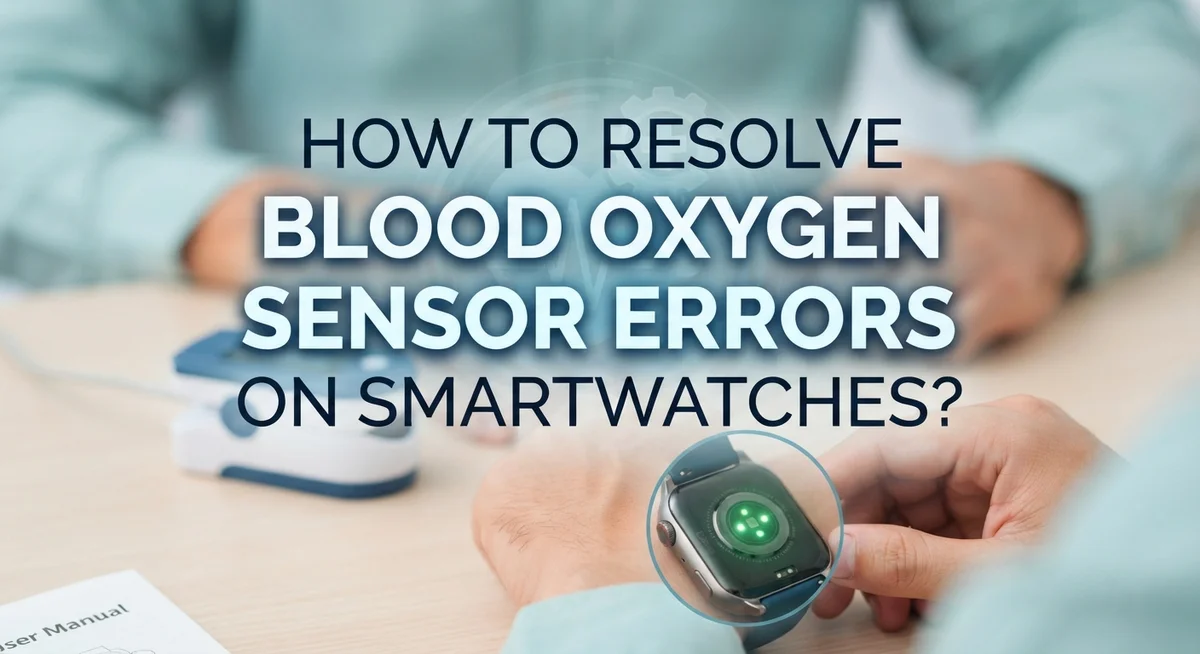
How To Resolve Blood Oxygen Sensor Errors On Smartwatches?
Getting a blood oxygen sensor error on your smartwatch can be frustrating, especially when you need a reading fast.
These errors are more common than you think. They happen for simple reasons like a loose fit, dirty sensors, or even lotion on your wrist.
Your smartwatch uses an optical sensor on its back to measure blood oxygen (SpO2) levels. This sensor needs the right conditions to work properly. Without them, you get failed readings or inaccurate results.
The good news is that most blood oxygen sensor errors are easy to fix without any technical skills.
In this guide, you will learn exactly why these errors happen and how to resolve them step by step. We cover everything from proper watch placement to software settings and sensor cleaning.
In a Nutshell
• Blood oxygen sensor errors usually happen because of poor watch fit, movement during readings, or dirty sensors.
• Most fixes are simple — clean the sensor, adjust the fit, and stay still while taking a measurement.
• Wearing your watch too loose or too tight prevents the optical sensor from making proper contact with your skin.
• Avoid applying lotions, sunscreen, or insect repellent under your watch band before taking a reading.
• Keeping your software updated is important — outdated firmware can cause SpO2 features to malfunction or give errors.
• Skin tone, wrist position, and body temperature can all affect how accurately your smartwatch reads blood oxygen levels.
How Blood Oxygen Sensors Work On Smartwatches
Your smartwatch uses an optical sensor located on the back of the device. This sensor shines red and infrared light onto your skin to measure blood oxygen levels.
The sensor detects how much light your blood absorbs. Oxygen rich blood absorbs different amounts of light than oxygen poor blood. Your watch calculates your SpO2 percentage based on this light absorption data.
For accurate readings, the sensor needs direct contact with your skin. The optical sensor must sit flat against your wrist without gaps or movement. Any space between the sensor and skin causes measurement errors.
Your smartwatch measures blood oxygen by analyzing the color of blood flowing through your wrist. The sensor looks at how red and infrared light bounce back from your blood vessels. This process happens in seconds during each measurement.
The sensor works best when your wrist stays still. Movement during measurement confuses the optical sensor. Your watch cannot get an accurate reading if you move your arm or hand while it is taking data.
Environmental factors affect sensor performance too. Bright sunlight, cold temperatures, and certain skin conditions can interfere with readings. Tattoos and very dark skin tones may also impact accuracy since they affect light reflection differently.
The sensor requires a snug fit to function properly. A loose watch slides around and loses skin contact. A watch that is too tight restricts blood flow and gives inaccurate results.
Your smartwatch’s software controls how the sensor operates. Outdated firmware may have bugs that cause errors. Keeping your device updated ensures the sensor works as designed.
Understanding these basics helps you take better readings and troubleshoot errors more effectively.
Common Blood Oxygen Sensor Error Messages And What They Mean
Your smartwatch displays error messages when the blood oxygen sensor cannot complete a measurement. Understanding what these messages mean helps you fix the problem quickly.
An “unsuccessful measurement” error appears when your watch cannot get a clear reading. This happens most often because your watch is too loose, you moved during the measurement, or your skin has products on it. The sensor needs steady contact with bare skin to work properly.
The “try again” message means your smartwatch detected motion or poor positioning. This error is very common when you measure while your arm is moving or when your wrist is bent at an angle. Simply wait a few seconds and take another reading while sitting still.
Some watches show a “blood oxygen not available” error. This indicates the blood oxygen feature is not enabled in your watch settings or your region does not support this feature yet. Check your app settings to turn on the feature if it is available in your area.
A “sensor error” or “hardware error” message suggests something is wrong with the optical sensor itself. This could mean the sensor is dirty, scratched, or damaged. First, clean the sensor gently with a soft cloth. If the error continues, the sensor may need professional repair.
“Low signal” errors occur when the sensor cannot detect enough blood flow. Poor circulation, cold hands, or pressing the watch too hard against your skin can cause this. Remove your watch, warm your wrist, and try again after a few minutes.
Each error message gives you a clue about what went wrong. Most errors resolve quickly with simple adjustments to your watch fit, positioning, or measurement technique.
How To Wear Your Smartwatch Correctly For Accurate SpO2 Readings
Your smartwatch needs to sit in the right position on your wrist for accurate blood oxygen readings. The optical sensor on the back must touch your skin directly, so placement matters more than you might think.
Wear your watch about one finger width above your wrist bone. This spot has better blood flow and fewer bone protrusions that can block the sensor. Your watch should feel snug but not tight enough to cut off circulation or leave marks on your skin.
Make sure the watch band sits flat against your skin without gaps or air pockets. Gaps prevent the sensor from getting consistent contact with your blood vessels. Check that no wrinkles in your skin are trapped under the sensor area.
Your wrist should stay still during measurements. Even small movements confuse the sensor and trigger errors. Rest your arm on a table or in your lap while the reading happens. Most smartwatches need 15 to 30 seconds of stillness to complete a measurement.
Keep the sensor area clean before taking readings. Dust, dirt, or dried sweat can interfere with light detection. Gently wipe your wrist and the sensor with a soft, dry cloth.
Take measurements when your body is at rest. Avoid readings right after exercise, when your heart rate is elevated, or when you feel too hot or cold. Your body temperature affects blood flow, which impacts sensor accuracy.
If you wear your watch loosely during the day, tighten it slightly when you want to measure blood oxygen. Adjust the band position if you notice repeated errors. Some people find that moving the watch slightly higher or lower on their wrist improves readings.
Step-By-Step Guide To Fixing Blood Oxygen Sensor Errors
Start by checking that your blood oxygen app is actually enabled on your smartwatch. Go into your device’s Settings menu and look for the blood oxygen or SpO2 option. Make sure it’s turned on and set to measure automatically or on demand, depending on your preference.
Next, update your smartwatch and paired phone to the latest software versions. Outdated software often causes sensor errors and reading failures. Check your phone’s app store or settings for available updates, then sync them to your watch.
Clean both the optical sensor on your watch’s back and your wrist skin before taking any measurement. Use a soft, dry cloth to gently wipe the sensor. Remove any lotion, sunscreen, insect repellent, or sweat from your wrist. These substances block the light signals the sensor needs to work properly.
Position your watch correctly on your wrist. Slide it about one finger width above your wrist bone. The watch band should be snug but not tight enough to cut off circulation. You should be able to fit one finger under the band comfortably.
Take your measurement while sitting down and staying completely still for at least 15 to 20 seconds. Movement causes the sensor to lose contact with your skin, which triggers errors. Keep your arm relaxed at heart level during the reading.
If errors continue after these steps, try removing your watch for a few minutes and letting your wrist cool down. Sometimes skin temperature or moisture buildup interferes with readings. Then reapply the watch and attempt another measurement. This simple reset often resolves persistent sensor errors.
How To Enable And Configure The Blood Oxygen App On Your Device
Your smartwatch blood oxygen app needs to be turned on before you can take any readings. Most devices keep this feature disabled by default, so you’ll need to activate it manually through your settings menu.
On Apple Watch, open the Settings app and scroll down to find Blood Oxygen. Tap it and toggle the switch to ON. This enables background measurements throughout the day. Your watch will now collect readings automatically when you’re at rest.
For Android smartwatches, the process varies by manufacturer. Look in your health or fitness app settings. Search for “SpO2,” “blood oxygen,” or “oxygen saturation.” Turn on any toggle switches you find there.
Once enabled, you should also check if your region allows this feature. Some countries have restrictions on health monitoring apps. Open your main health app and verify that blood oxygen tracking is available in your location.
Make sure your paired phone has the latest software update installed. Your smartwatch and phone communicate constantly. Outdated software on either device can prevent the blood oxygen app from working correctly.
Next, allow the app to access your health data. Your smartwatch will ask for permission to store readings. Tap “Allow” or “Grant Access” when prompted.
Consider turning on notifications for this app. You can receive alerts when measurements complete. Some people prefer scheduled readings at specific times rather than constant background monitoring.
Check your app settings for measurement frequency options. You may be able to choose how often your watch attempts to collect blood oxygen data. More frequent readings use more battery power, so balance accuracy with your battery needs.
Test the app by taking a manual reading right after setup. Sit still for 15 to 20 seconds and let your watch complete the measurement.
Environmental And Physical Factors That Interfere With SpO2 Readings
Several environmental and physical factors can interfere with your smartwatch’s blood oxygen readings. Understanding these factors helps you get accurate measurements.
Skin conditions and products play a major role in sensor accuracy. Sunscreen, lotion, and insect repellent create barriers between your skin and the optical sensor. These products scatter light and prevent proper readings. Remove any substances from your wrist before taking measurements.
Temperature affects sensor performance significantly. If your wrist is too cold, blood flow decreases and readings become unreliable. Wait a few minutes after coming indoors from cold weather. Similarly, if your wrist is very warm from exercise or hot water, remove your watch and let your skin cool down first.
Motion during measurement causes errors. Your arm must stay completely still for 15 to 20 seconds. Even small movements disrupt the sensor’s ability to detect blood oxygen levels. Sit down and rest your arm on a table for the best results.
Watch fit matters more than you think. A loose watch cannot maintain consistent contact with your skin. The sensor needs steady pressure to work properly. However, wearing it too tight restricts blood flow and gives false readings.
Skin tone variations affect optical sensor accuracy. Different skin tones absorb and reflect light differently. Some devices show higher error rates on certain skin tones. This is a known limitation of current optical technology.
Ambient light conditions can interfere with readings. Bright sunlight or certain indoor lighting may confuse the sensor. Take measurements in consistent lighting when possible.
By controlling these environmental and physical factors, you significantly improve your smartwatch’s ability to provide reliable blood oxygen readings.
Common Mistakes That Trigger Blood Oxygen Sensor Errors
Many people make simple mistakes that cause their smartwatch blood oxygen sensor to fail. Understanding these errors helps you get accurate readings every time.
Wearing your watch too loose is one of the biggest problems. When your smartwatch sits loosely on your wrist, the optical sensor cannot make proper contact with your skin. The sensor needs firm, consistent contact to read your blood oxygen levels. On the flip side, wearing it too tight restricts blood flow and also produces errors. Your watch should feel snug but comfortable, like a regular bracelet.
Taking measurements while moving is another common mistake. Many people try to check their blood oxygen while walking, talking, or gesturing. Any motion confuses the sensor and triggers “unsuccessful measurement” errors. You must stay completely still during the entire reading process.
Scratching or damaging the optical sensor on your watch’s back causes permanent problems. The sensor is delicate and sits on the back of your device. Avoid dropping your watch or rubbing it against rough surfaces.
Applying lotions, sunscreen, or insect repellent under your watch band interferes with readings. These products create a barrier between your skin and the sensor. They scatter light and prevent accurate measurements. Always wash your wrist and remove any products before putting on your watch.
Wearing your watch when your skin feels hot or cold also creates issues. Extreme skin temperatures affect how the sensor reads your blood oxygen. Wait until your body temperature returns to normal before taking measurements.
Finally, ignoring software updates prevents your smartwatch from working properly. Manufacturers release updates that fix sensor bugs and improve accuracy. Always install the latest versions on both your watch and phone.
How Skin Tone, Temperature, And Movement Affect Sensor Accuracy
Skin tone plays a significant role in how well your smartwatch’s blood oxygen sensor works. Optical sensors on smartwatches use light to measure oxygen levels, and darker skin tones absorb more light than lighter skin tones. This means the sensor may struggle to get accurate readings if you have darker skin.
Temperature also affects sensor accuracy. Your smartwatch works best when your skin temperature is normal. If you have a fever or your wrist feels unusually cold, remove your watch and wait. Let your body temperature return to normal before trying again. Cold skin causes blood vessels to constrict, making readings less reliable.
Movement during measurement creates the biggest accuracy problems. Your smartwatch needs you to stay completely still while taking a reading. Even small arm movements or fidgeting disrupts the sensor’s ability to detect your blood oxygen level. Sit down, relax your arm, and keep it still for the full measurement time.
Watch fit affects how well the sensor contacts your skin. A snug fit is essential, but not too tight. Your watch should sit firmly on your wrist without cutting off circulation. If your watch is too loose, the sensor cannot make proper contact with your skin.
The best time to take readings is when you are resting. Avoid checking your blood oxygen right after exercise or physical activity. Wait at least 30 minutes after moving around. Take measurements in a comfortable position with your arm relaxed at heart level. These conditions give you the most accurate results possible.
Final Thoughts
Blood oxygen sensor errors on smartwatches are almost always fixable with the right approach. The solutions are straightforward once you understand what causes the problem.
The most important thing to remember is that your sensor needs good skin contact. A snug but comfortable fit on your wrist solves many common errors right away.
Keep your sensor clean. Wipe the back of your watch regularly with a soft, dry cloth. Dirt and residue block the optical sensor and cause failed readings.
Always check your software settings first when errors appear. Make sure your watch’s operating system is fully updated. Outdated firmware often creates sensor performance issues that a simple update can fix.
Enable the Blood Oxygen app correctly in your device settings. Some watches require manual activation before the feature works properly. Confirm the feature is available in your region too, since availability varies by country.
Take all measurements while sitting still and at rest. Your body position and stillness directly affect reading success. Avoid checking your levels right after physical activity.
Keep skin clean and product-free under your watch band. Lotions and other topical products interfere with the sensor’s light signals. Clean skin gives the sensor the best chance to work accurately.
Understand that no smartwatch SpO2 sensor is perfectly accurate. These devices provide estimates, not clinical measurements. They are useful for general wellness tracking, not medical diagnosis.
If errors continue after trying every fix, contact your device manufacturer’s support team. Persistent errors may signal a hardware issue that needs professional attention.
Consistent habits and proper watch care are your best tools for reliable blood oxygen readings long-term.
Frequently Asked Questions
Why does my smartwatch show “unsuccessful measurement” errors?
This error happens when your device cannot get a clear reading from your wrist. The most common causes are a loose watch fit, movement during the measurement, or skin conditions that block the sensor. Make sure your watch sits snugly on your skin without being too tight. Stay completely still for the full measurement time. Also check if you have any lotions or sweat on your wrist that might interfere with the sensor.
Can I take blood oxygen readings right after exercise?
No, you should wait. Your body needs time to return to a resting state. Blood oxygen levels change during and immediately after physical activity, so readings will not be accurate. Wait at least 30 minutes after exercise before taking a measurement. Sit down, relax, and let your heart rate settle back to normal first.
Does my smartwatch work for everyone equally?
Smartwatch blood oxygen sensors work differently depending on skin tone and other individual factors. The optical technology performs best under certain conditions. Your device provides estimates rather than medical grade measurements. If you have concerns about accuracy, talk to a doctor instead of relying only on your smartwatch data.
What should I do if my watch keeps giving errors?
Start by checking your software. Make sure you have the latest updates installed for your device. Enable the blood oxygen app in your settings. Clean the sensor on the back of your watch with a soft cloth. Then take a reading while sitting completely still with your watch fit snugly on your wrist.